What has shipped.
Every new feature, improvement, and fix, in order.
August 2026
Custom Email Domain
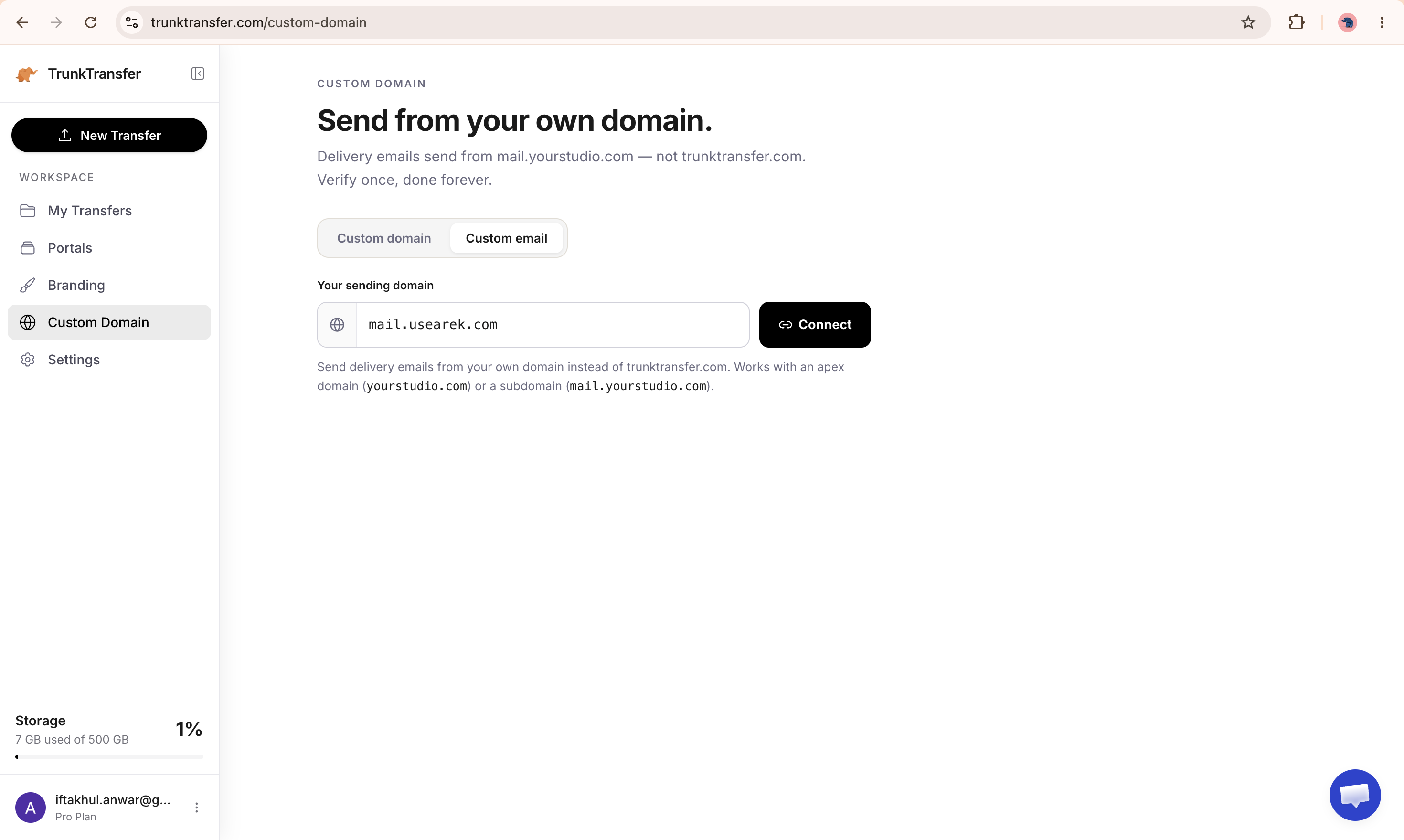
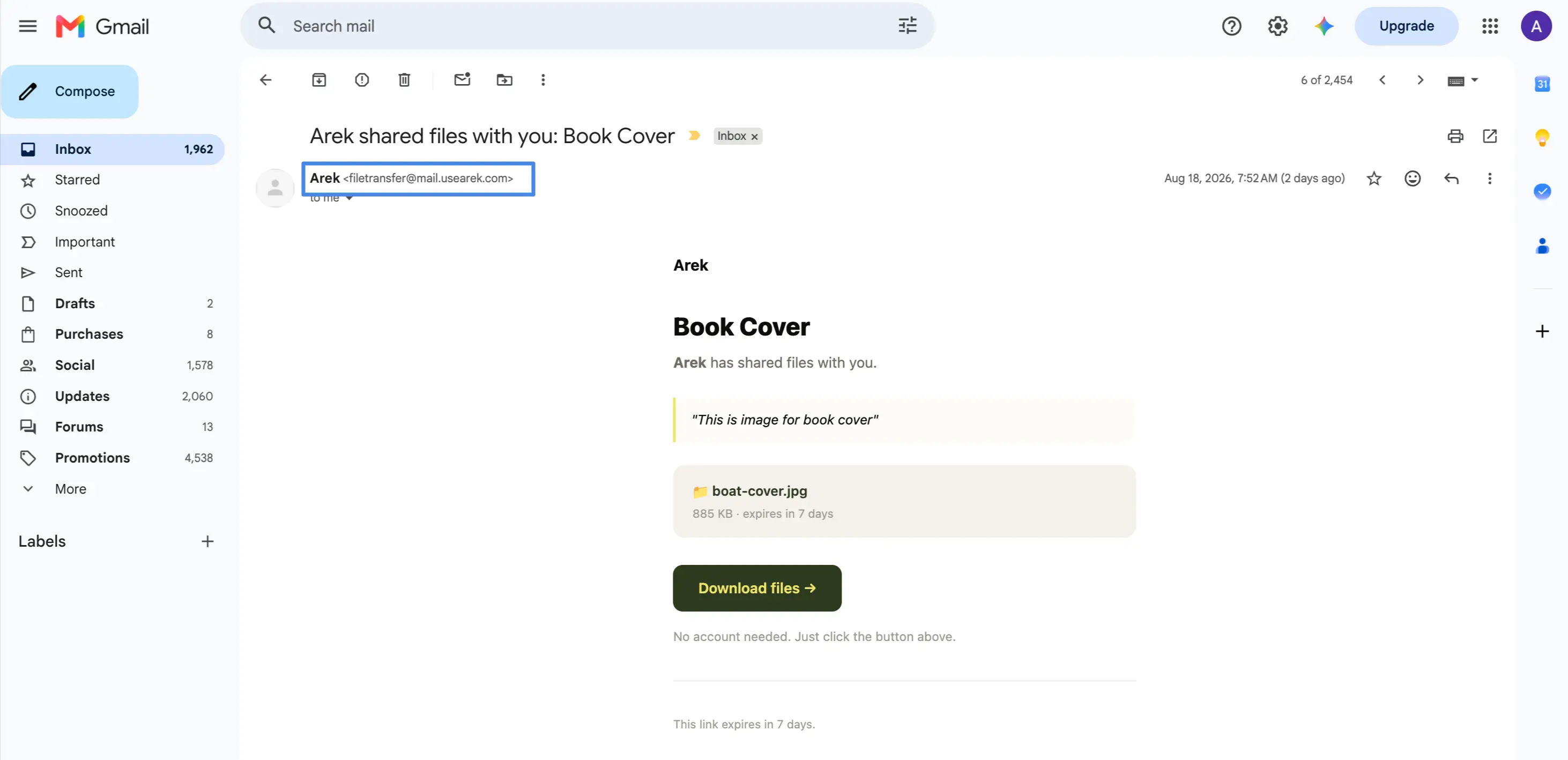
Send delivery emails, portal shares, and upload confirmations from your own domain instead of notifications@trunktransfer.com. Your client's inbox shows your address, not a third-party platform.
- Connect an apex domain (yourstudio.com) or a subdomain (mail.yourstudio.com)
- Choose the sending address yourself, e.g. delivery@yourstudio.com
- DNS verification checked automatically every 30 seconds until it's live
- Available on Pro plan
How to set it up
- Go to Custom Domain in the sidebar and enter your sending domain
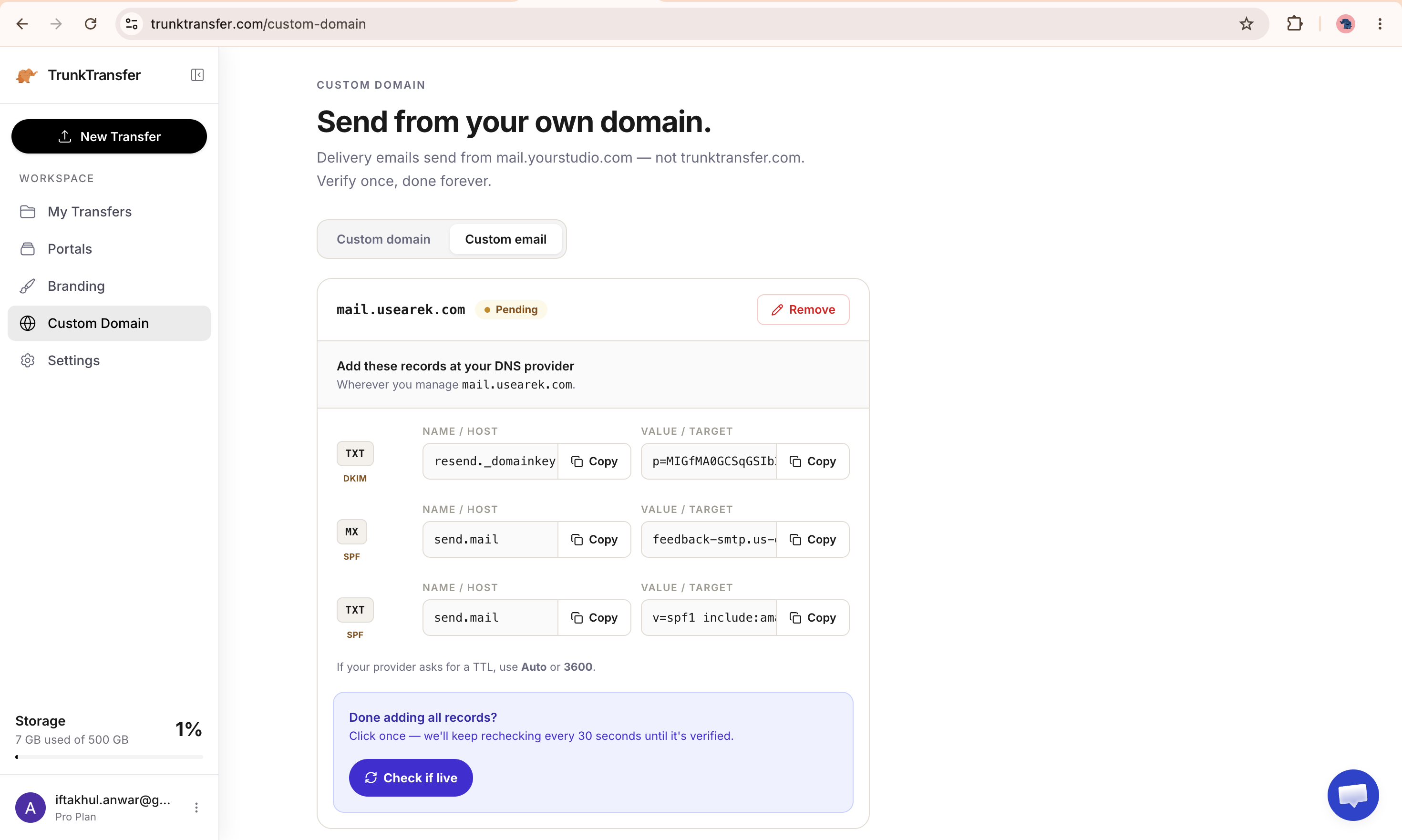
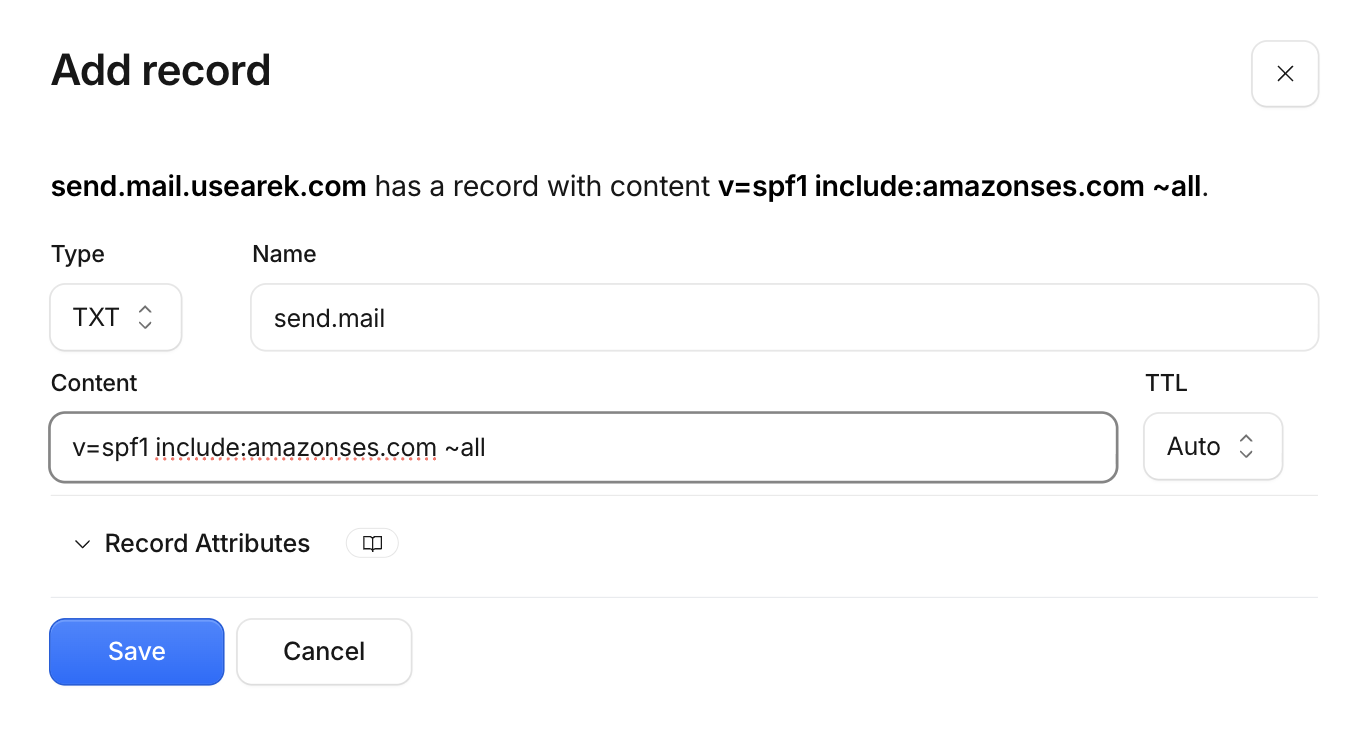
- Add the DNS records shown to your provider
- Once verified, pick the address delivery emails will send from and you're done
CC Recipients on Delivery Emails
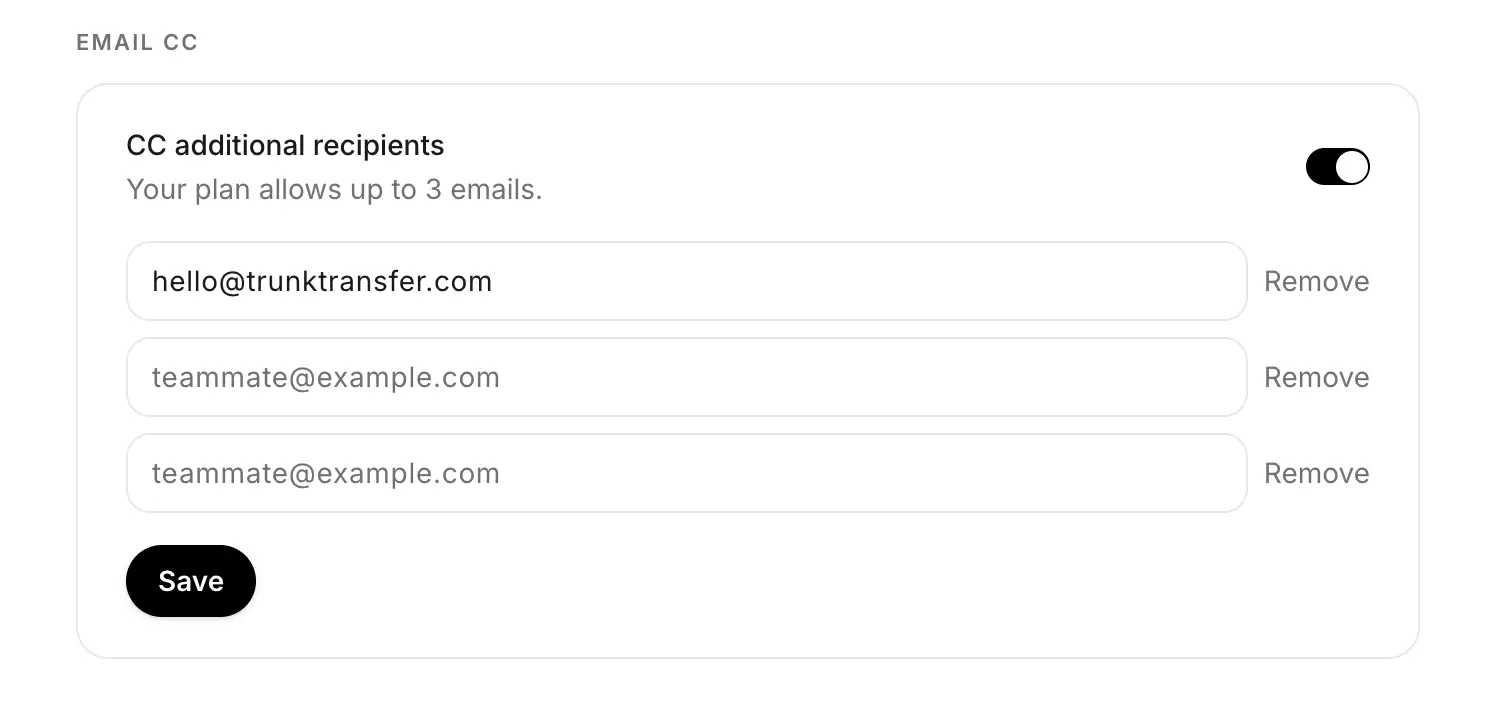
Add CC recipients to delivery emails so teammates or collaborators automatically get a copy whenever you send a transfer.
- Enable CC and add recipients in Settings, up to your plan's limit (1 for Starter plan, 3 for Pro plan)
- Applies automatically to delivery emails sent on upload
- Available on Starter and Pro
Custom Domain Homepage
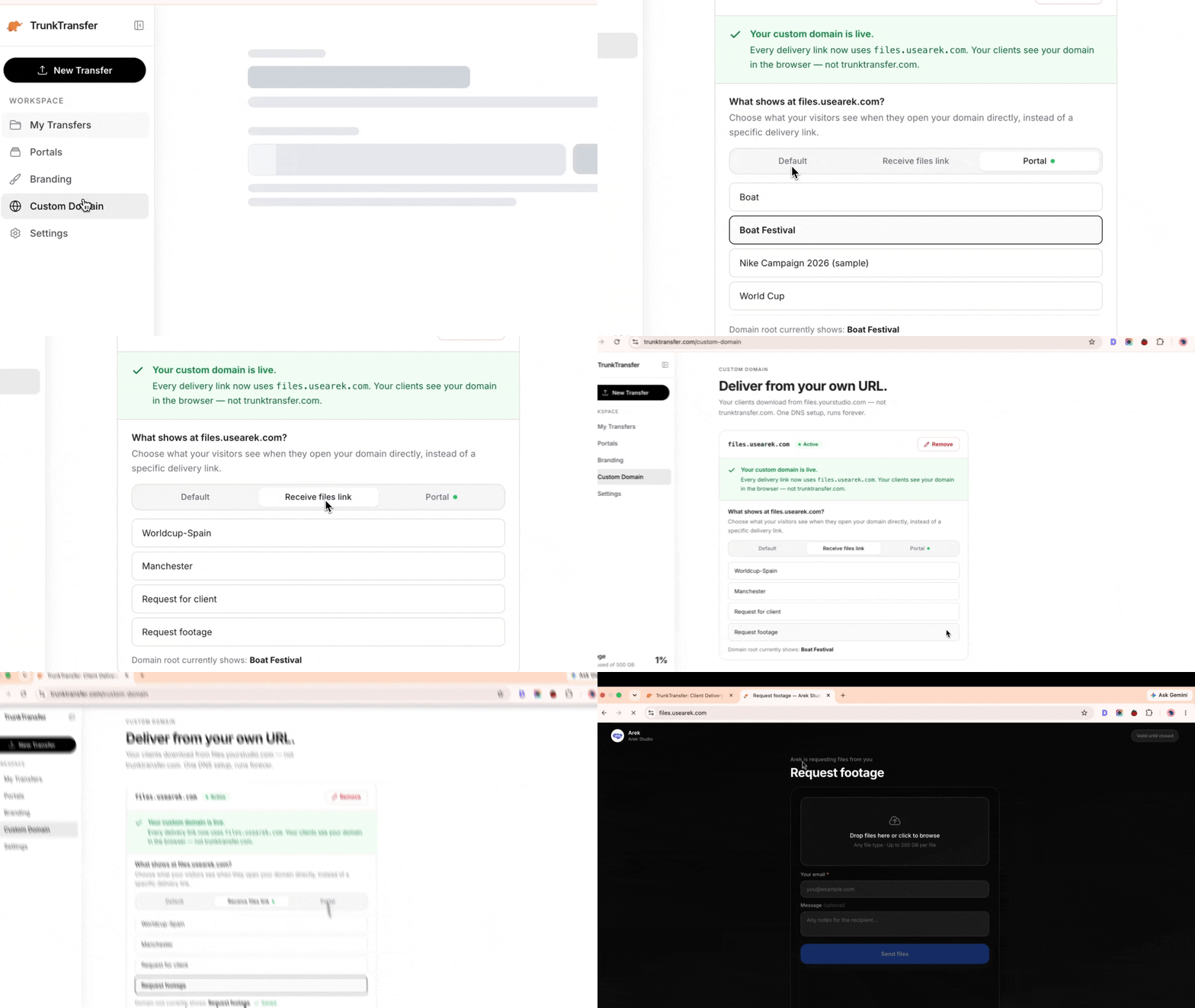
Set what your custom domain shows at its root URL (files.yourstudio.com) . Point it at a Receive Files link or a Client Portal so anyone who lands on your bare domain sees something branded and useful, not a dead page.
- Choose a Receive Files link or Portal as your domain's homepage
- Falls back automatically to the default page if the target expires or is unpublished
- Available on Pro
How to set it up
- Go to the Custom domain menu in the sidebar
- In the section "What shows at files.yourstudio.com?", pick one of the options: Default, Request file link, or Portal
- If you choose Request file link or Portal, select which one you want to be the default homepage
Custom Link Slugs
Pro plans can now choose their own link slug instead of getting a random string of characters. Available anywhere Trunk generates a link: transfers, client portals, and file requests.
Transfers
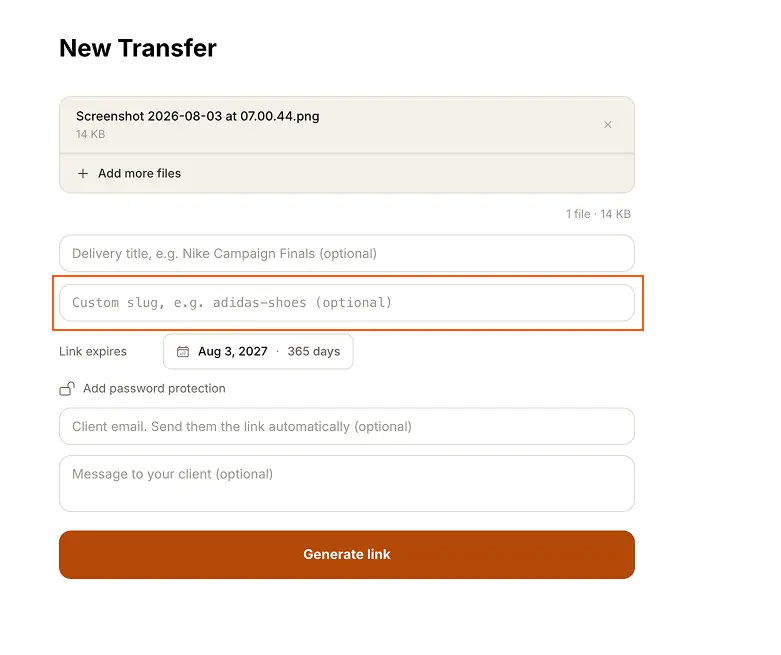
When creating a new transfer, Pro users see a custom slug field alongside the delivery title. Leave it blank and Trunk generates a random slug as usual, or set your own, like nike-shoes, so the link reads trunktransfer.com/d/nike-shoes instead of trunktransfer.com/d/x7j2k9.
Client portals
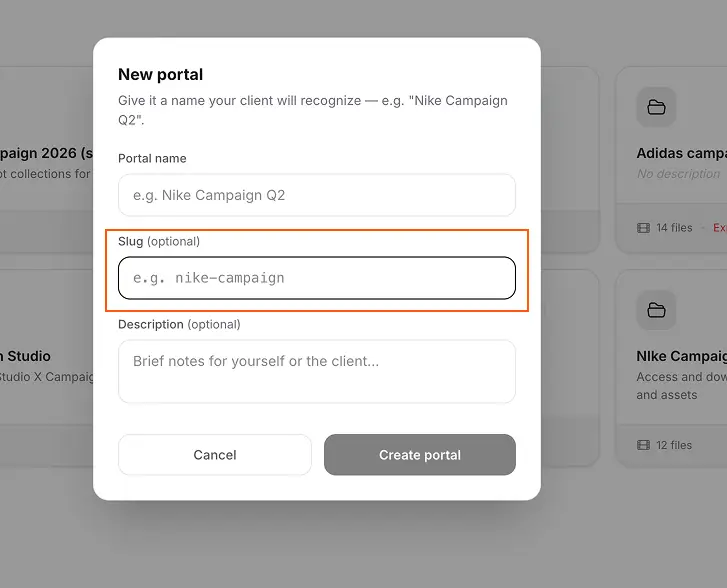
The same field appears when creating a new portal. A portal slug like nike-campaign gives every client a link they'll recognize at a glance, instead of a random ID.
File requests
Custom slugs also work on request links, so the upload link you send a client can read trunktransfer.com/r/nike-shoot instead of a random string.
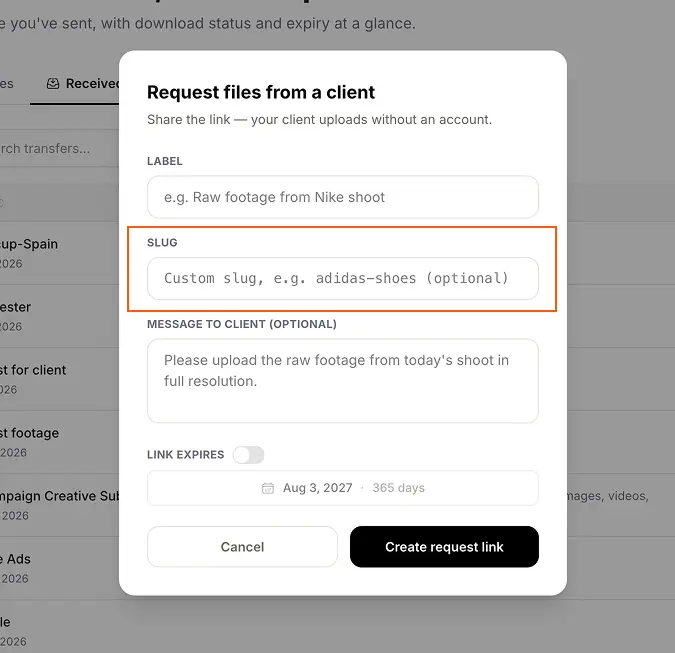
Live availability check
As you type, Trunk checks whether the slug is already taken and shows the result immediately: "Available" or "Already in use, try a different slug." Slugs are lowercase letters, numbers, and hyphens only, 3 to 100 characters.
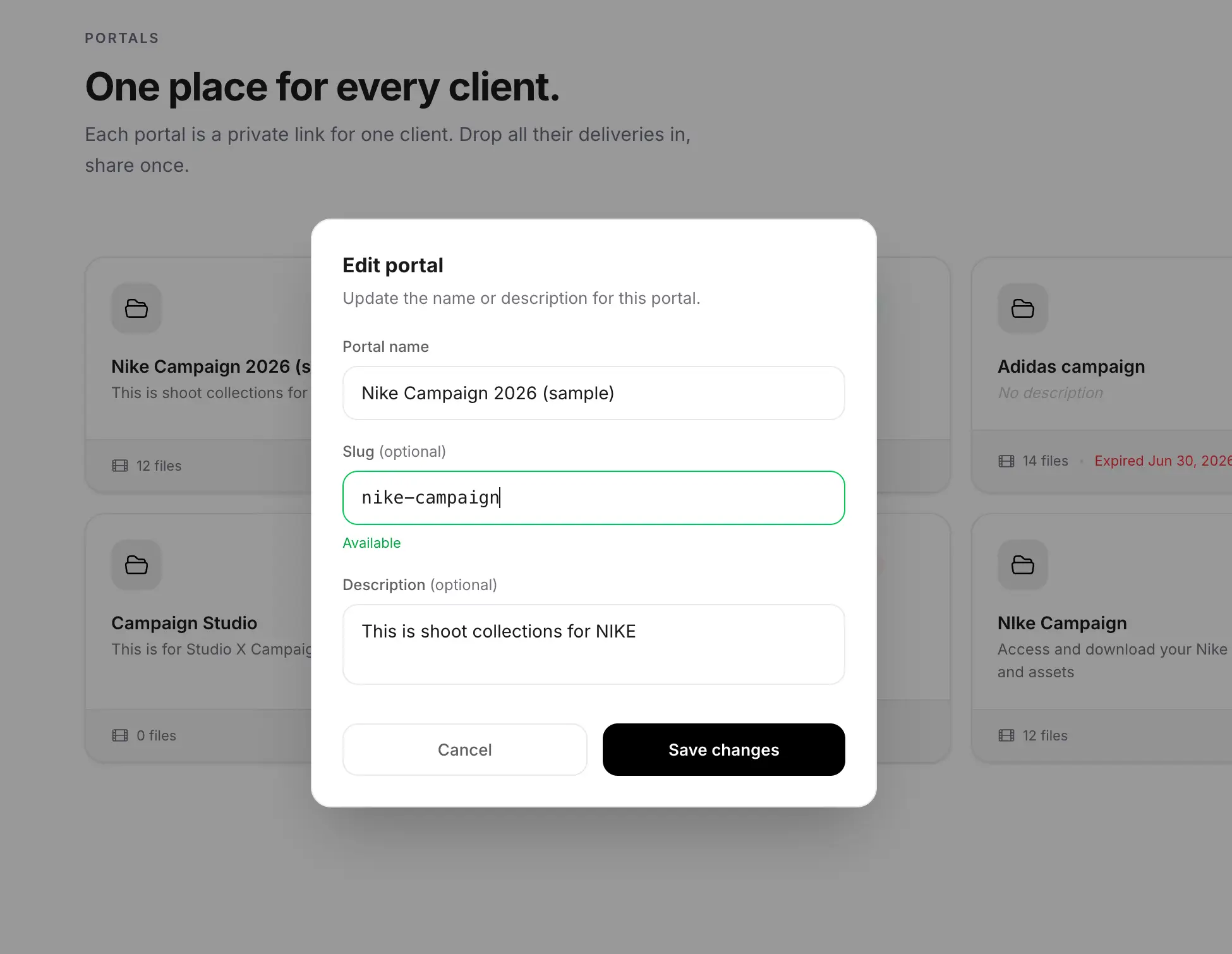
Works with a custom domain
If you've connected a custom domain, custom slugs apply there too: files.yourstudio.com/d/nike-shoes.
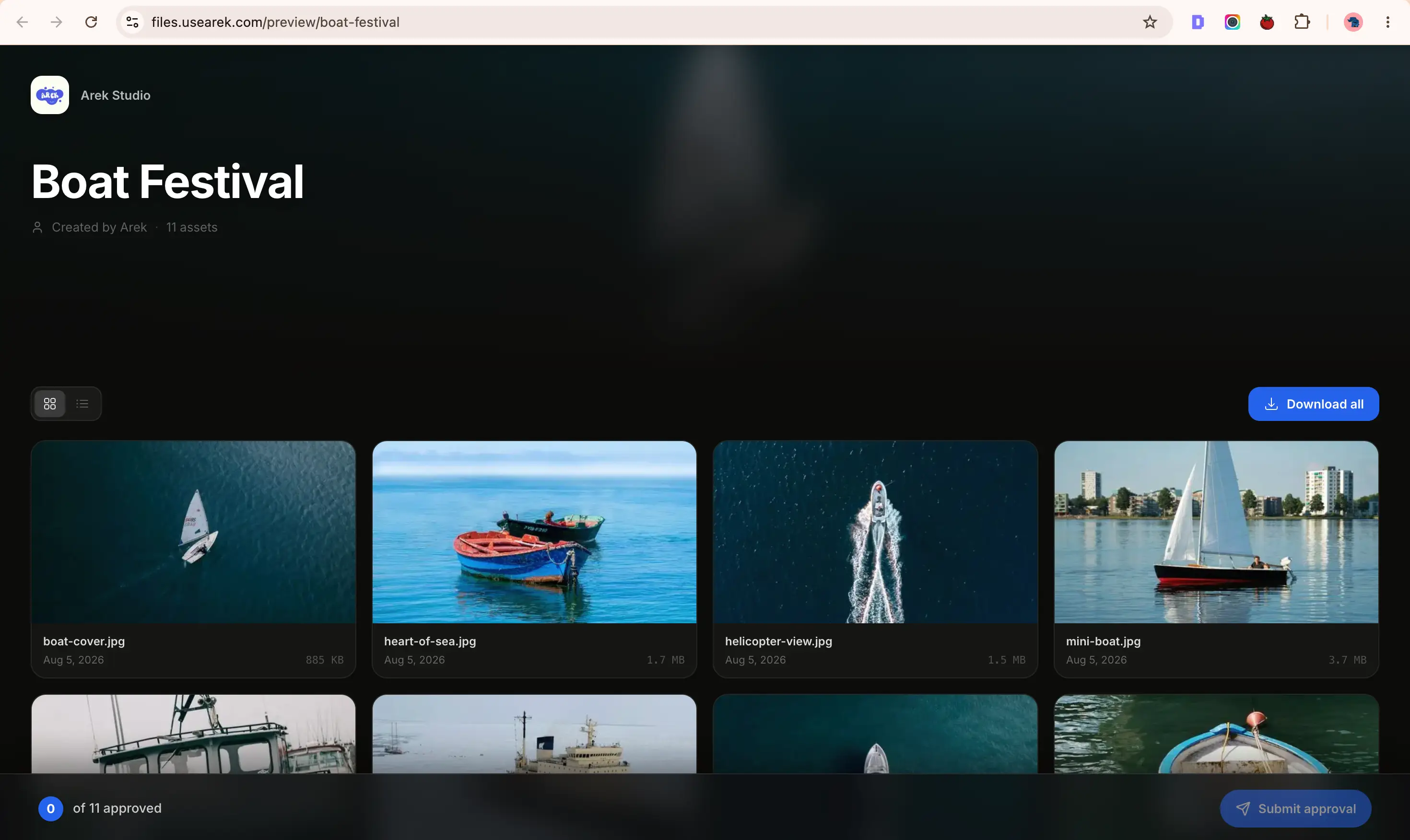
Custom link slugs are available on the Pro plan. Starter and Free plans continue to get random slugs.
June 2026
Client Portals: Comments, Approvals, and Notifications
Clients can now interact with files directly inside the portal. No account required on their end.
File approvals
Clients can mark any file as approved. The approval status appears on the file card so you can see at a glance which files have been signed off. Useful for brand deliveries, final video cuts, and anything that needs an explicit client sign-off before the project closes.
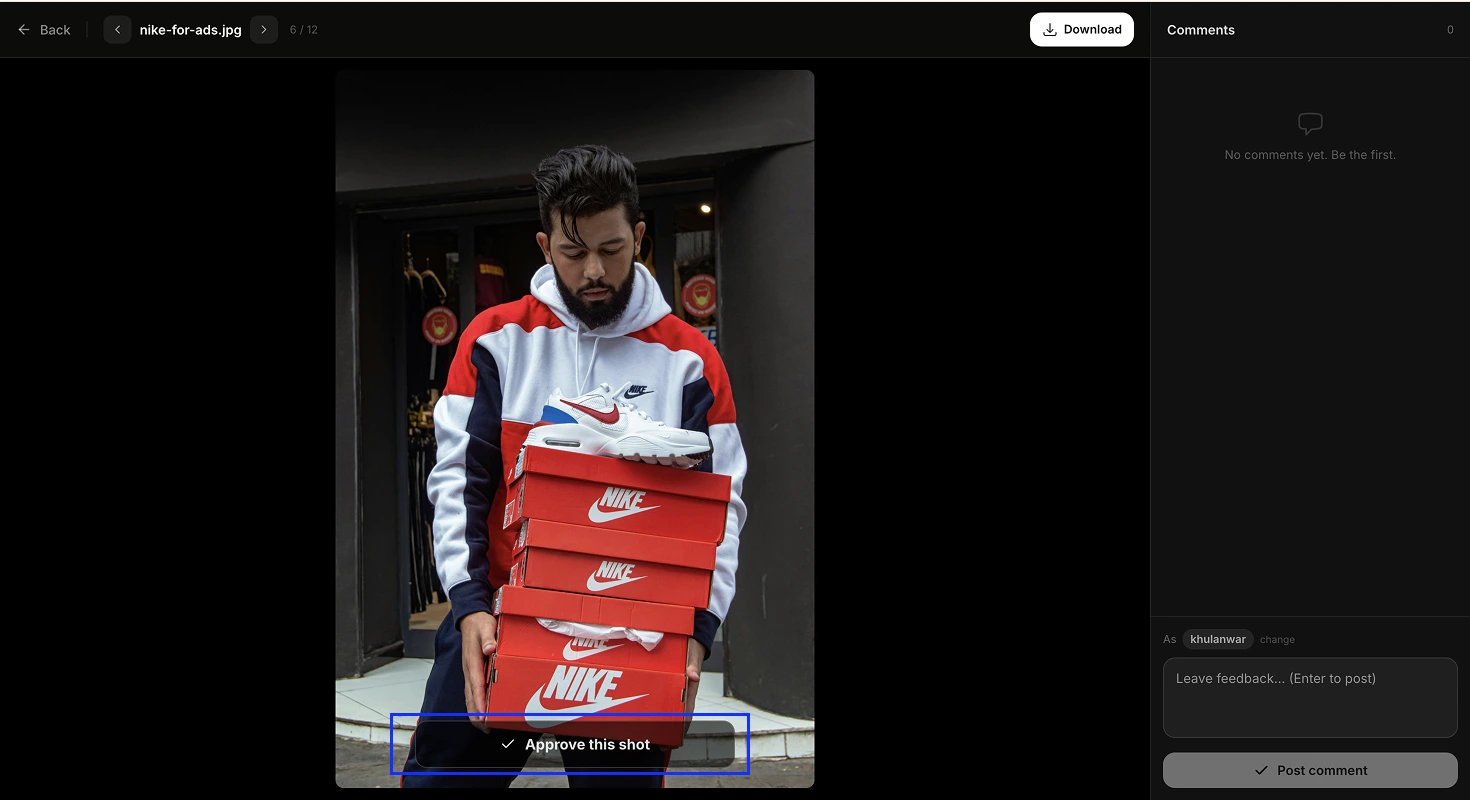
Comments per file
Clients can leave a comment on any file in the portal. Comments are attached to the specific file, not the portal as a whole.
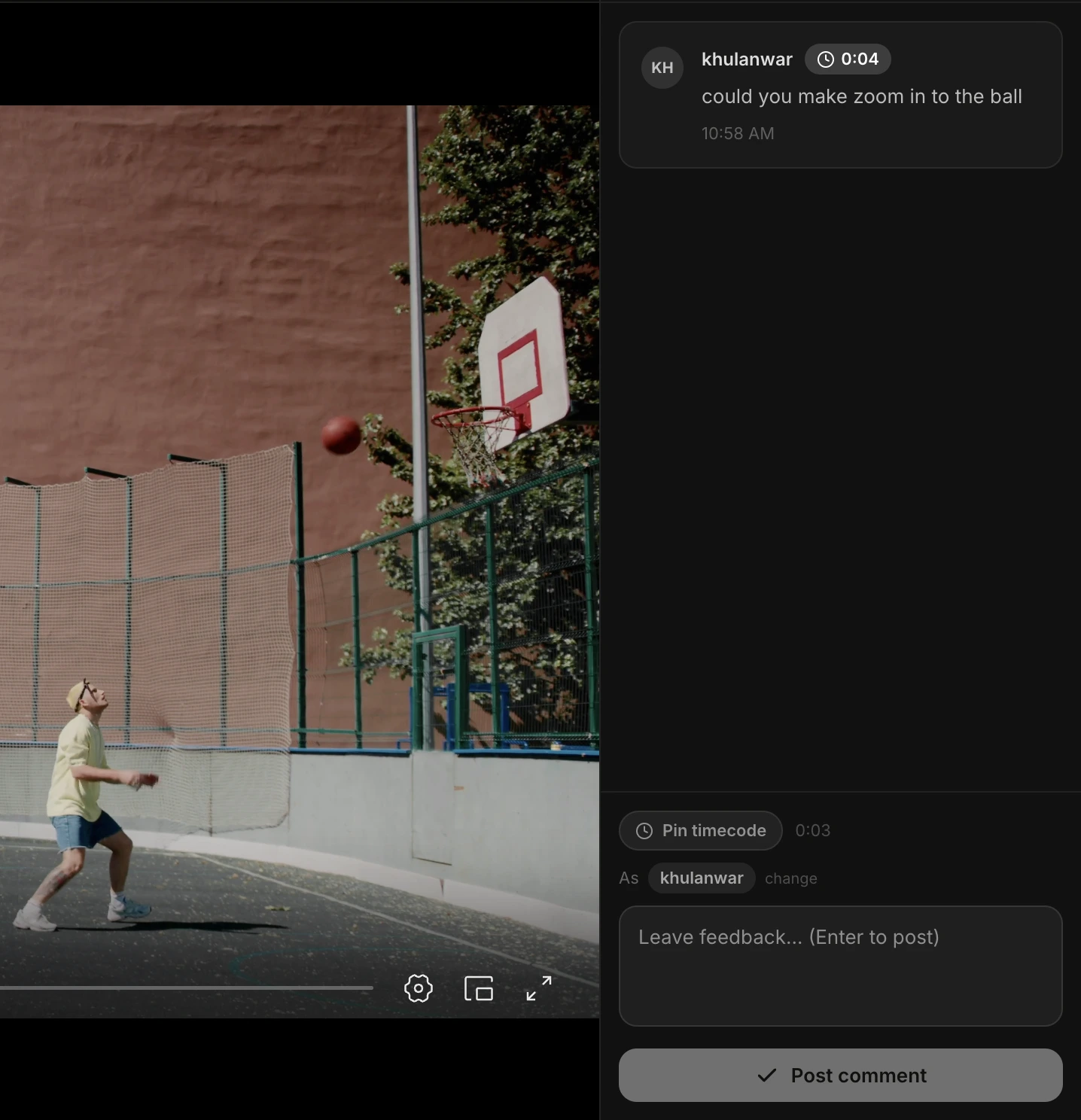
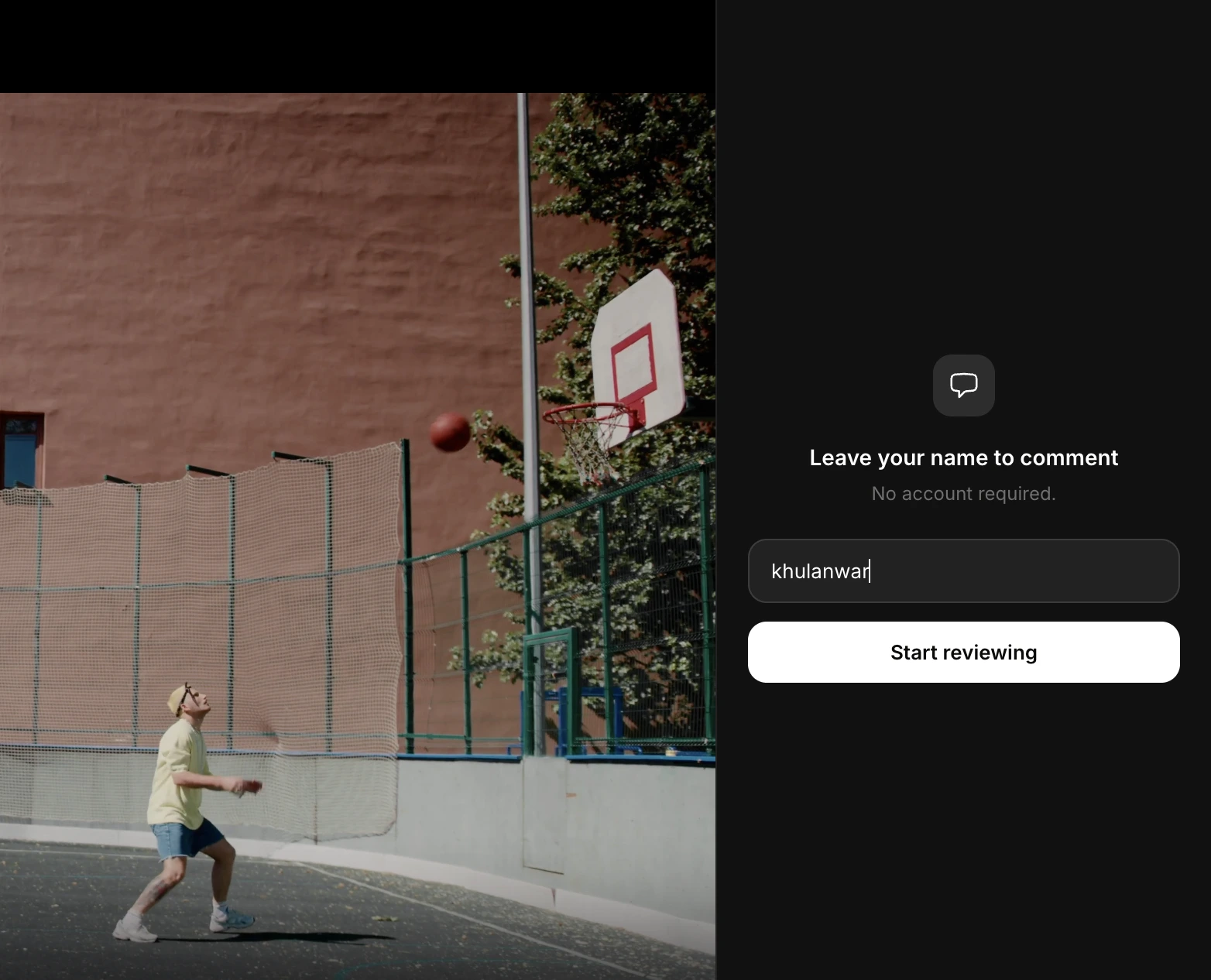
Before posting their first comment, the client is asked to enter a display name. This is not a login or an account. It is a single name field so comments are attributed to a person rather than posted anonymously. The name is stored locally in their browser and reused on subsequent visits. No password, no email, no signup of any kind.
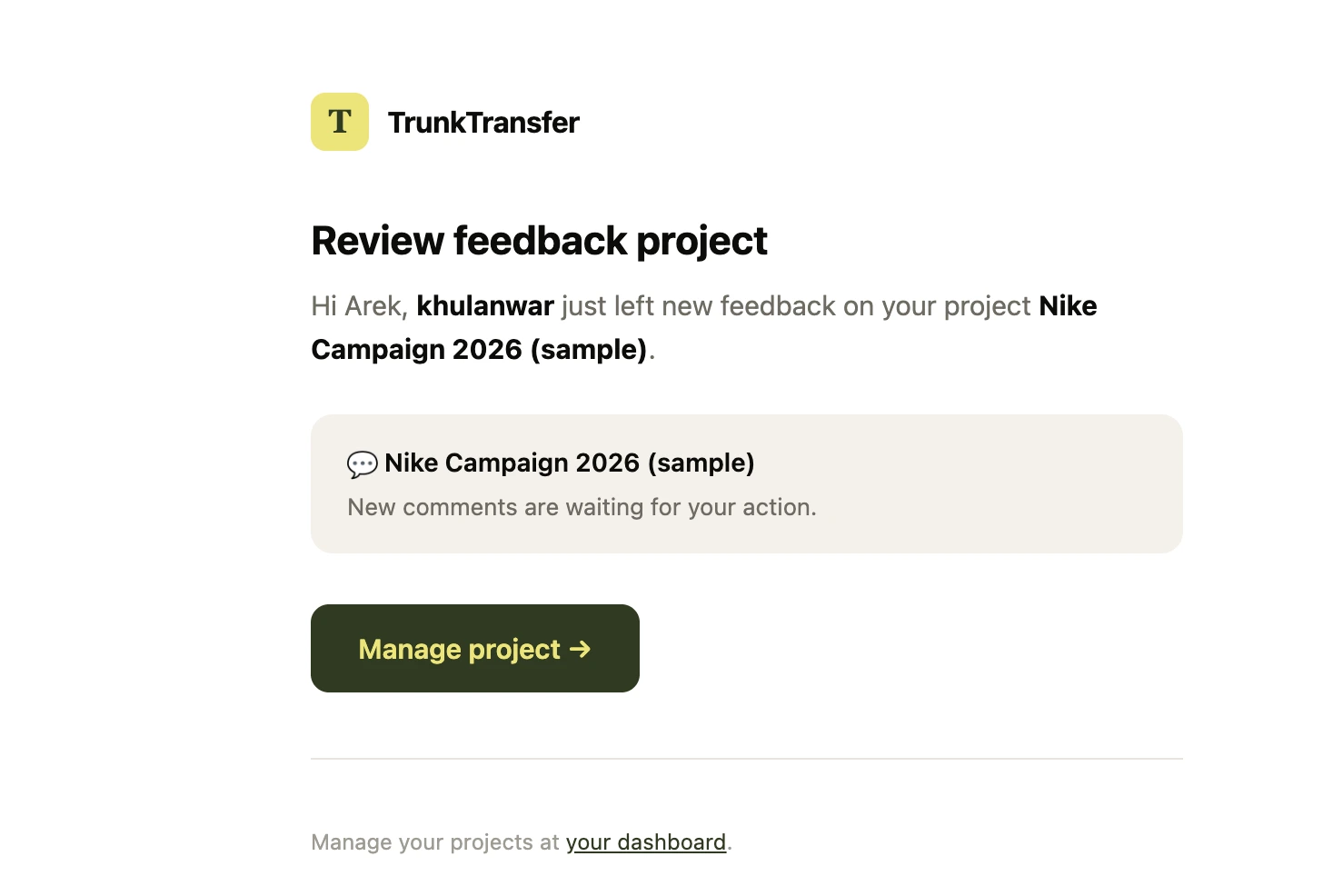
Owner notifications
When a client accesses the portal and identifies themselves, you receive an email notification. You know who opened the portal and when, without having to follow up asking if they received everything.
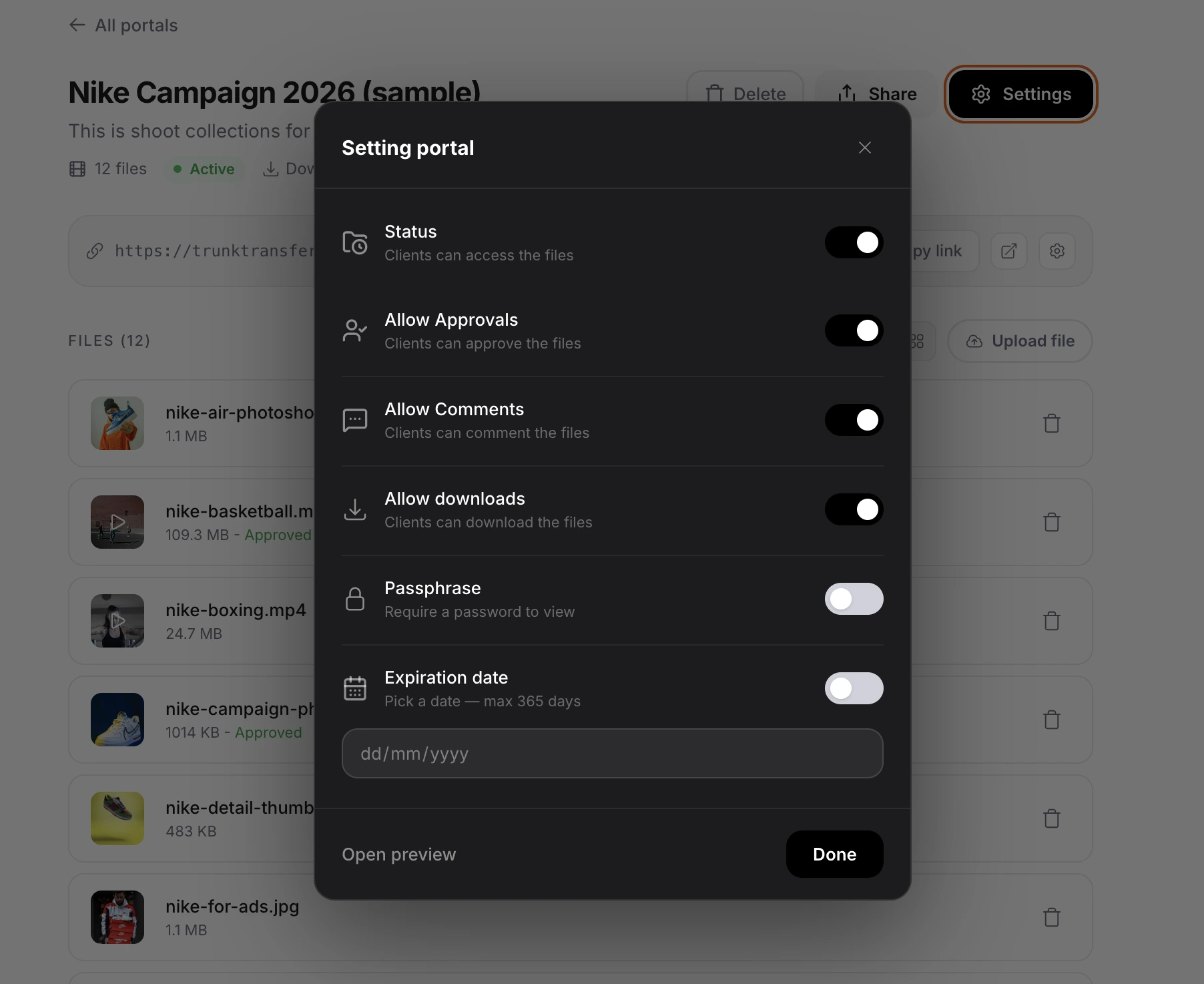
Both features are optional
Comments and approvals can be enabled or disabled per portal in portal settings. If you want a clean download-only portal, turn both off. If you want client feedback, turn them on. The default is off.
May 2026
Request Files: Improvements
The Request Files feature got a significant update. Clients now land on a fully branded upload page that reflects your studio profile, and request links no longer expire by default so clients can upload at their own pace.
- Request links no longer expire automatically — set a custom expiry or leave open
- Branded upload page shows your studio name, logo, and background
- Received files dashboard redesigned with grid and list view
- Click any received file row to preview it directly
- Files are grouped by request with clear status indicators
Request links no longer expire automatically
You can now keep a request link open indefinitely. The form stays active until you close it manually.
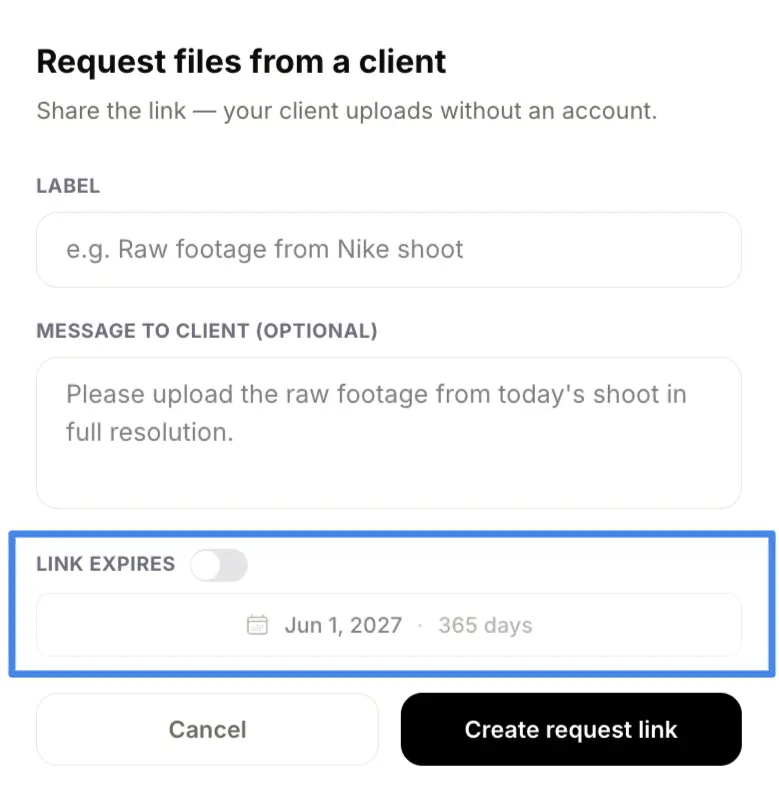
Note: the link staying active does not affect file expiry. Files uploaded by your clients still expire based on your plan - 30 days on Starter.
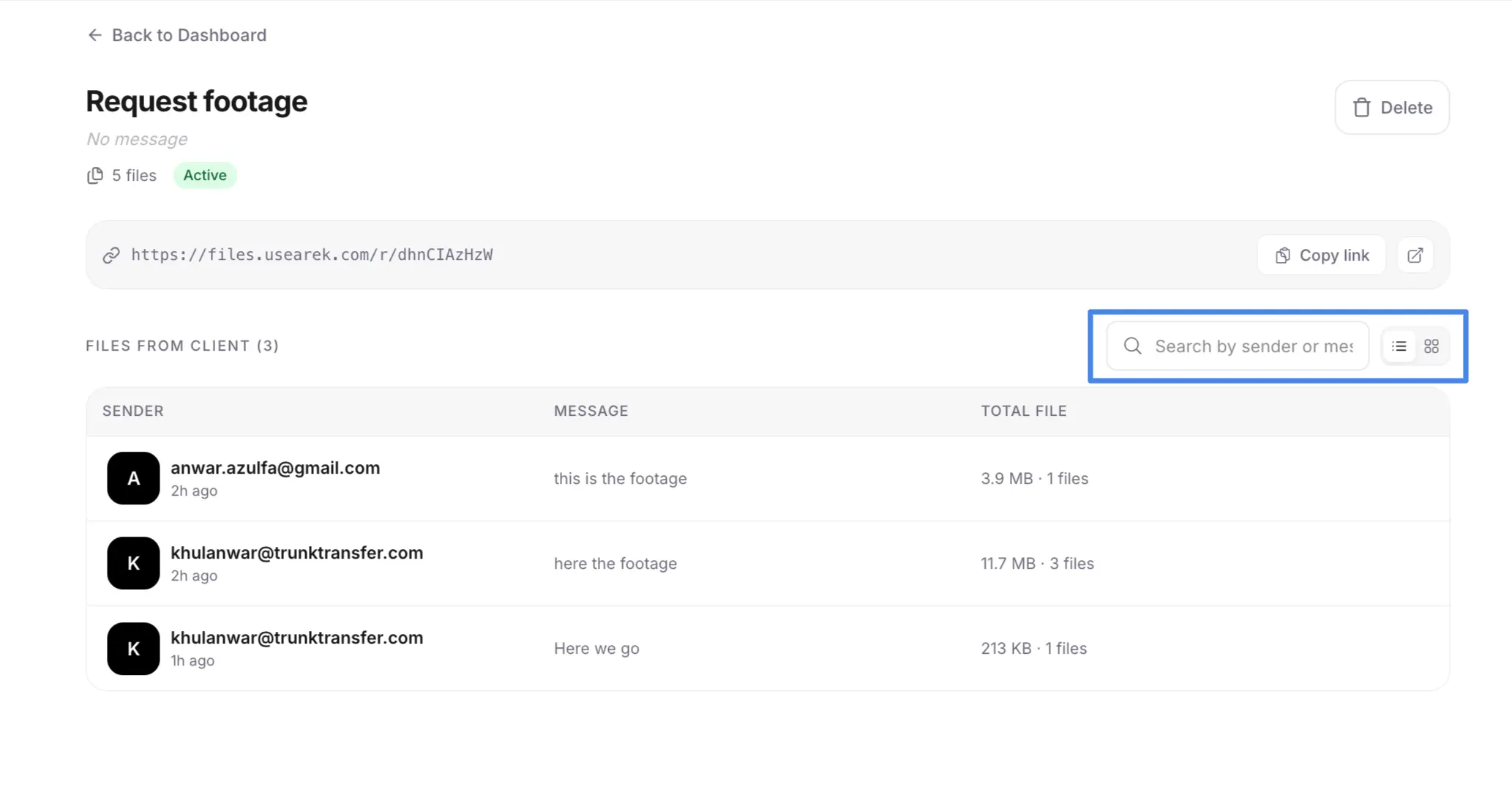
Search by email
You can switch between grid and list view, and search by email to quickly find who sent you a file.
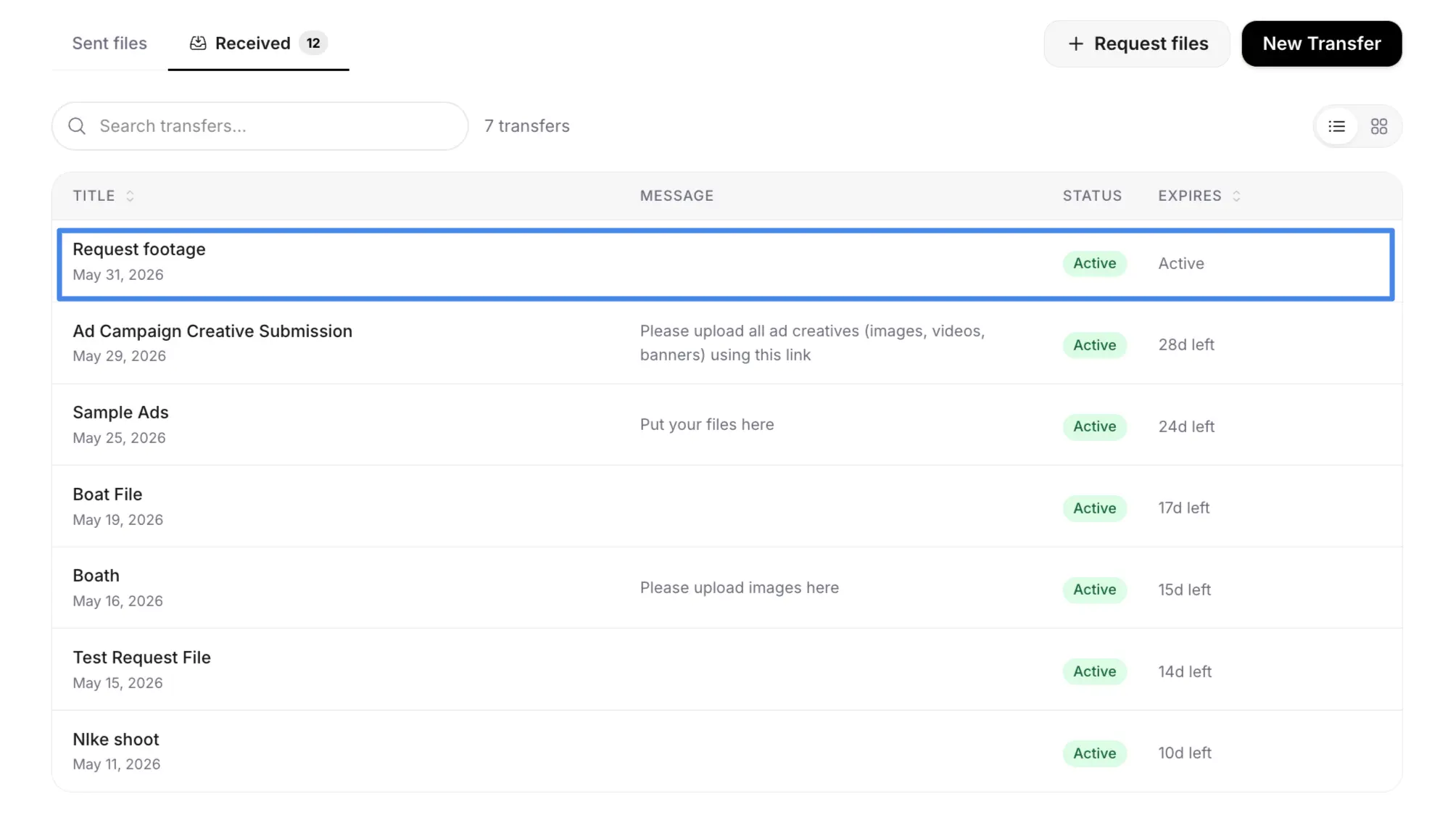
Click any row to preview
Click on any received file row to open a detail view and preview the file directly.
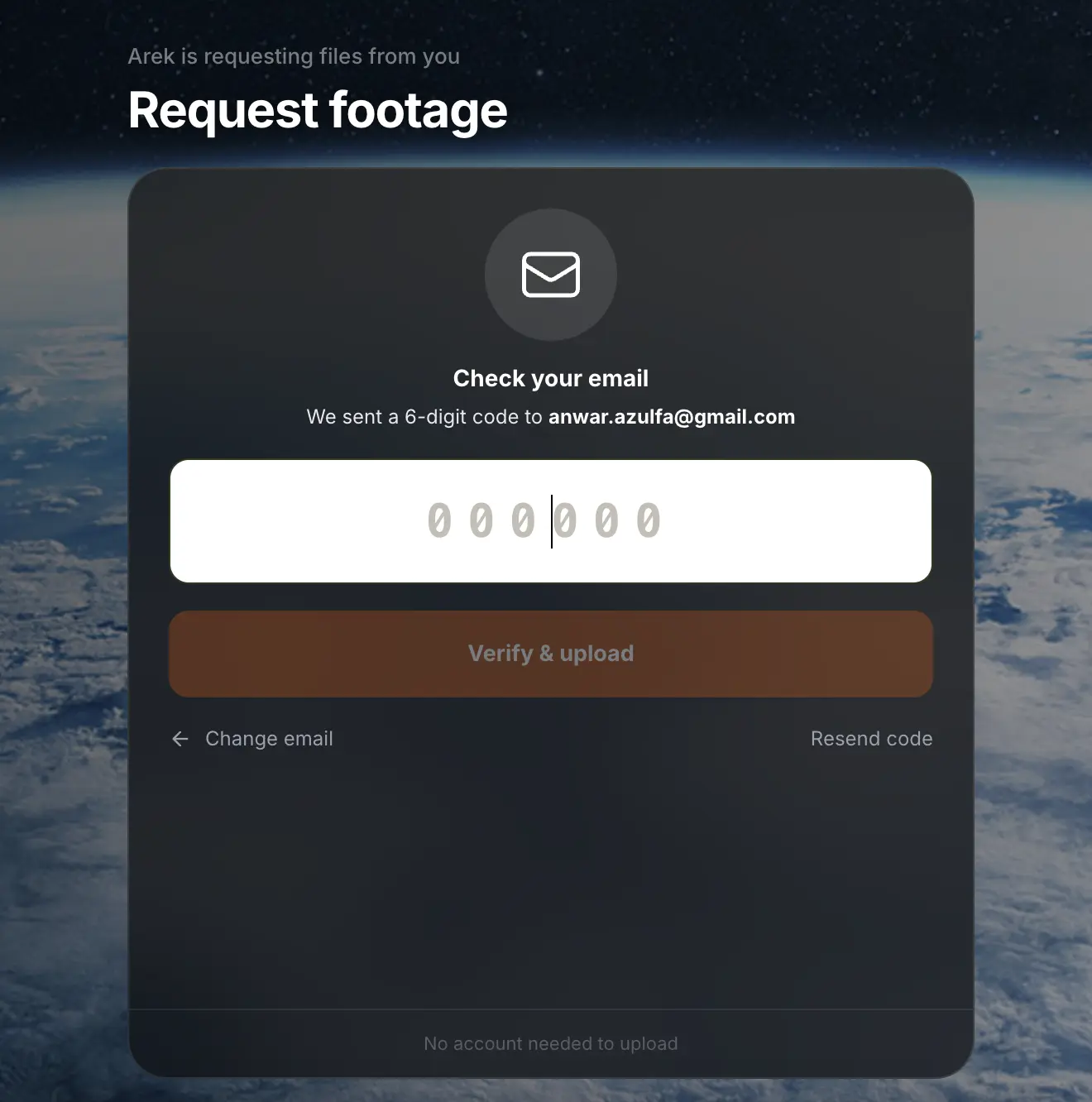
Email verification for senders
To prevent spam, clients are now asked to verify their email before uploading. This ensures you only receive files from real senders.
Client Portals (v1)
Organise all deliveries for a client under one permanent URL. Your client bookmarks it once and always knows where to find their files.
- Create a named portal per client or project
- All transfers added to a portal appear in one place
- Persistent URL that never changes
- Password protection per portal
- No client account required to access
Receive Files from Clients
Share a personal upload URL with clients. They send raw footage, assets, or briefs directly to you without needing an account.
- Personal upload URL at
/r/[your-username] - Client uploads without creating an account
- Files land in your dashboard automatically
- Email notification when a client uploads
- Starter plan only
April 2026
Custom Domain for Delivery Pages
Connect your own domain so clients open files.yourstudio.com instead of trunktransfer.com. Your brand in the address bar at every delivery.
- CNAME setup with guided DNS instructions
- Auto-polling until domain goes live
- Email confirmation when domain is active
- Available on Starter plan
Expiry Warning Email
Get an email 3 days before a delivery link expires so you can re-send in time. No more clients missing their files because a link quietly expired.
Resumable Uploads
If your connection drops mid-upload, Trunk picks up from where it left off. No starting over on large files.
- Completed chunks saved in browser storage
- Resume automatically on reconnect or page refresh
- Works for files of any size
- Shows "Resuming from X%" instead of restarting from zero
March 2026
Upload Speed and Time Remaining
See your upload speed and estimated time remaining while sending large files. No more guessing how long a 10 GB export will take.
Branded Download Page
Starter users can add their studio name, logo, and a personal message to every delivery page. Clients see your brand, not TrunkTransfer.
- Upload your logo and set your display name
- Optional background image
- Optional personal message per delivery
- Zero TrunkTransfer branding visible to client
Download Notification
Get an email the moment your client downloads their files. Know when delivery is confirmed without following up.
Password Protection
Add a password to any delivery link. Clients enter it before they can download. Keep unreleased work private.
Longer Download Windows for Large Files
Download links now stay valid for 4 hours on Free and 12 hours on Starter. Previously 15 minutes, which caused failures on large file downloads on slower connections.
TrunkTransfer Launches
TrunkTransfer is live. Send files up to 3 GB for free, no client account required. Starter plan available at $9/month for 200 GB transfers, 30-day links, and branded delivery.
- Free plan: up to 3 GB per transfer, 7-day links
- Starter plan: up to 200 GB per transfer, 30-day links
- No account required for clients to download
- Direct upload to Cloudflare R2, files never touch the server
- AES-256 encryption at rest