

When a client clicks your delivery link, what do they see in the address bar?
If it shows wetransfer.com, drive.google.com, or any other third-party domain, you have handed the final impression of your project to someone else's brand.
A custom domain fixes this. Instead of a generic URL, the client sees files.youragency.com. The delivery link belongs to you. The URL reinforces your agency name at the exact moment the client is most engaged with your work.
This guide covers exactly how to set it up, step by step, with no coding required.
This article is part of the complete guide to client file delivery for creative agencies.
What a custom domain for file delivery actually is
A custom domain for file delivery means your delivery links use your own subdomain instead of a third-party platform's URL.
Instead of: trunktransfer.com/d/abc123xyz
Your client sees: files.youragency.com/d/abc123xyz
The files are still hosted and delivered by TrunkTransfer. The domain is yours. The client's experience is entirely within your brand.
The most common subdomain for this purpose is files, giving you files.youragency.com. You can use any subdomain you like: deliver.youragency.com, work.youragency.com, studio.youragency.com. The choice is yours.
What a CNAME record is, in plain English
You do not need to understand DNS in depth to complete this setup. But understanding one concept makes the process much less confusing: the CNAME record.
A CNAME (Canonical Name) record is an instruction you add to your domain's settings that says: "when someone visits this subdomain, send them to this other address."
In this case, the instruction is: "when someone visits files.youragency.com, deliver it through TrunkTransfer's servers."
You are not moving your website. You are not changing anything about your main domain. You are adding a single line to your DNS settings that points one specific subdomain to TrunkTransfer.
That is all a CNAME record does.
What you need before you start
Before beginning the setup, confirm you have the following:
- A TrunkTransfer account on the Starter or Pro plan (custom domain is available from the Starter plan at $9/month). Checkout here
- Access to your domain registrar's DNS settings (GoDaddy, Namecheap, Cloudflare, or wherever your domain is registered)
- A subdomain in mind (most agencies use
files.youragency.com) - 15 minutes of uninterrupted time
You do not need a developer. You do not need technical knowledge beyond following the steps below.
Step 1: Add your custom domain in TrunkTransfer
- Log in to your TrunkTransfer account at trunktransfer.com
- Navigate to Custom Domain
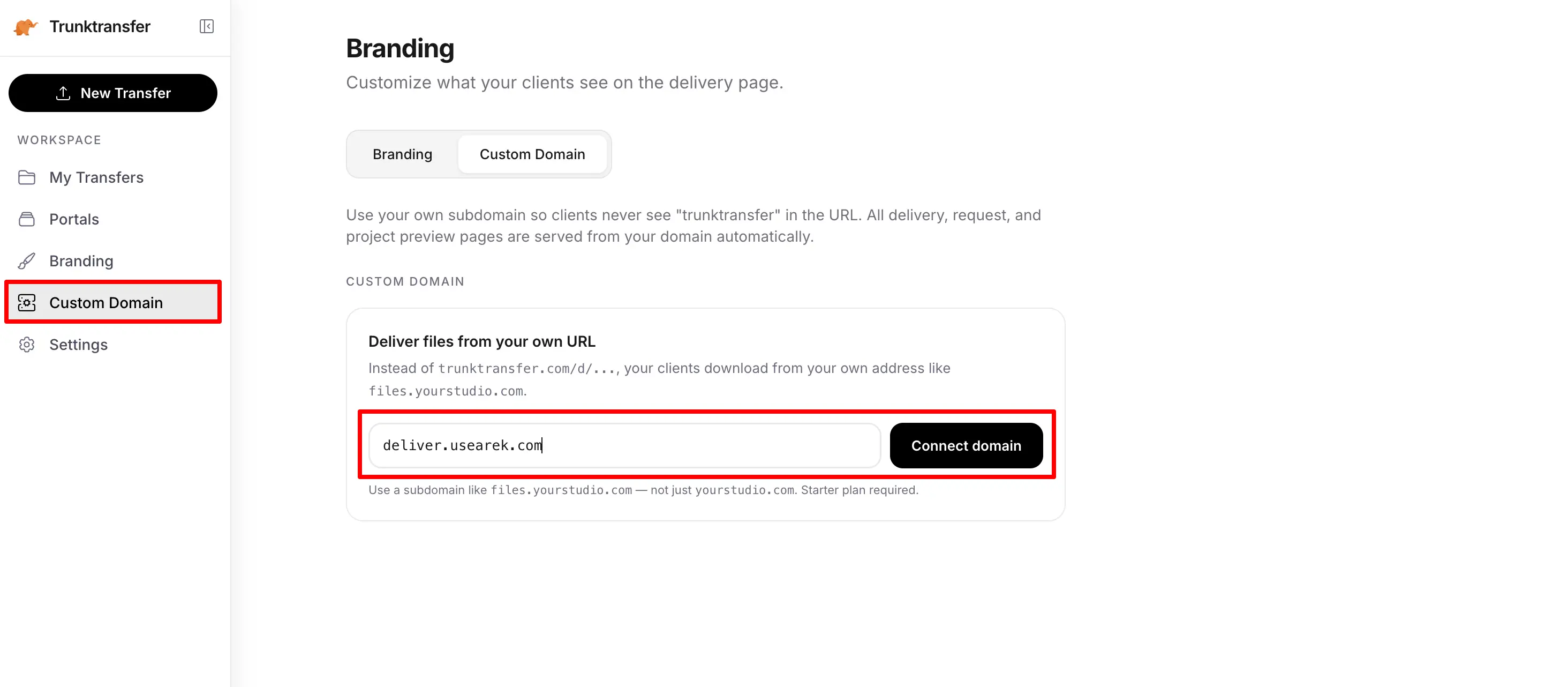
- In the custom domain field, enter the full subdomain you want to use: for example,
files.youragency.com - Click Save or Add Domain
- TrunkTransfer will generate a CNAME target value for you. It will look something like below:
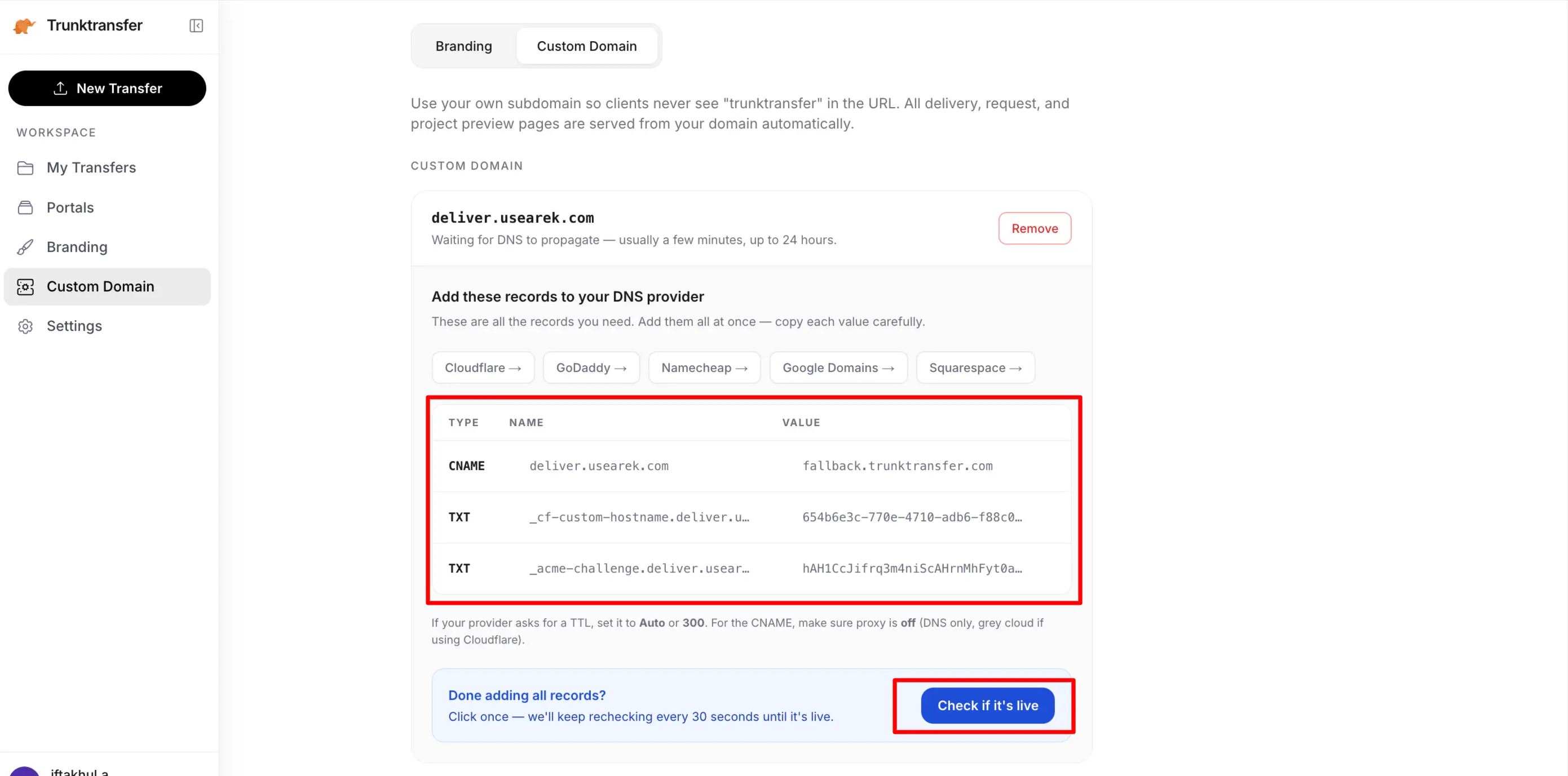
Copy this CNAME target value. You will need it in the next step.
Step 2: Add the CNAME record at your DNS provider
This step sounds technical but takes about three minutes in practice. In every case, you are adding a record with two pieces of information:
- Name / Host: the subdomain prefix only, without your main domain. If your subdomain is
files.youragency.com, enter justfiles. - Value / Target / Points to: the CNAME target value you copied from TrunkTransfer in Step 1.
Follow the instructions for your domain provider:
- GoDaddy: Add a CNAME record
- Namecheap: Add a CNAME record
- Cloudflare: Add a CNAME record
- Squarespace: Add a CNAME record
For all other registrars
The process is the same regardless of which registrar you use. Find the DNS management section, add a new CNAME record, set the Name/Host to your subdomain prefix, and set the Value/Target to the CNAME value from TrunkTransfer. If your registrar's interface looks different from the descriptions above, look for a "Add record" or "Add DNS record" button and follow the same pattern.
Step 3: Verify in TrunkTransfer
Once you have saved the CNAME record at your registrar:
- Return to TrunkTransfer's custom domain settings
- Click Check if it's live
- TrunkTransfer will check whether your CNAME record has propagated and is pointing correctly
If verification succeeds, your custom domain is active. If it fails, it usually means DNS has not propagated yet. This is normal. See the propagation section below.
TrunkTransfer will also provision an SSL certificate for your subdomain automatically. This means your delivery links will be served over HTTPS at no extra cost or configuration on your end.
Understanding DNS propagation
After adding the CNAME record, there is a waiting period before it becomes active everywhere on the internet. This is called DNS propagation.
Propagation typically takes between 30 minutes and 48 hours, depending on your registrar and your previous TTL settings. In most cases, you will see the domain working within a few hours.
During propagation, TrunkTransfer's verification check may fail even though the record was set up correctly. This is normal. Wait a few hours and check again before troubleshooting.
To check propagation status without waiting:
Visit whatsmydns.net and enter your full subdomain (e.g. files.youragency.com). Select CNAME from the dropdown and click Search. The tool shows whether your CNAME record has propagated across DNS servers in different regions. When most results show a green tick and the correct target value, propagation is complete.
Step 4: Send your first branded delivery
Once TrunkTransfer confirms your domain is active, your next delivery link will automatically use your custom domain.
Test it by creating a test delivery in TrunkTransfer and copying the link. The URL should read files.youragency.com/... rather than a TrunkTransfer domain.
Send it to yourself first. Click through on both desktop and mobile. Confirm the delivery page shows your agency branding and that the download works correctly on both.
Once confirmed, every delivery you send through TrunkTransfer will automatically use your custom domain.
Troubleshooting common issues
The verification check keeps failing after several hours
Check that the CNAME record Name/Host field contains only the subdomain prefix, not the full domain. For files.youragency.com, the Name should be files, not files.youragency.com. Some registrars automatically append your main domain, so entering the full subdomain creates a record for files.youragency.com.youragency.com. If the Name field already shows your full domain as a suffix, enter only the prefix.
Cloudflare is showing a certificate error
This is almost always caused by having the Cloudflare proxy turned on (the orange cloud) instead of DNS only (the grey cloud). Edit the CNAME record and switch Proxy status to DNS only. Wait 15 minutes and try again.
The domain is active but shows the wrong branding
Your browser may have cached the old page. Open the delivery link in a private or incognito window to see the current live version without cache.
The subdomain I want is already in use
If files.youragency.com is already used for something else, choose a different prefix: deliver, work, send, or studio are all clean alternatives. The choice does not affect the delivery experience.
Propagation has taken more than 48 hours
If more than 48 hours have passed and the domain is still not verifying, check the CNAME record at your registrar to confirm it was saved correctly. Then contact TrunkTransfer support with your domain details and the CNAME record you set up. In rare cases, registrar-specific configurations require a different approach.
Why this is worth the 15 minutes
Most branding investments at a creative agency take weeks: a website refresh, a new proposal template, a rebrand. A custom delivery domain takes 15 minutes and changes something the client sees on every single project.
Every delivery link you send after setup will read files.youragency.com. Over the course of a year, that URL appears in front of every client, every collaborator, and every stakeholder who receives your work. It reinforces your agency name at the moment of maximum engagement: when the client is opening the final deliverable.
No other branding investment at this price point reaches as many client touchpoints as consistently.
Which tool to use
TrunkTransfer is currently the only file delivery tool that offers custom domain support outside of an enterprise contract. The Starter plan at $9/month includes CNAME setup for your delivery links.
Smash offers custom domain support on their Enterprise plan only, which is custom-priced. Every other major file delivery tool, including WeTransfer, Dropbox Transfer, and MASV, does not offer custom domain support on any plan.
For a full comparison of tools on branding features, pricing, and transfer limits, see: Best file delivery tools for creative agencies.
Frequently Asked Questions
Do I need a developer to set this up?
No. The setup requires adding one CNAME record to your DNS settings, which is a standard task that does not require any coding or technical background. If you can log in to your domain registrar and follow the steps above, you can complete this yourself.
Will this affect my main website?
No. You are adding a subdomain (e.g. files.youragency.com), not changing anything about your main domain (youragency.com) or your website. Your existing website, email, and other services are completely unaffected.
Do I need to renew or manage the SSL certificate?
No. TrunkTransfer provisions and renews the SSL certificate for your custom subdomain automatically. You will never receive an expiry warning or need to take any action to keep HTTPS working.
Can I use my root domain (youragency.com) instead of a subdomain?
No. CNAME records cannot be used on root (apex) domains. You must use a subdomain such as files.youragency.com. This is a DNS standard limitation, not a TrunkTransfer restriction.
Can I change the subdomain later?
Yes. You can update the custom domain in TrunkTransfer's settings at any time. If you change it, update the CNAME record at your registrar to match the new subdomain. Old links using the previous subdomain will stop working, so communicate the change to any clients who may have saved delivery links.
For the complete guide to client file delivery including workflow, file organisation, and tool comparisons, see: Client File Delivery for Creative Agencies: The Complete Guide.


