

Sending a 10GB export to a marketing manager and then getting a reply that says "I cannot open this, it is asking me to log in" is a specific kind of frustration.
The file is fine. The problem is the tool you used to send it.
TrunkTransfer is built specifically for this situation. Your client gets a link. They click it. They download. No account. No friction.
Here is the full step-by-step process. If you are delivering large video files specifically, see our guide on how to send large video files to clients.
Step 1: Create a TrunkTransfer account and upload your files
Visit trunktransfer.com and start your 7-day free trial. Card required, no charge until the trial ends.
Once signed in, go to your dashboard and drag your files into the upload area. TrunkTransfer accepts any file type: MP4, MOV, ProRes, PSD, AI, EPS, TIFF, ZIP, PDF. Up to 200GB per transfer on Starter.
The upload goes directly to secure cloud storage. Your files never sit on a server waiting to be forwarded.
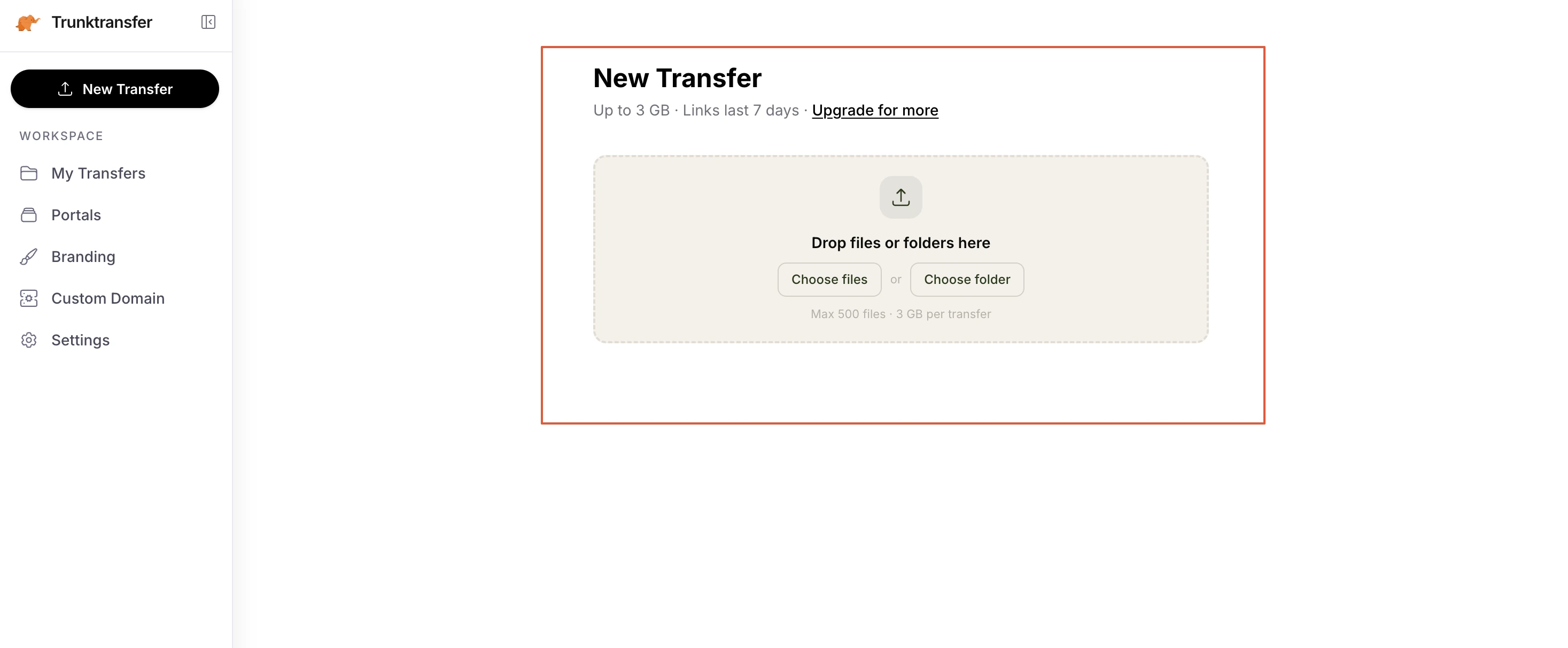
Step 2: Set the expiry window
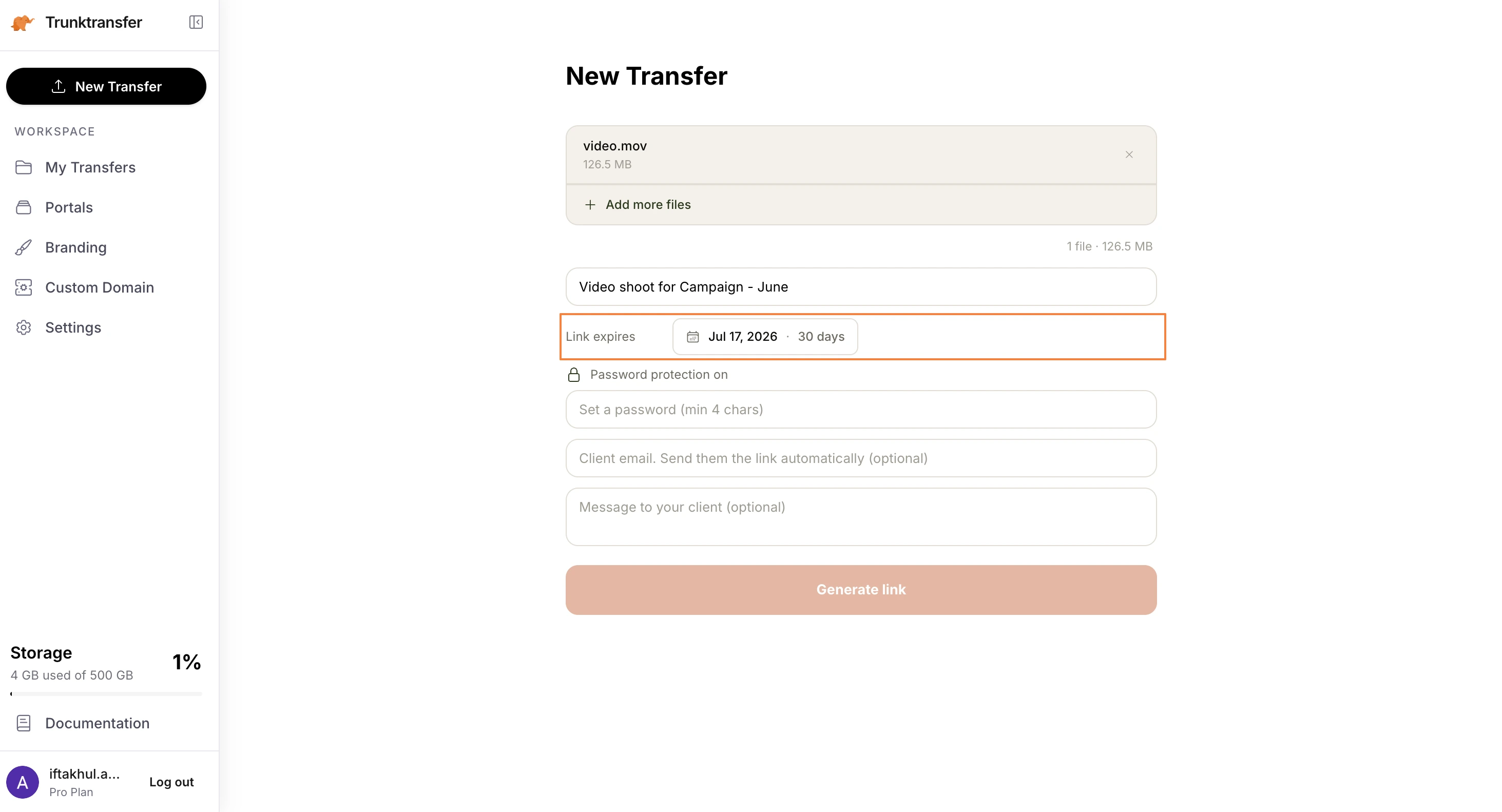
Before sharing, set how long the link stays active.
Starter plan links last 30 days. For anything going to a brand team or agency, 30 days covers internal sharing, revision rounds, and the inevitable "can you resend that" three weeks later.
Step 3: Add password protection for unreleased work
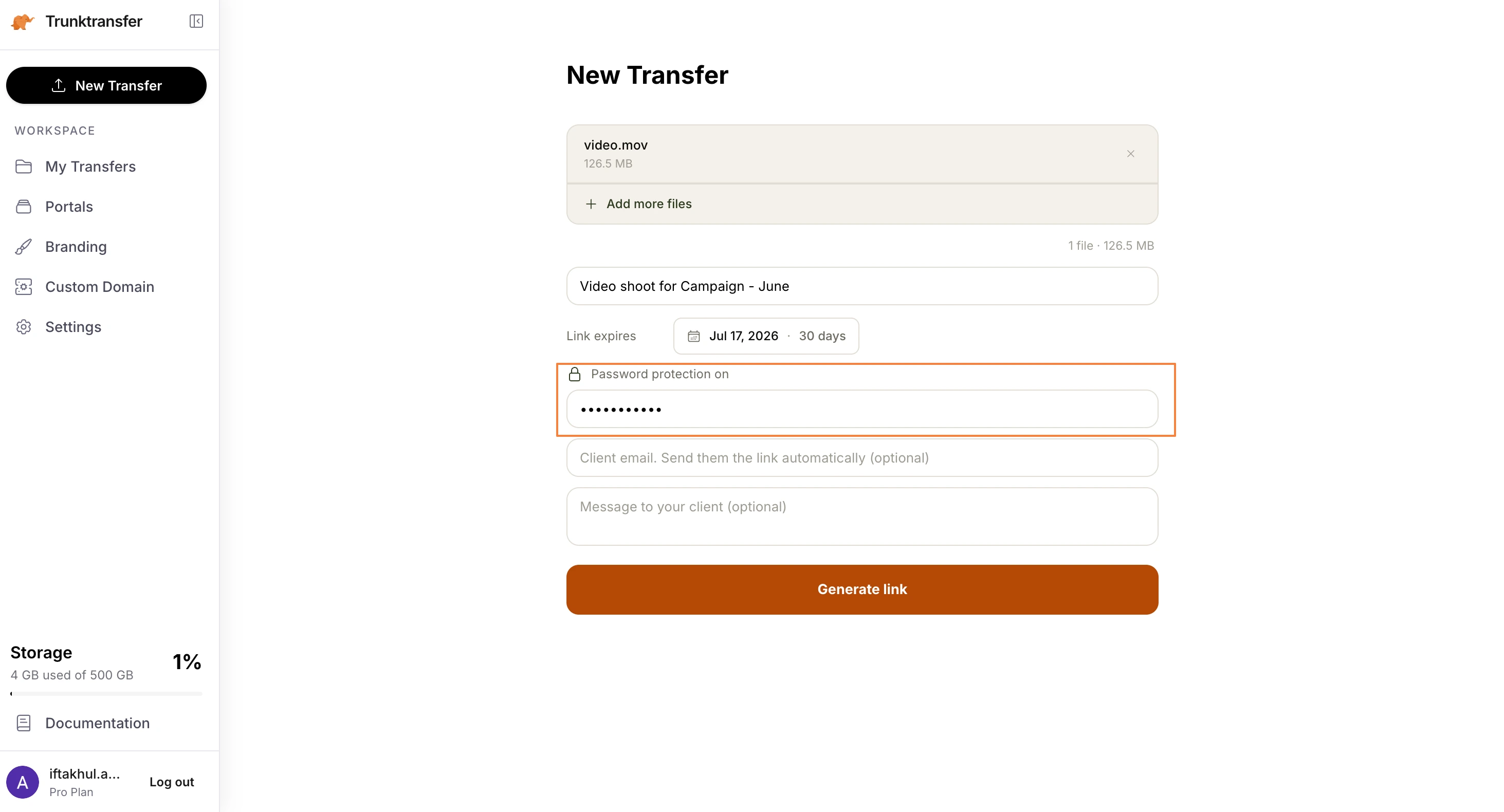
Product launches, brand campaigns, event recaps before the event date. Any file that should not be public gets a password.
Toggle password protection on, set a password, and send the link and password in separate messages. If someone forwards the link, they cannot access the file without the password.
Step 4: Copy the delivery link
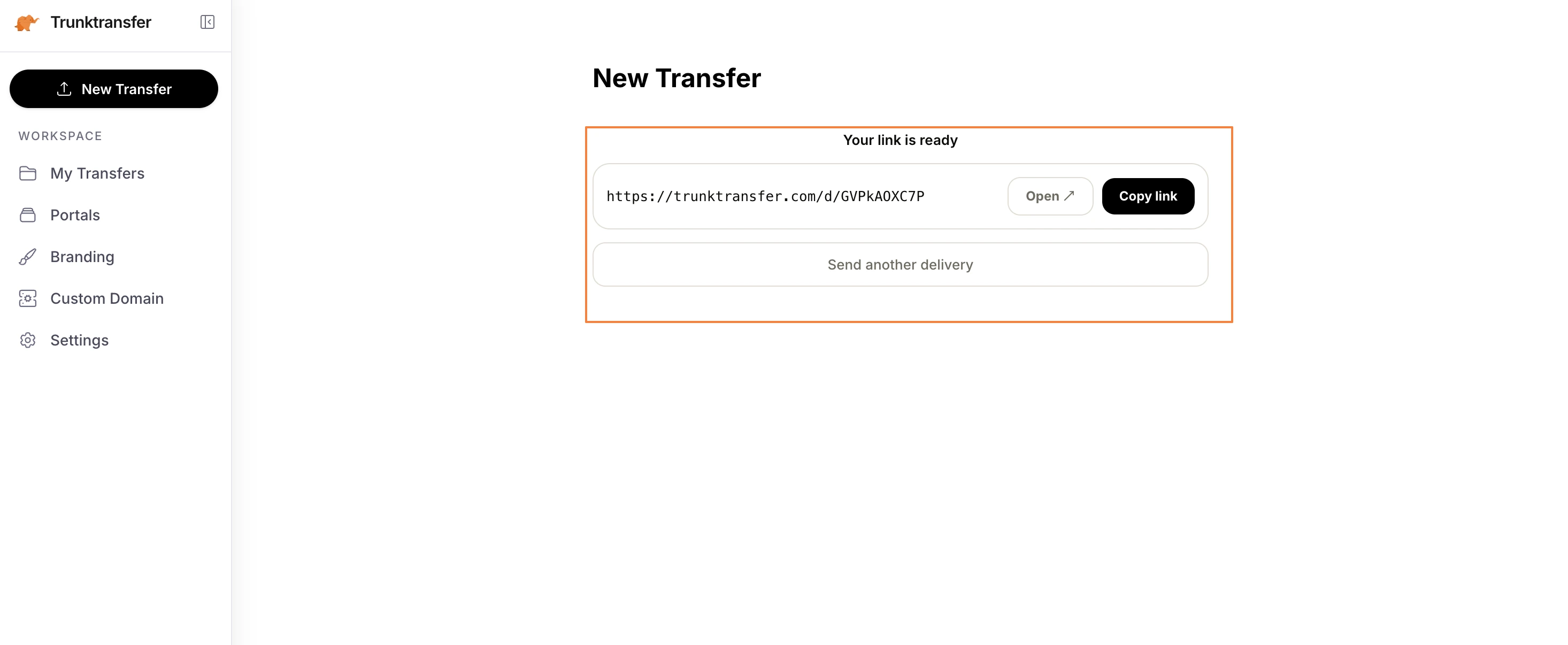
Once your upload completes, TrunkTransfer generates a delivery link instantly.
Copy it. That link is everything your client needs. Send it via email, Slack, WhatsApp, or anywhere else you communicate with clients.
Step 5: Your client clicks and downloads
Your client opens the link in any browser. They see the file name, size, and a Download button.
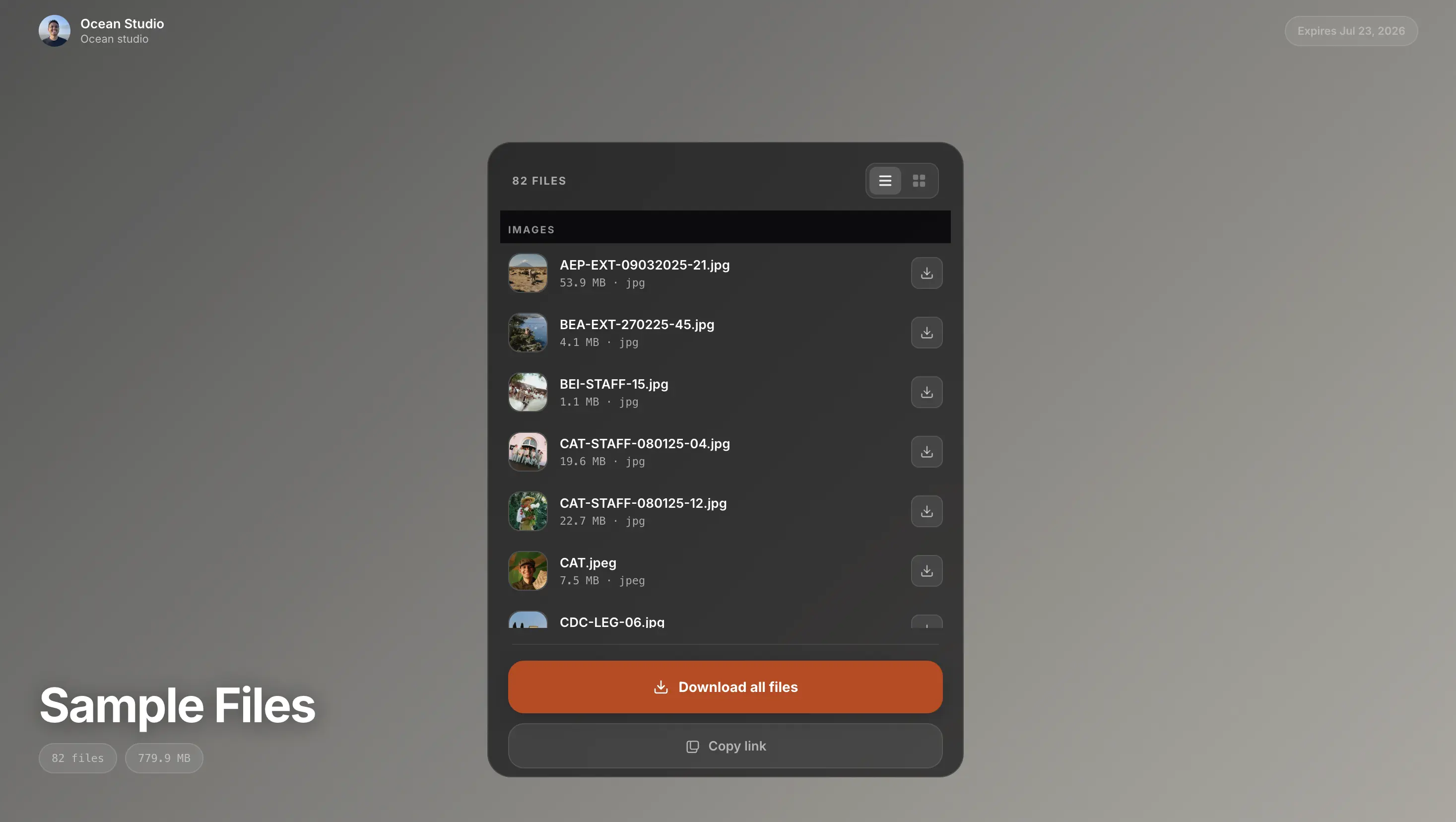
They click Download. The file transfers directly to their device from secure cloud storage. No account creation. No email verification. No app to install.
This works on desktop, mobile, and any operating system.
Step 6: Get notified when they download
On Starter, TrunkTransfer sends you an email the moment your client clicks Download.
You stop guessing. You know delivery is confirmed. If 48 hours pass with no notification, follow up before the deadline.
Before you send: test the link
Open the delivery link in a private browser window before sending it to the client. Confirm it loads, shows the correct file, and the Download button works.
This takes 30 seconds and prevents the support call that wastes two hours.
Why client accounts break the delivery experience
Most cloud storage platforms are built around accounts. When your client uses a personal device or a company that uses a different platform, they hit a sign-in wall.
TrunkTransfer does not have this problem by design. The link works for anyone with a browser. There is no platform to be on, no account to create, and no verification step.
Your client gets the file. You get confirmation. The project closes cleanly.
What file types can I deliver this way?
Any file type. TrunkTransfer stores and serves whatever you upload.
Common deliveries:
- Video exports: MP4, MOV, ProRes (5GB to 50GB and above)
- Motion graphics: MP4, MOV, image sequences
- Design packages: PSD, AI, EPS, TIFF, print-ready PDF
- Audio: WAV, AIFF, FLAC
- Project archives: ZIP, folder exports
For files above 5GB, TrunkTransfer uses chunked uploading. If your connection drops mid-upload, it resumes from where it stopped. You do not restart from zero. For 4K ProRes specifically, see how to deliver 4K video to clients.
Frequently Asked Questions
Does my client need to create an account to download from TrunkTransfer?
No. They click the link and click Download. No account, no email verification, no friction. This applies to every file you send, on every plan.
What is the largest file I can send?
Up to 200GB per transfer on Starter. That covers 4K ProRes exports, large design packages, and full project archives.
How do I know my client actually downloaded the file?
TrunkTransfer sends you an email notification the moment your client clicks Download. This is available on the Starter plan.
What happens if the client misses the download window?
You receive an email warning three days before the link expires. On Starter, links stay active for 30 days, which gives most clients enough time without needing a follow-up. If clients regularly lose or miss files, see how to stop clients losing files.
Can I protect the file so only my client can access it?
Yes. Enable password protection before sharing. Send the link and password separately. Anyone who receives only the link cannot download the file.
Can I deliver from my own domain?
Yes. On Starter, you can connect a subdomain like files.yourstudio.com. Your client sees your domain in the browser bar, not trunktransfer.com. Your branding, your delivery page, no TrunkTransfer branding shown. See the full setup guide: how to set up a custom domain for client file delivery.


