

You cannot send a large file via email as an attachment. The limit is 25MB on Gmail and 10MB or lower on most enterprise email servers.
A 4K video export, a ProRes master, a print-ready design package, a motion graphics render: all of these are too large to attach to an email. This is a hard server limit that no setting or workaround can bypass.
What you can do is send a download link in the email. This guide walks through exactly how to do that, what tool to use, and what to write so your client knows what to expect.
What the email attachment limit actually is
Gmail: 25MB per message, including all attachments and message body.
Outlook / Microsoft 365: 20MB by default, sometimes lower depending on how the company's IT has configured the server.
Yahoo Mail: 25MB.
Corporate email: Often 10MB or lower. Enterprise IT departments set strict limits to control server load. Sending a large file to a corporate email address via attachment will bounce.
If your video file is 1GB, 5GB, or 50GB, attachment is not an option. It never was.
The correct approach: send a link in the email
Upload your file to a delivery tool. Copy the download link. Paste it into your email. Your client receives the email, clicks the link, and downloads the file directly to their computer.
This is how professional client delivery works. The email carries the link. The file lives on a server with proper download infrastructure. Your client never needs to create an account.
How to send a large file via email using TrunkTransfer
TrunkTransfer is built for exactly this workflow. The download page is clean: one button, no ads, no account prompt. Clients just click and download.
Step 1: Upload your file
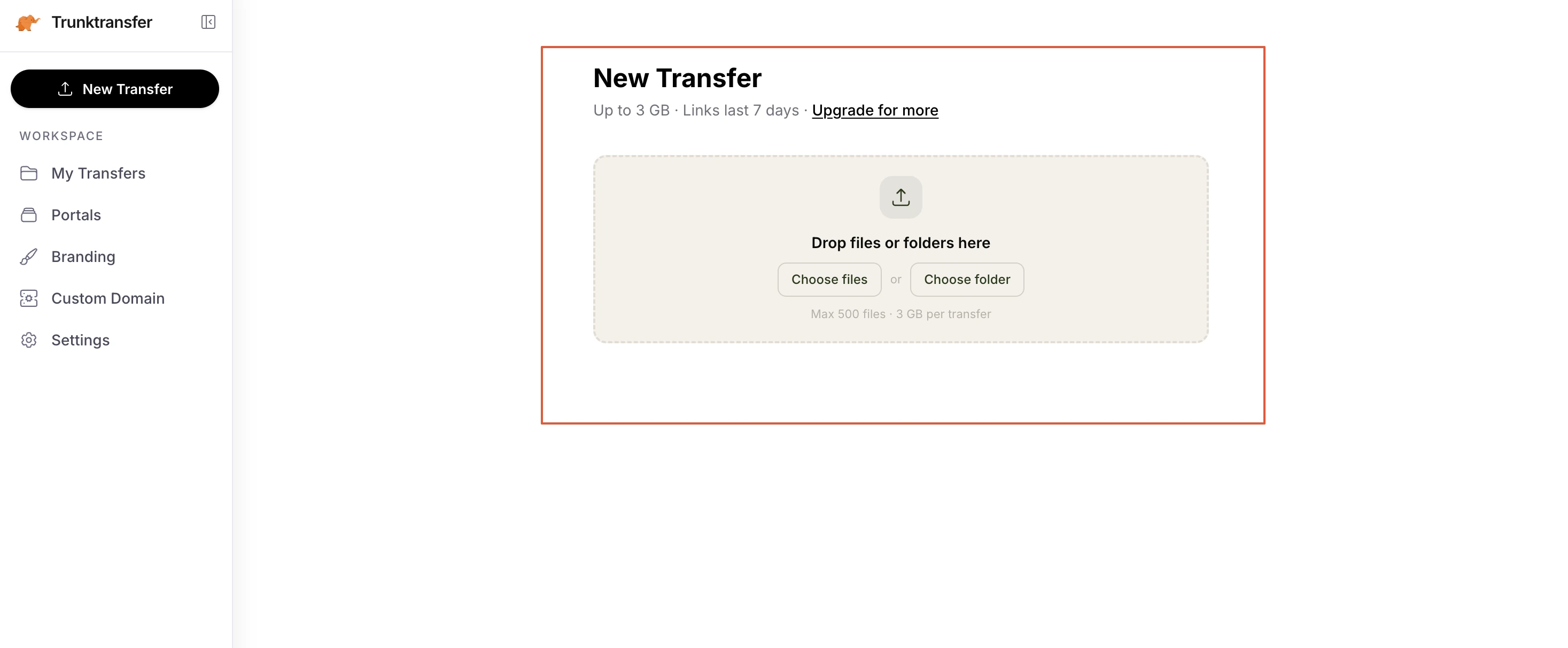
Go to trunktransfer.com and drag your file onto the upload widget. On Starter ($9/mo), you can send up to 200GB per transfer. Files above 5GB use multipart upload automatically, so the upload can resume if your connection drops.
Step 2: Set the expiry
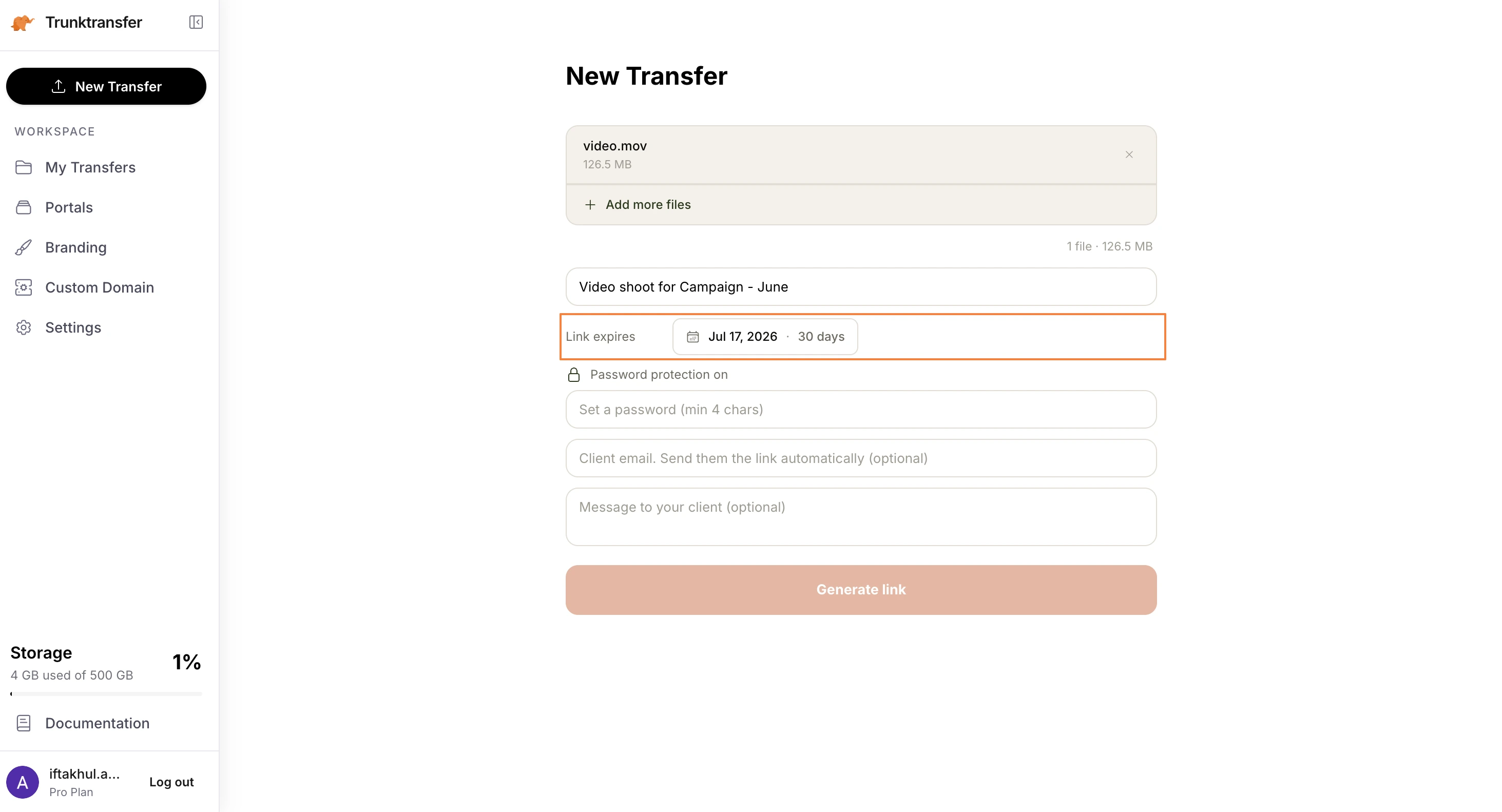
On Starter, set it to 30 days. Marketing teams and brand managers share links internally. A 30-day window gives them time without you having to re-upload.
Step 3: Add a password (optional)
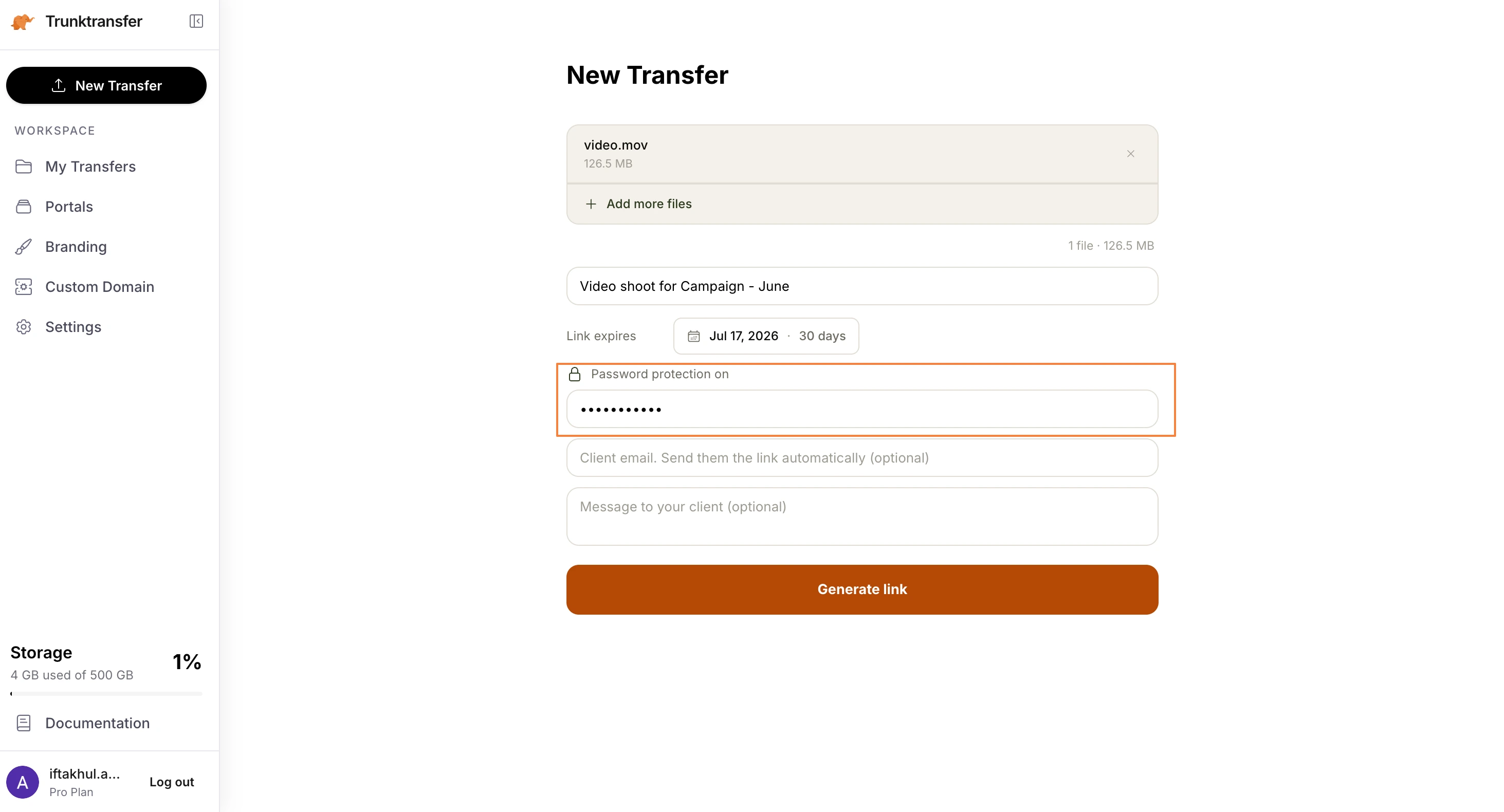
If the content is unreleased, enable password protection before generating the link. Send the password in the same email or as a separate message. Your client enters it on the download page before the file appears.
Step 4: Enable download notifications (Starter)
On the Starter plan, TrunkTransfer sends you an email the moment your client clicks Download. You stop wondering if they received it. No chasing required.
Step 5: Copy the delivery link
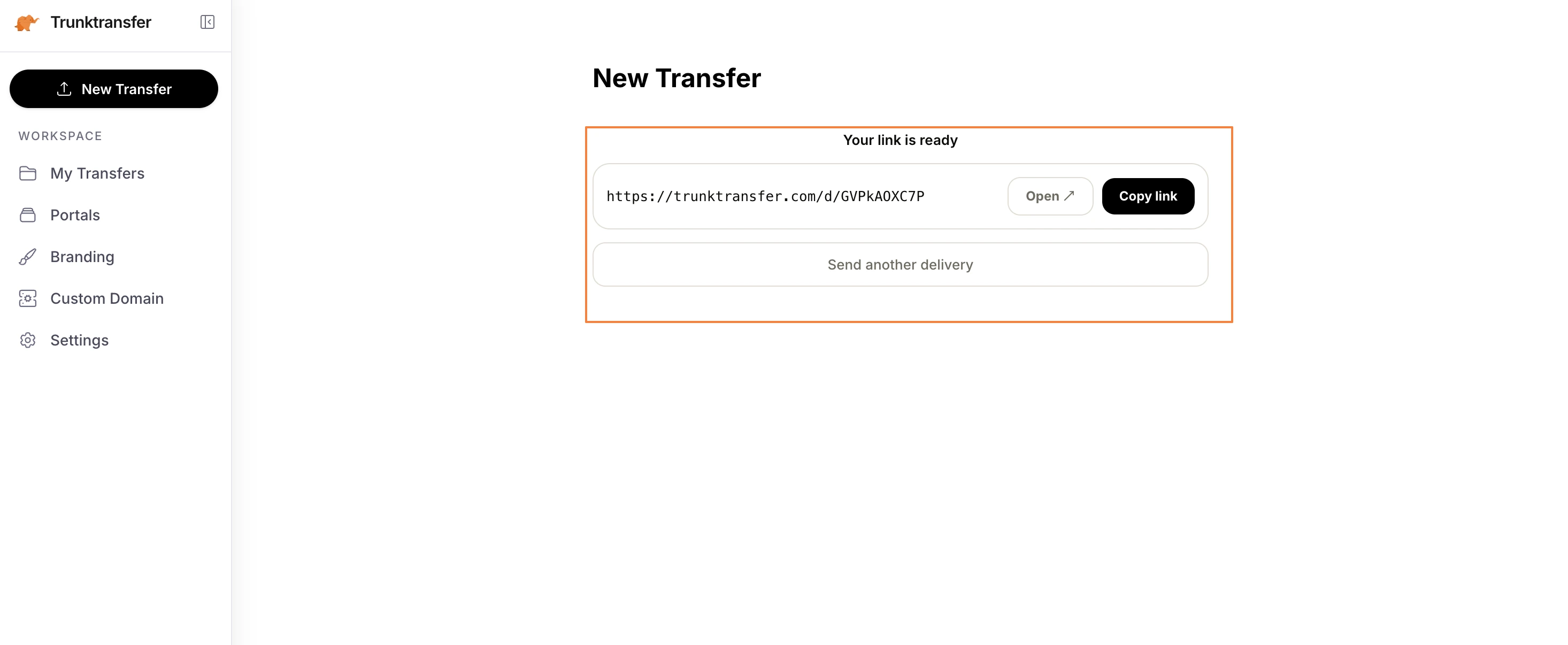
Once the upload is complete, TrunkTransfer generates a link in the format trunktransfer.com/d/[slug]. On Starter, the link can be served from your own domain: files.yourstudio.com/d/[slug].
Step 6: Paste the link into your email
Include the file name, file size, and expiry so the client knows what to expect. Here is a template that works:
Hi [Name],
Here is the delivery link for [Project Name]: [link]
File: [filename] ([X GB]) Link active until: [date]
Click the link and it will download directly. No account needed.
Let me know once you have it.
Simple. No confusion. Your client knows exactly what to do.
Why not just use Google Drive or WeTransfer?
Both are common choices. Both create friction you don't need at client handoff.
Google Drive: Clicking a Drive link on a laptop signed into a Microsoft 365 account, or on a phone not signed into Google, prompts sign-in. Your client at a brand or agency may not have a Google account. They see a wall and email you asking for another way.
WeTransfer: WeTransfer now prompts account creation when clients click links on iOS and Android. Marketing managers on their phones hit this wall. WeTransfer also raised prices significantly in 2024 and attempted to train AI on uploaded files before walking it back. For client-facing delivery, the trust hit matters.
TrunkTransfer: No account prompt. No ads. No AI training on your files. The client clicks the link and the download starts. That's it.
If you want a deeper comparison, see our WeTransfer alternatives guide.
What to do when the client cannot open your link
If your client says they cannot open the link, the most common causes are:
1. The link expired. Check when it was set to expire. On TrunkTransfer Starter, links last 30 days. If it expired, log in and generate a new link from your dashboard.
2. They hit a mobile account prompt. WeTransfer and some other tools prompt account creation on iOS and Android. TrunkTransfer never does.
3. They were asked to sign in to Google or Dropbox. Use a neutral delivery tool that requires no account on either end.
4. They lost the email. This is why download notifications matter. If you know they never clicked Download, you can follow up before assuming they lost the file. On TrunkTransfer Starter, you get notified the moment they download. See also: how to stop clients losing your files.
What about Google Drive links in email?
Google Drive links in email work reliably when both you and your client use Google Workspace. If either side uses a different email provider or is not signed into Google, the experience breaks.
For internal team sharing, Google Drive is fine. For delivering to clients at brands, agencies, or any company that uses Microsoft 365, use a neutral delivery link that requires no account.
What about Dropbox links in email?
Dropbox shared links work for basic viewing, but downloading large files sometimes requires a Dropbox account depending on the link type and your account settings. Consumer clients and marketing managers often do not have Dropbox. See our Dropbox Transfer alternatives guide if you're evaluating it for client delivery.
Frequently Asked Questions
What is the maximum file size I can send via email?
25MB on Gmail. 20MB on Outlook. 10MB or lower on many corporate email servers. For any professional creative file, this limit is too small. Upload the file to a delivery tool and paste the link into your email instead.
Can I compress a video file to fit in an email?
You can reduce quality enough to fit under 25MB, but the result will not be a usable professional deliverable. Do not compress professional video for email. Send a delivery link from a tool like TrunkTransfer and your client gets the full-quality file.
Why did my client say the file I sent via email was corrupted?
Email servers reject attachments that exceed the size limit. Sometimes they accept the email but silently strip the attachment, delivering a message with no file. Your client receives the email but nothing to download.
Is there a way to bypass the email attachment limit?
No. The limit is set by the receiving email server and cannot be bypassed by the sender. The only solution is to send a download link rather than an attachment.
How do I know my client received the file?
Use a delivery tool with download notifications. TrunkTransfer (Starter plan) sends you an email the moment your client clicks Download. This is more reliable than waiting for a reply email and removes the guesswork from every delivery.
Does TrunkTransfer work for files over 5GB?
Yes. TrunkTransfer uses multipart upload for files above 5GB, which means the upload can resume if your connection drops mid-way. On the Starter plan, you can send up to 200GB per transfer. The client downloads from Cloudflare's CDN, so speed is not a bottleneck on their end.
Do clients need an account to download from TrunkTransfer?
Never. Clients click the link and the download starts. No sign-up, no app, no Google account. This is the core reason creative agencies use TrunkTransfer for client handoffs rather than Drive or Dropbox.


