

Sending a finished video export to a client sounds simple until you try it.
Email rejects anything over 25MB. Google Drive asks your client to sign in. WeTransfer prompts account creation on mobile. Your client calls you. The file is fine. The delivery method broke.
This guide covers every reliable method for sending large video files to clients, on any device, without account friction.
Why standard methods fail for large video files
Video files are large by nature. A 10-minute 4K H.264 export at high bitrate is typically 3 to 6GB. The same edit in ProRes 4444 is 60 to 80GB. Standard tools are not built for this.
Email has a 25MB attachment limit on Gmail and a 10MB limit on most enterprise email servers. Large video files cannot be sent via email at all.
Google Drive works between Google accounts, but your client at a brand or agency may be on Microsoft 365. They will be asked to sign in to a Google account they do not have. The download button is not obvious. Non-technical clients email you asking what to do.
Dropbox requires a Dropbox account to download files in many sharing configurations. Your client does not have one.
WeTransfer free tier caps at 3GB per transfer and 10 transfers per month. On mobile, clicking a WeTransfer link now prompts email verification, which triggers account creation. Marketing managers on their phone hit this wall and stop.
iMessage and WhatsApp compress video automatically. Your 4K export arrives as a compressed, unusable file.
The reliable method: dedicated delivery links
A dedicated file delivery tool uploads your video, stores it, and gives you a URL. Your client opens that URL, sees a download page, and clicks Download. No account. No compression. The original file, exactly as you exported it. For a full walkthrough, see how to send large files to clients without requiring a signup.
This works for any file size, any format, on any device.
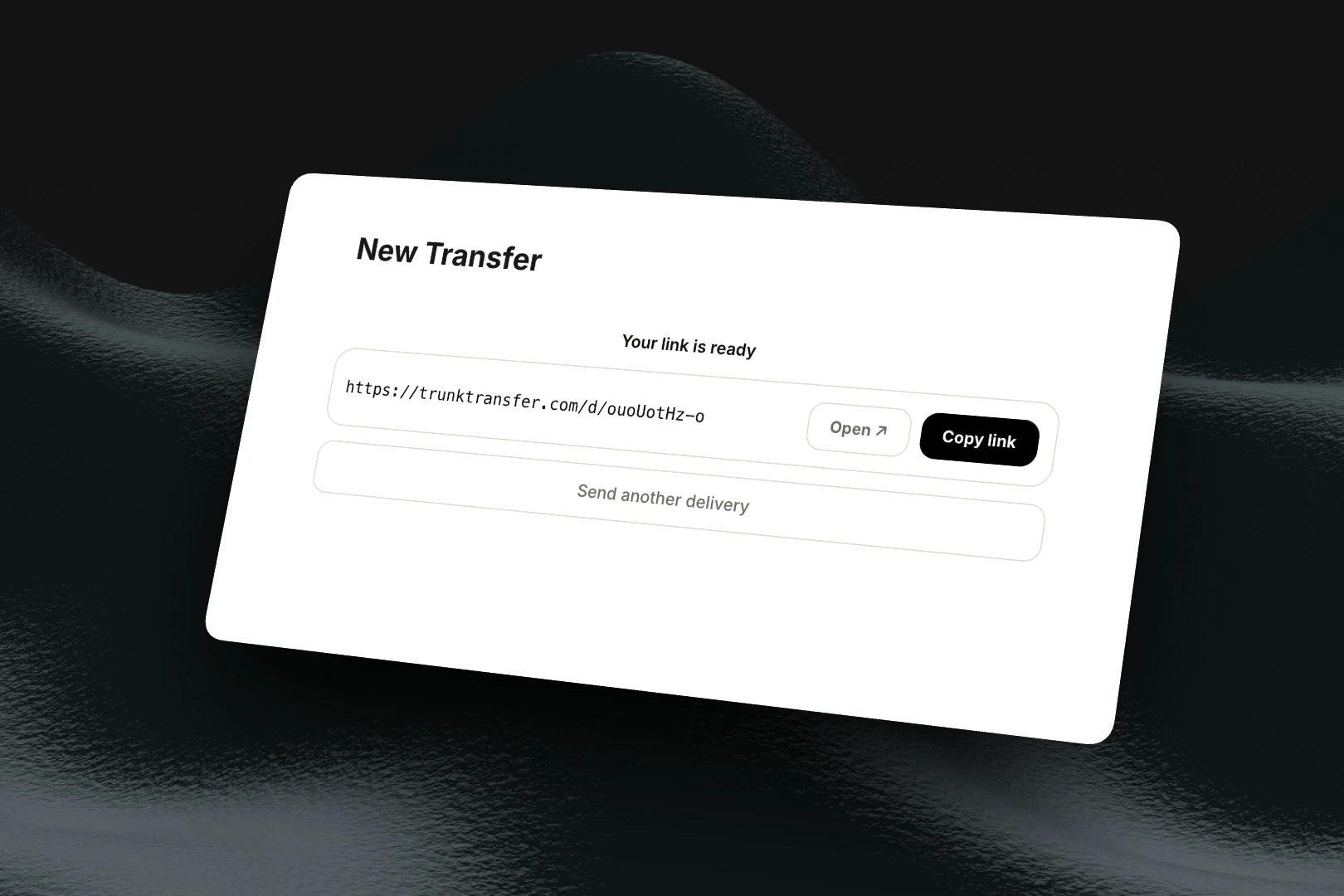
What to look for in a delivery tool:
- No client account required
- Large file support (at least 50GB for professional video work)
- Long expiry (30 days minimum for brand clients who share links internally)
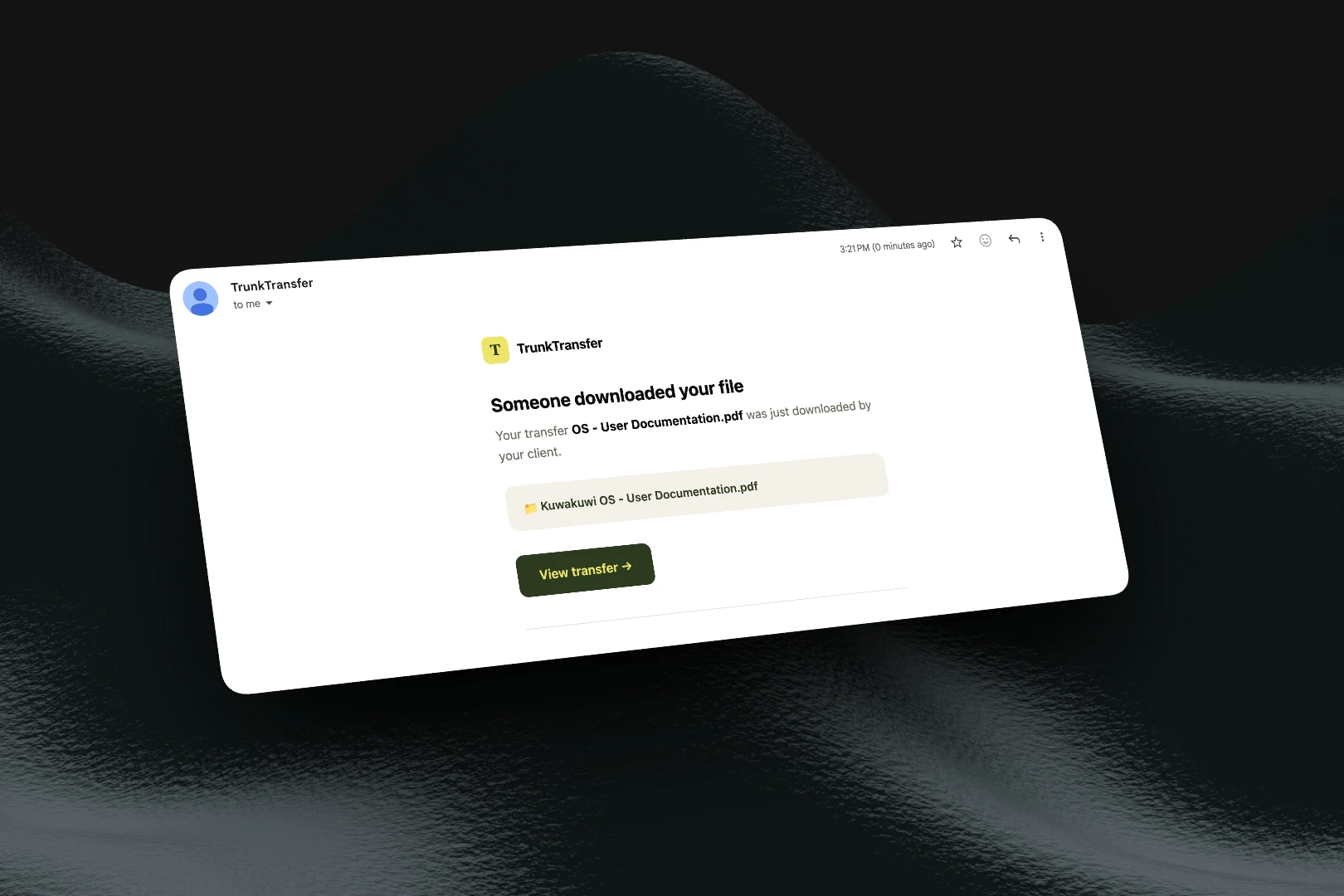
- Download notification so you know when delivery is confirmed
- Password protection for unreleased footage
- HTTP Range request support so interrupted downloads resume instead of restarting
Step-by-step: deliver a large video file
Step 1: Export at the right codec for delivery
Do not send your client a ProRes file unless they specifically asked for one. ProRes is an editing codec. A 10-minute edit in ProRes 4444 is 80GB. The same edit in H.264 at high bitrate is 4GB and plays in every browser and media player.
Use H.264 or H.265 for client delivery. Use ProRes only if the client is a post house doing further editing.
Step 2: Upload to a delivery tool
Drag your export file into the upload widget. For files above 5GB, use a tool with multipart upload support. This breaks the file into chunks and uploads them in parallel, which is faster and can resume if your connection drops.
Step 3: Set the link expiry
Default expiry on most tools is 7 days. Brand clients and agency contacts share links internally. Someone will need the file three weeks later. Set expiry to 30 days on anything going to a marketing team.
Step 4: Add a password for unreleased work
Any footage that should not be public before the campaign launches gets a password. Send the password in a separate message from the link. If someone forwards the link, they cannot access the file without the password.
Step 5: Enable download notifications
You need to know when your client actually downloaded the file. Not when you sent the link. A download notification email arrives the moment they click Download. If you have not received one after 48 hours, follow up.
Step 6: Test the link before sharing
Open the link in a private browser tab. Confirm it loads, shows the correct file, and the Download button works without requiring any account.
Sending on your own domain: branded file transfer
A generic delivery link works, but it still puts a vendor's name in front of your client at the exact moment they receive your work. If your client is a marketing manager or agency contact, the link they click, we.tl/abc123 or sometool.com/d/xyz, is the last thing they see on a project. Branded file transfer replaces that with your own domain: files.yourstudio.com, your logo, your colors, no vendor name anywhere on the page.
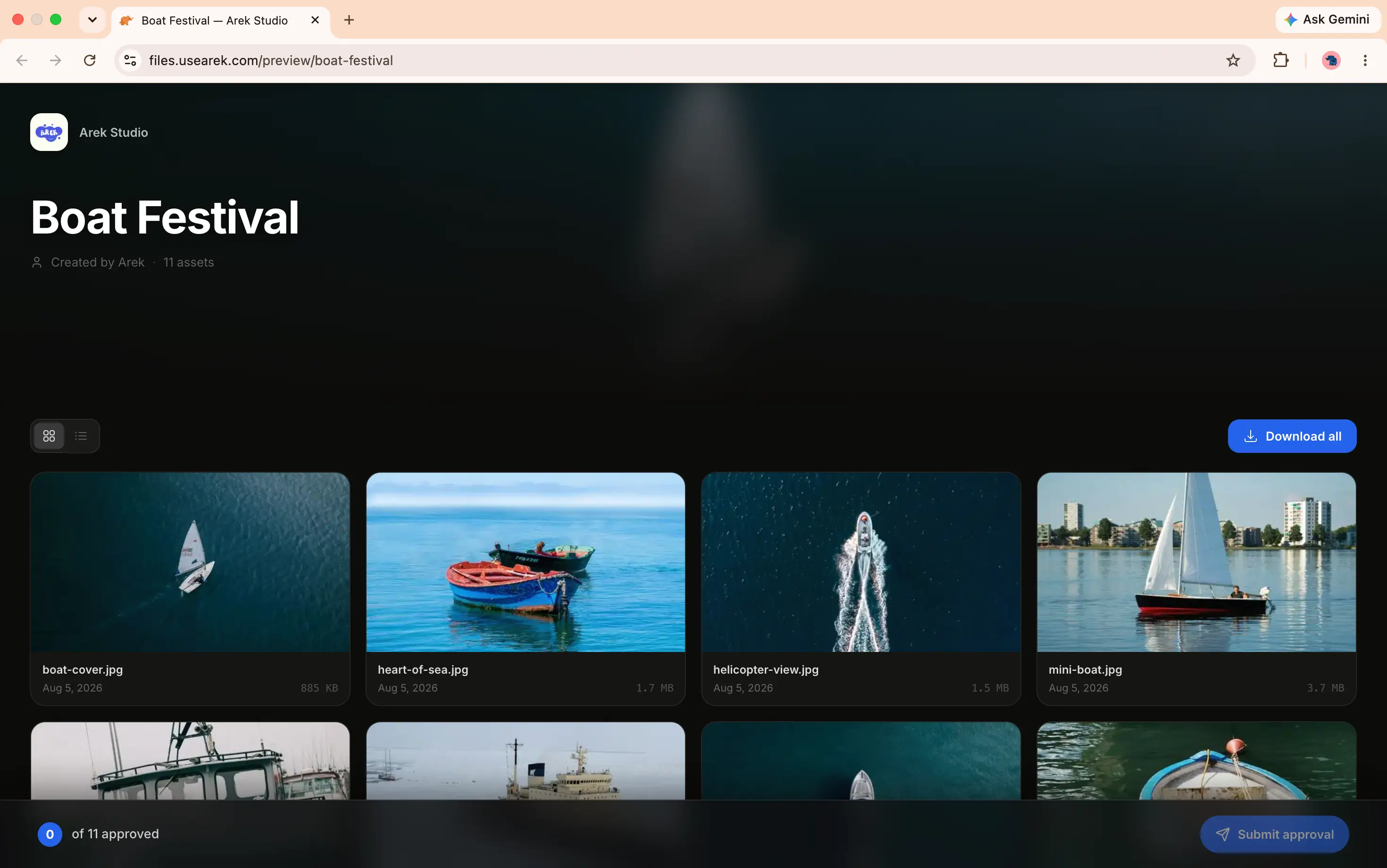
This matters more for video delivery than most file types, because a finished export is usually the final client touchpoint on a project. A full breakdown of what branded file transfer includes and how it works technically covers the concept in depth. The short version: it runs on one DNS record (a CNAME) and an automatically provisioned TLS certificate, so it does not require any technical setup beyond a copy-paste at your domain provider.
Setting it up takes about 10 minutes, mostly spent waiting on DNS:
- Add your studio name and logo in your account's branding settings.
- Add a subdomain, like
files.yourstudio.com, in Custom Domain settings.
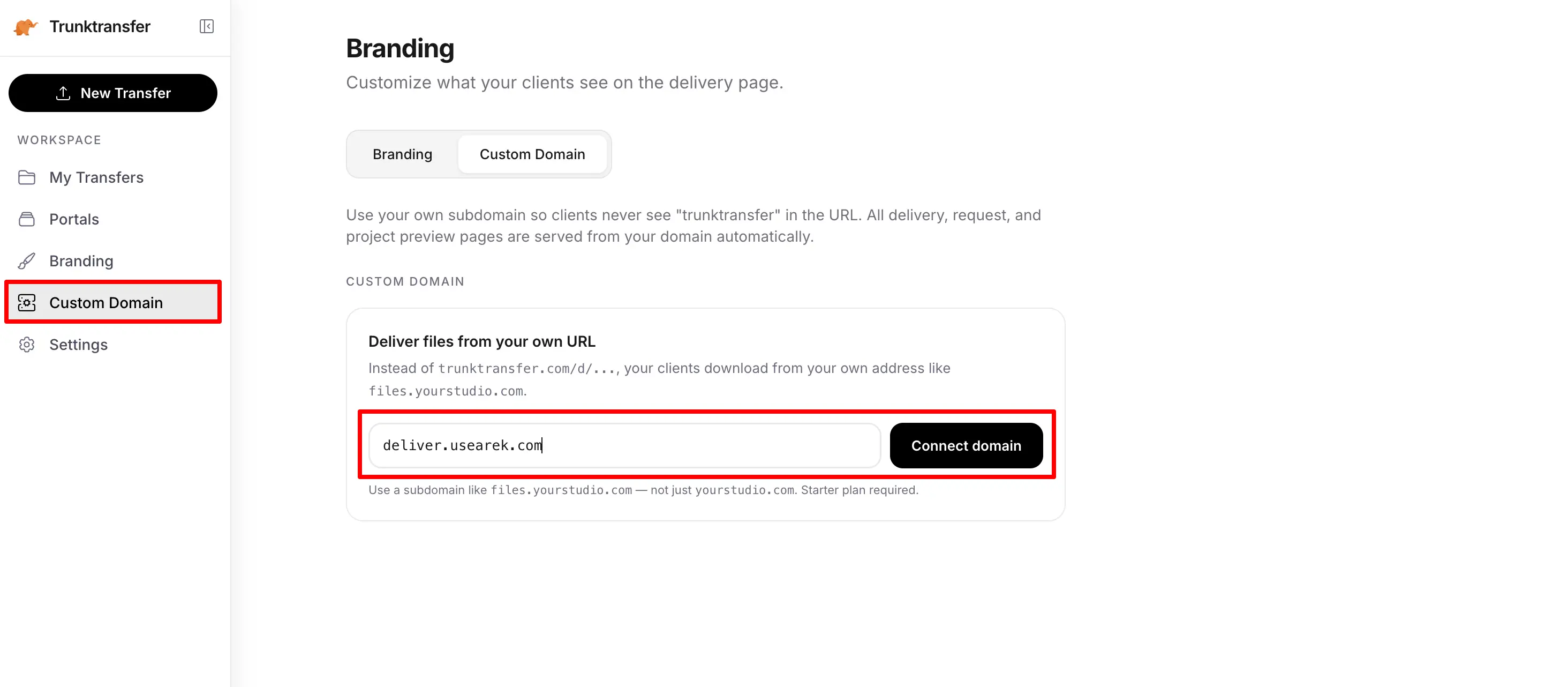
- Copy the CNAME value the tool generates, and add it as a DNS record with your domain provider (Cloudflare, GoDaddy, Namecheap, Squarespace, wherever your domain is registered).
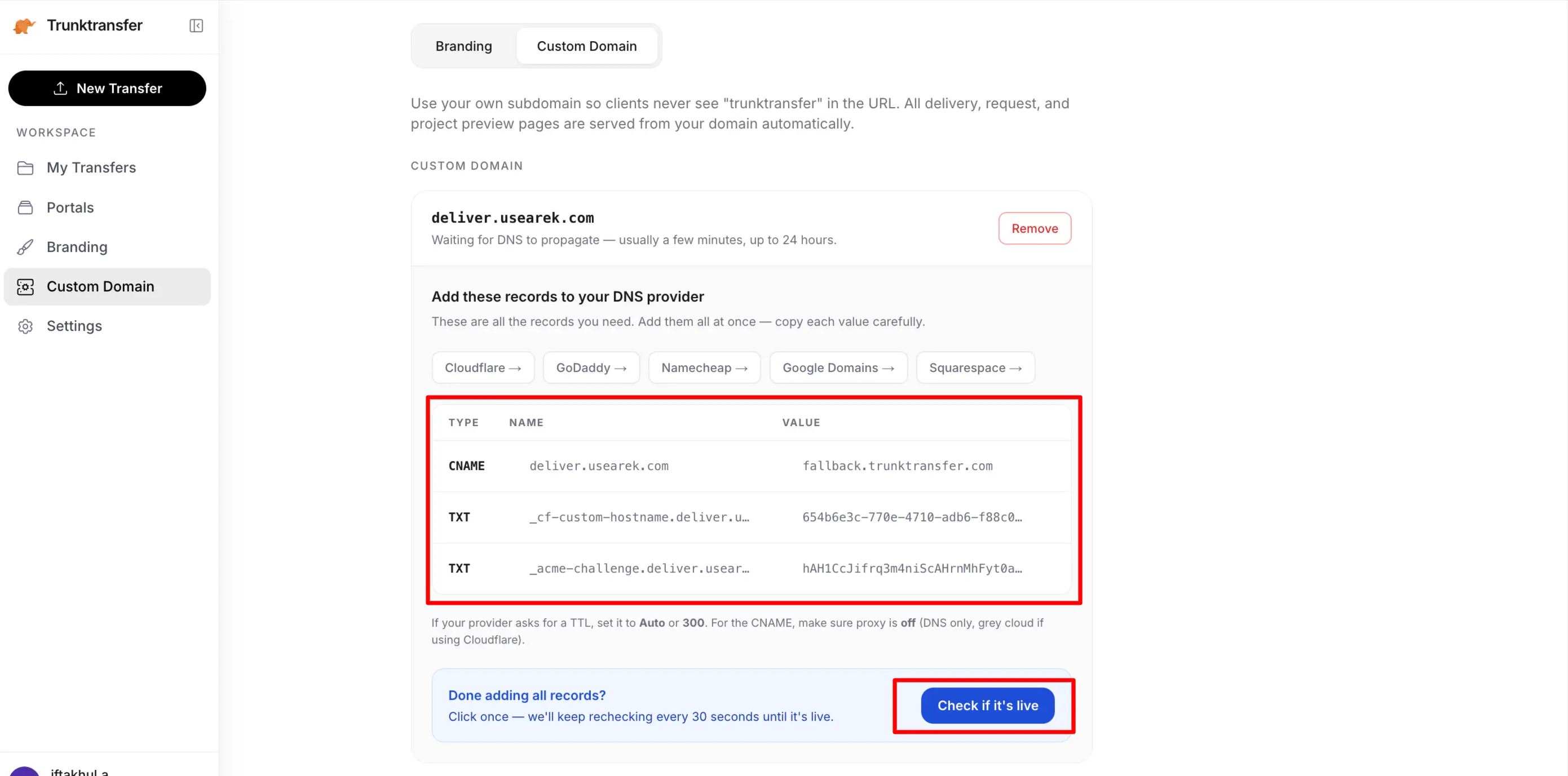
- Wait for DNS to propagate (a few minutes to an hour) and the TLS certificate to provision automatically. No certificate files to manage.
- Your next export goes out on your own domain, with your branding, and no vendor name visible anywhere the client can see.
On TrunkTransfer this is included on the Starter plan at $9/mo, not gated behind an enterprise tier the way it is on most delivery tools. See how to set up a custom domain step by step for the per-provider DNS instructions.
Guides for specific situations
The method above works from any device and for any video format. For specific workflows, see the detailed guides in this series:
- How to send large video files from iPhone to a client — delivering from location on mobile
- How to send large video files on Android — Android-specific workflow and apps
- How to send a ProRes file to a client — when the client actually needs the ProRes master
- How to send large files via email (and when you can't) — workarounds and when to stop trying
- What is branded file transfer? — the complete guide to delivering on your own domain
- How to set up a custom domain for client file delivery — step-by-step DNS setup
Frequently Asked Questions
What is the best way to send a large video file to a client?
Upload to a dedicated delivery tool and share a link. The client clicks Download and gets the original file with no account required. This works for any file size and any format.
How do I send a 10GB video file?
Use a delivery tool that supports large files (TrunkTransfer supports up to 200GB). Upload the file, get a shareable link, send it to your client. Google Drive and WeTransfer have limits that may not accommodate 10GB depending on your plan.
Why does my client's download keep failing?
Large file downloads fail when the connection is interrupted and the download restarts from zero. Use a delivery tool hosted on infrastructure that supports HTTP Range requests. This lets the download resume from where it stopped instead of restarting.
Can I send a video file via email?
Email attachment limits are 25MB on Gmail and 10MB on most enterprise servers. Video files are too large for email. Use a delivery link instead.
How long should a delivery link last?
Set a minimum of 30 days for anything going to a brand or agency client. Marketing teams share links internally, and someone will need the file two weeks after you sent it. 7-day default expiry causes re-upload requests.
Does my client need to create an account to download?
They should not have to. Avoid tools that ask clients to sign in. Your client at a brand or agency will not create an account on a file transfer platform to download one file.
Can I send video files on my own branded domain instead of the vendor's link?
Yes. This is called branded file transfer: your client's link reads files.yourstudio.com instead of a vendor's domain, with your logo and colors on the page. It requires adding one CNAME record at your DNS provider, and the delivery tool provisions the TLS certificate automatically. See how to set up a custom domain for the full walkthrough.


