

To receive files from clients on your own domain, use a file collection tool that supports a true custom domain, connect your domain with a single CNAME record, and send clients an upload link that reads files.yourbrand.com/r/project instead of a generic file host's URL. Clients upload through a page with your branding, no account required, and you get notified when the files arrive. The whole setup takes about 10 minutes.
Why Receive Files on Your Own Domain
Client projects start with an upload, not a download. Before you deliver anything, the client sends you footage, brand assets, a brief, or reference material. If that first exchange happens on a wetransfer.com or drive.google.com link, the opening impression of your business is a free consumer tool.
Receiving files on your own domain flips that. The client's first interaction with your file system is a page on files.yourbrand.com with your logo. It signals, from the first upload, that your business runs an organized operation. This is the receive half of branded file transfer, and it is the half most tools skip.
Step by Step
1. Choose a tool with true custom domain support
You need a file request or collection feature that runs on your own domain, not a branded subdomain. Check that "custom domain" means files.yourbrand.com, not yourbrand.vendor.com. TrunkTransfer includes a true custom domain on its $9/mo Starter plan.
2. Connect your domain
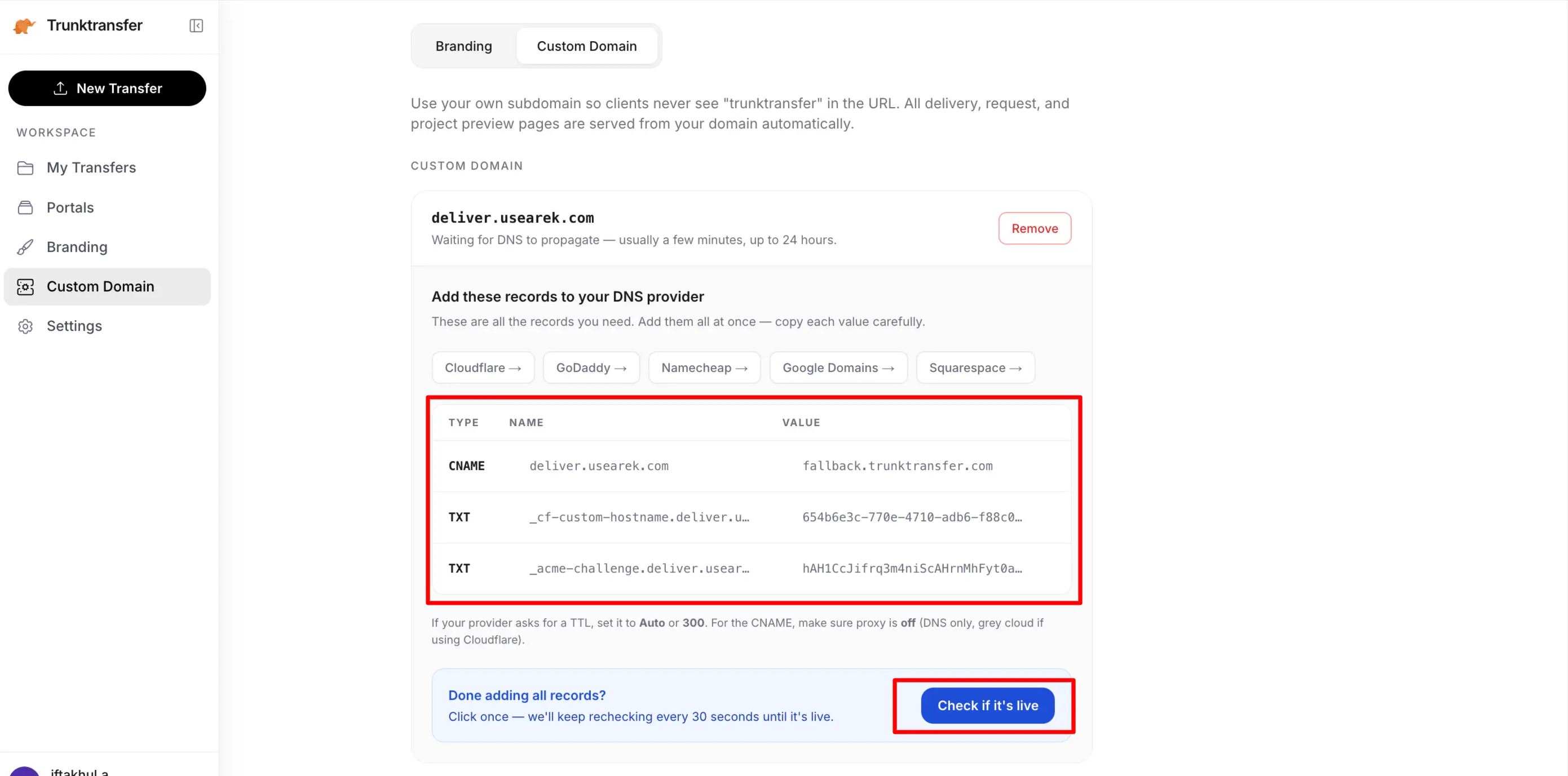
Add one CNAME record at your DNS provider (Cloudflare, GoDaddy, Namecheap, Squarespace) pointing your chosen subdomain to the tool. This takes about five minutes; DNS propagation takes a little longer. The custom domain setup guide has per-provider steps.
3. Create a request link
In TrunkTransfer, create a file request and give it a name. The upload link becomes files.yourbrand.com/r/nike-shoot. On the Pro plan you can set a custom slug so the link reads like the project; on Starter the link uses a clean generated path on your own domain.
4. Send it to the client
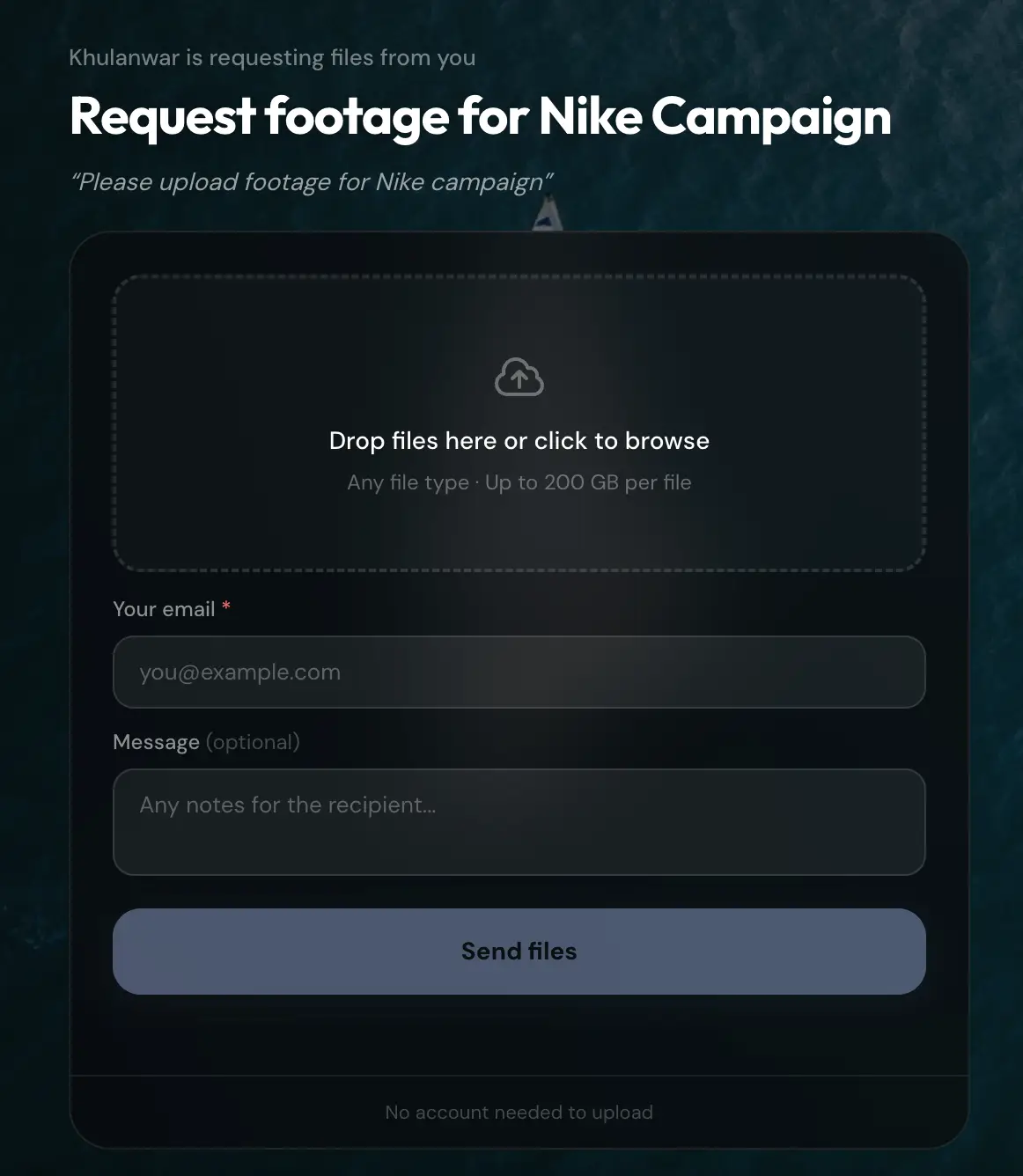
The client opens the link and lands on a fully branded upload page: your studio name, logo, and background, on your own domain. They upload with no account, no app, no friction. This matters most on the upload side, because any friction here means the client delays sending you what you need.
To keep out spam, clients verify their email before they can upload, so you only receive files from real senders, not bots.
5. Get notified and stay organized
When files arrive, you are notified, and the uploads collect against that request rather than scattering across disconnected links. You can search received files by the sender's email and preview any file directly from the dashboard. See managing received files.
One thing to know about timing: the request link itself no longer expires by default, so you can leave it open and let clients upload at their own pace. The files they upload still follow your plan's expiry (30 days on Starter), so the open link and the file retention are two separate clocks.
6. Optional: make your bare domain the request page itself
By default, a request link lives at a specific path, like files.yourbrand.com/r/nike-shoot. But TrunkTransfer also lets you set what shows at the root of your domain, files.yourbrand.com with nothing after it. Instead of sending clients a path they need to remember, you can make your file request page the default for the whole domain, so files.yourbrand.com itself opens straight to the upload page.
This matters for a business that receives files from one recurring client or one standing intake, rather than a different request per project. Instead of files.yourbrand.com/r/nike-shoot, the client can just be told "upload at files.yourbrand.com," and it goes straight to your branded upload page with nothing else to type or remember.
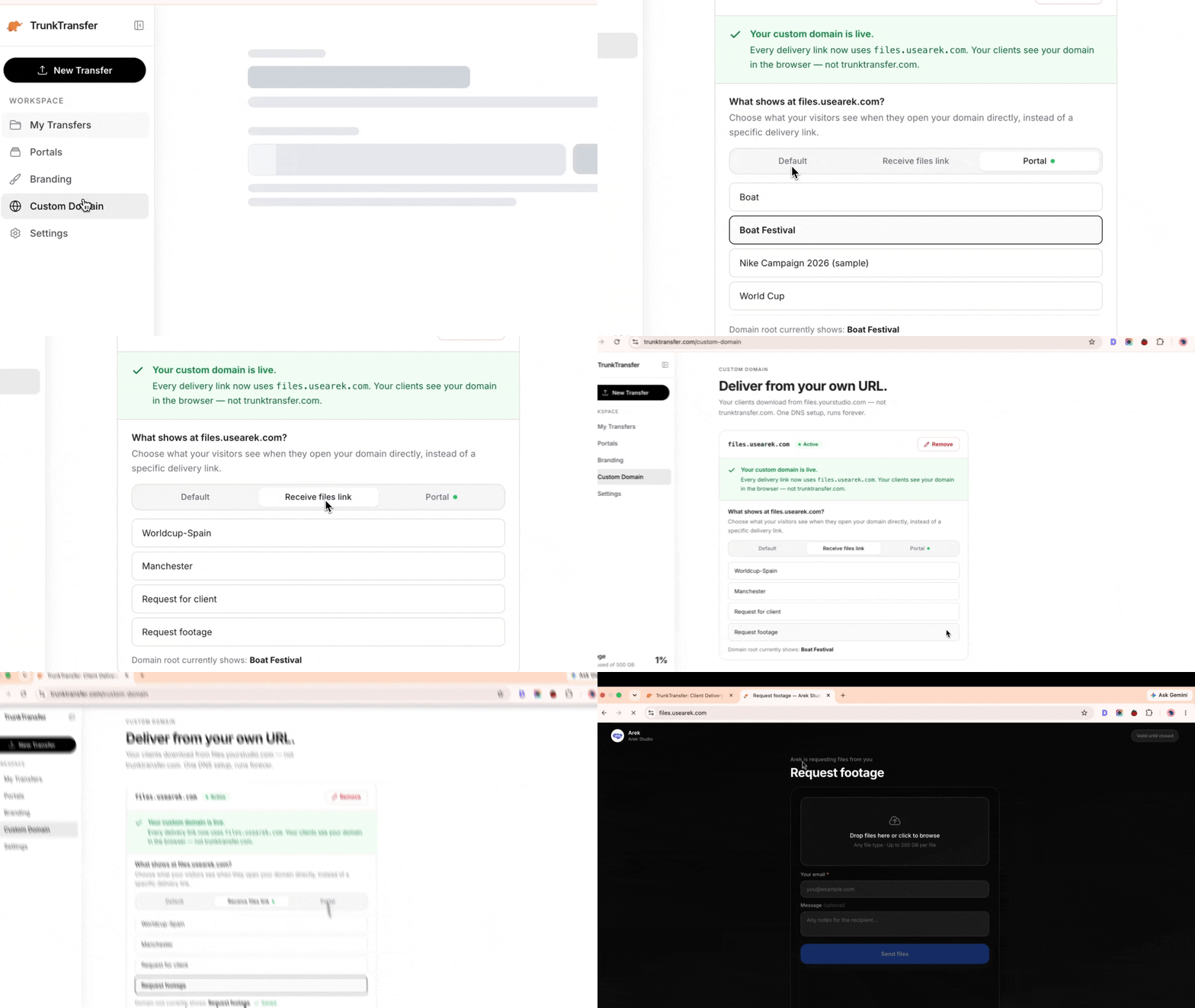
To set it up: go to Custom domain in the sidebar, find "What shows at files.yourbrand.com?", and choose Request file link instead of the default. Pick which request should load at the root. If that request ever expires or gets unpublished, the domain falls back to the default page automatically rather than showing an error. This is available on the Pro plan.
Frequently Asked Questions
How do I let clients send me files on my own domain?
Use a file request tool that supports a custom domain, connect your domain via a CNAME record, and send clients an upload link on files.yourbrand.com. On TrunkTransfer this is the file request feature, included from $9/mo.
Do clients need an account to upload files to me?
No. With TrunkTransfer, clients upload through your branded link with no account and no app. Uploading works in any browser with nothing to install.
What size files can clients send?
On TrunkTransfer's Starter plan, up to 200GB per transfer, enough for raw footage and high-resolution asset packages.
Can I have a different upload link per client or project?
Yes. Create a separate request per client or project, each with its own named link, so uploads stay organized rather than scattering across one catch-all link.
What's the difference between this and a WeTransfer request?
A WeTransfer request link is on WeTransfer's domain with WeTransfer's branding. Receiving files on your own domain means the upload page reads files.yourbrand.com with your branding, so the client sees your brand.
How long does setup take?
About 10 minutes: five to add the CNAME record, a few more for DNS to propagate, then you create and send your first request link.
Do clients have to verify their email before uploading?
Yes. Clients verify their email before they can upload, which keeps out spam and means you only receive files from real senders. It is a single verification step, not an account or a password.
Does the upload link expire?
The request link no longer expires by default, so you can leave it open and let clients upload whenever they are ready. The files they upload follow your plan's retention (30 days on Starter). The open link and the file expiry are two separate things.
Where do the uploaded files go?
They collect against the request you created, organized by project or client. You are notified when they arrive, and you can search by the sender's email or preview any file from the dashboard.
Can I make my bare custom domain go straight to a file request page?
Yes. On the Pro plan, you can set what shows at the root of your custom domain, choosing a request link (or a client portal) as the homepage. Instead of sending clients files.yourbrand.com/r/project-name, you can tell them to upload at files.yourbrand.com and it opens the request page directly.
The Bottom Line
The first file in any project moves from the client to you, and most businesses receive it through a free tool that undercuts the impression before the work even starts. Receiving files on your own domain makes the opening exchange look as considered as the final delivery, for the same $9/mo.


