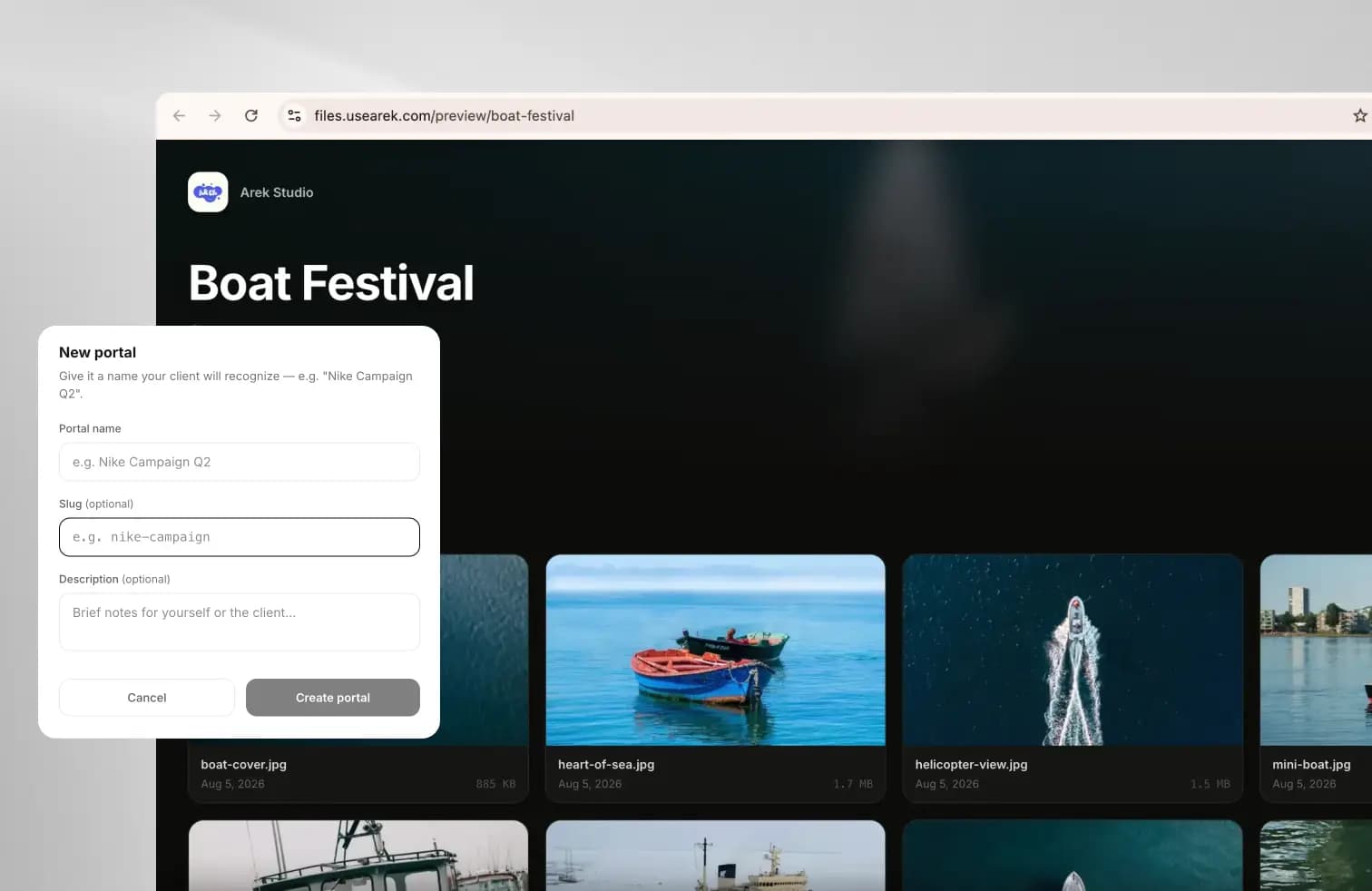
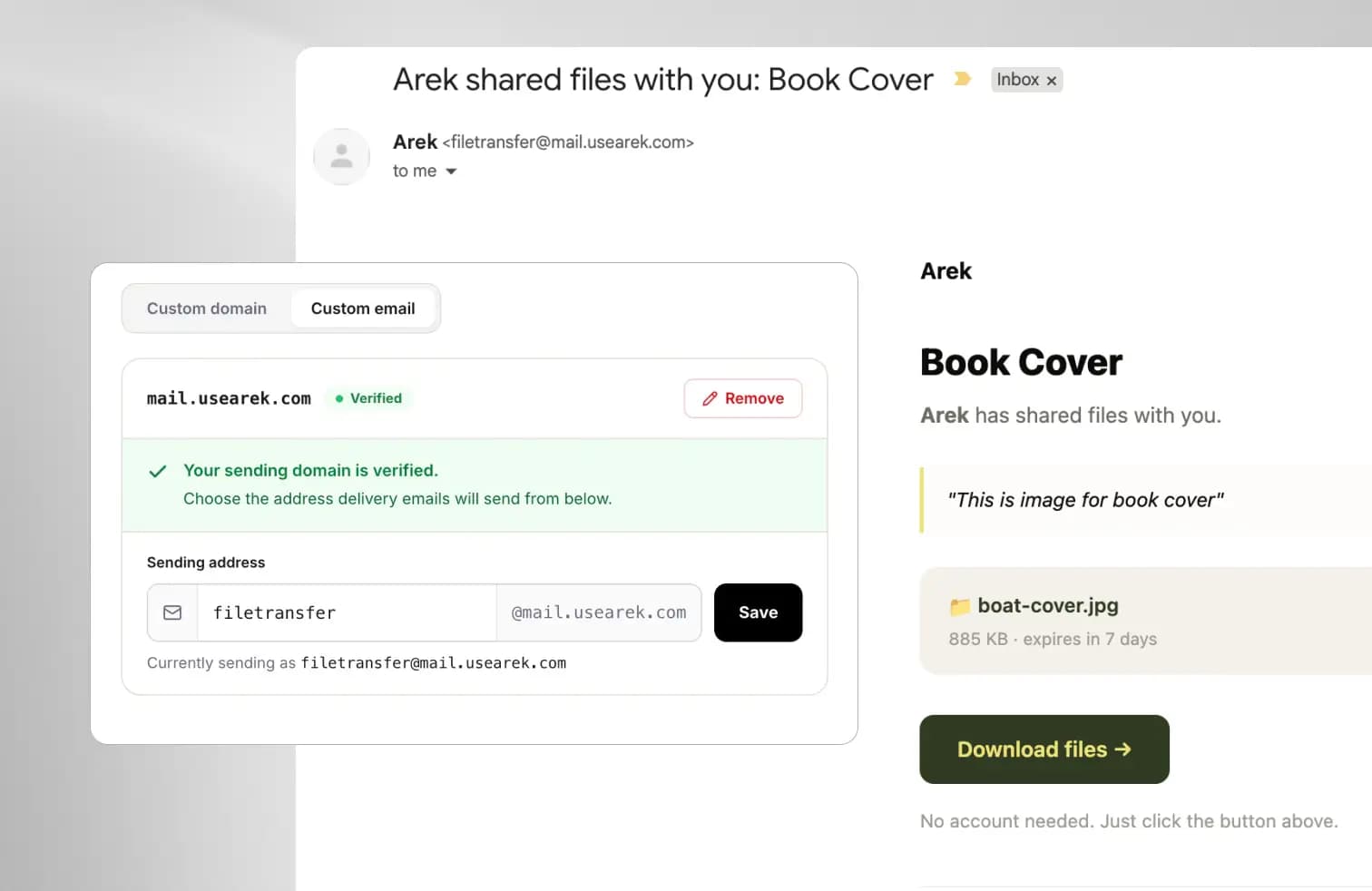
Your delivery page carries your logo. Your link reads files.yourstudio.com. Then the email that tells your client it's ready arrives from notifications@trunktransfer.com, and the one part of the handoff your client reads first, their inbox, still says someone else's name.
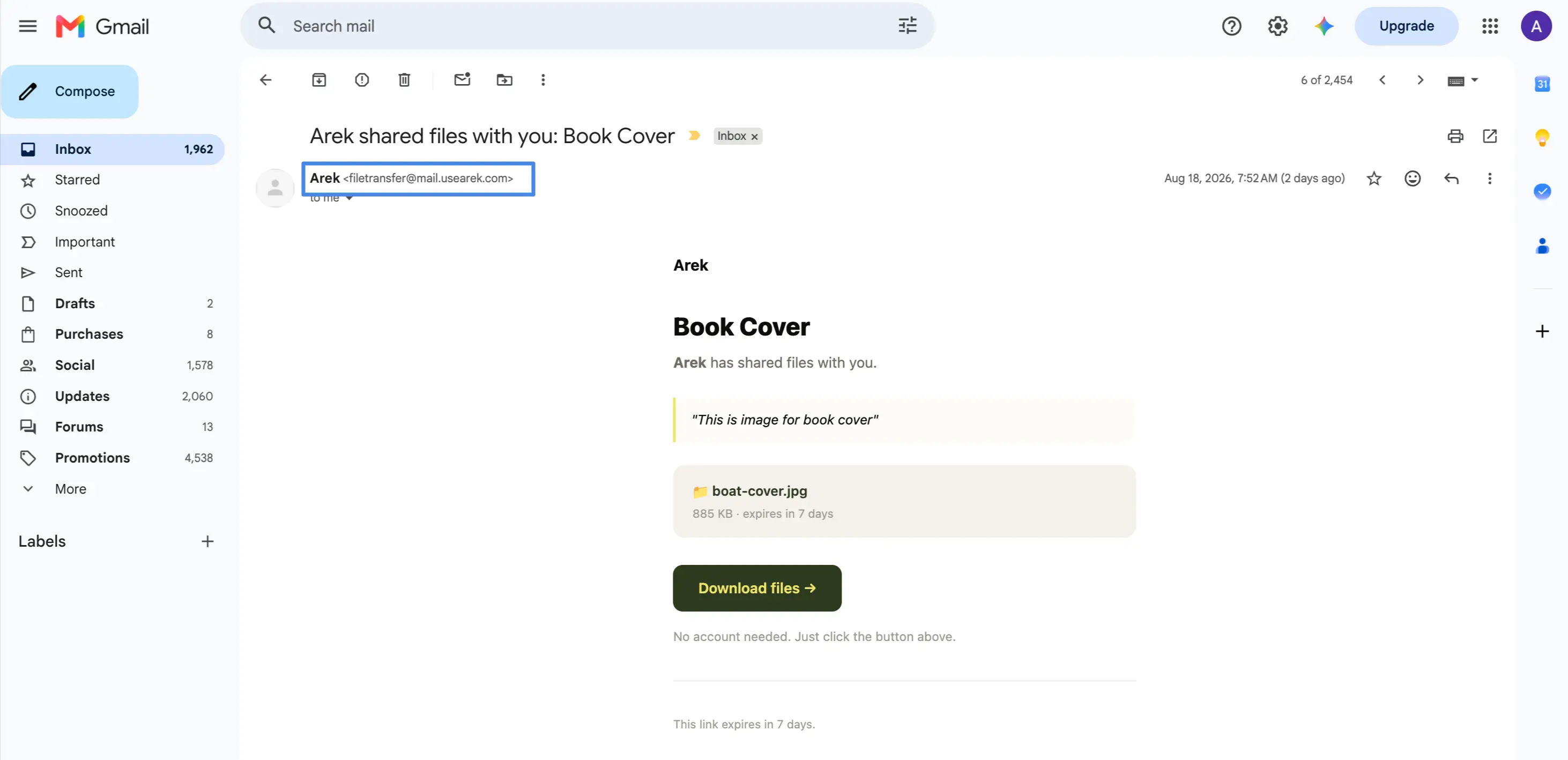
Why this matters: most clients see the email notification before they ever click through to the delivery page. If that email comes from a third-party address, the branded page they land on next is undercut by the sender name they already saw.
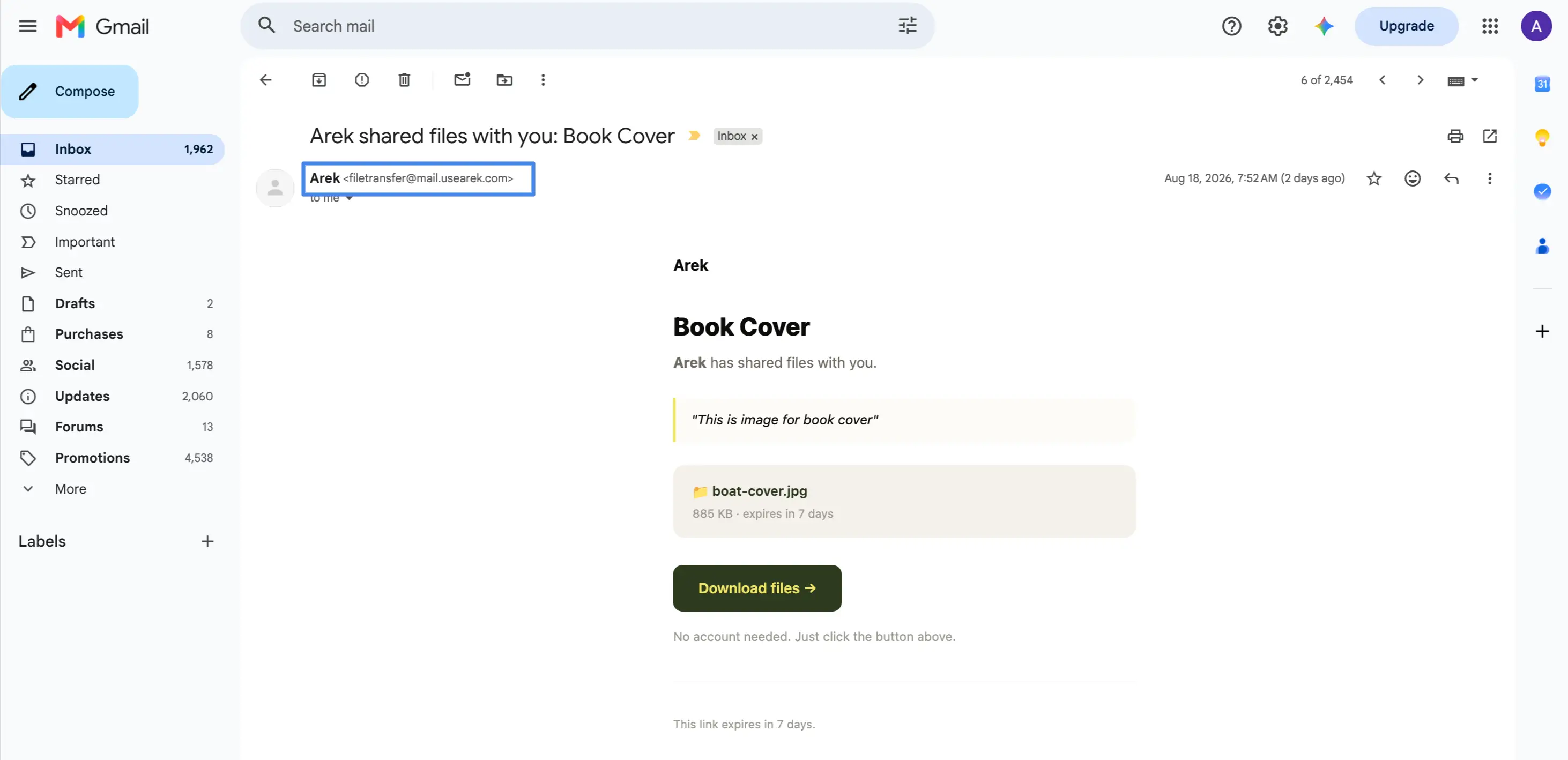
That gap is closed. Custom email notifications let every delivery email, portal share, and upload confirmation send from your own domain, so your client's inbox shows delivery@yourstudio.com, not TrunkTransfer.
Here's what's included:
- Delivery emails sent from your domain, so the notification matches the branded page it links to
- Portal shares and upload confirmations also send from your address, not just delivery emails
- Choose the exact sending address, e.g.
delivery@yourstudio.com,hello@yourstudio.com, whatever fits your brand - Connect an apex domain or subdomain,
yourstudio.comormail.yourstudio.com, whichever you'd rather use - Automatic DNS verification, checked every 30 seconds until it's live, no manual recheck
- Available on Pro plan
More detail in our changelog.
Why the sending address matters as much as the page
A branded delivery page only does half the job if the email announcing it comes from somewhere else. Clients decide whether to open an email, and whether to trust the link inside it, based on the sender name before they see anything else. notifications@trunktransfer.com tells a marketing manager this came from a file transfer vendor. delivery@yourstudio.com tells them it came from you.
This is the same principle behind branded file transfer applied to the inbox instead of the browser: the client-facing touchpoints of a delivery, the link, the page, and now the email, should all read as yours, not the vendor's.
Set it up in three steps
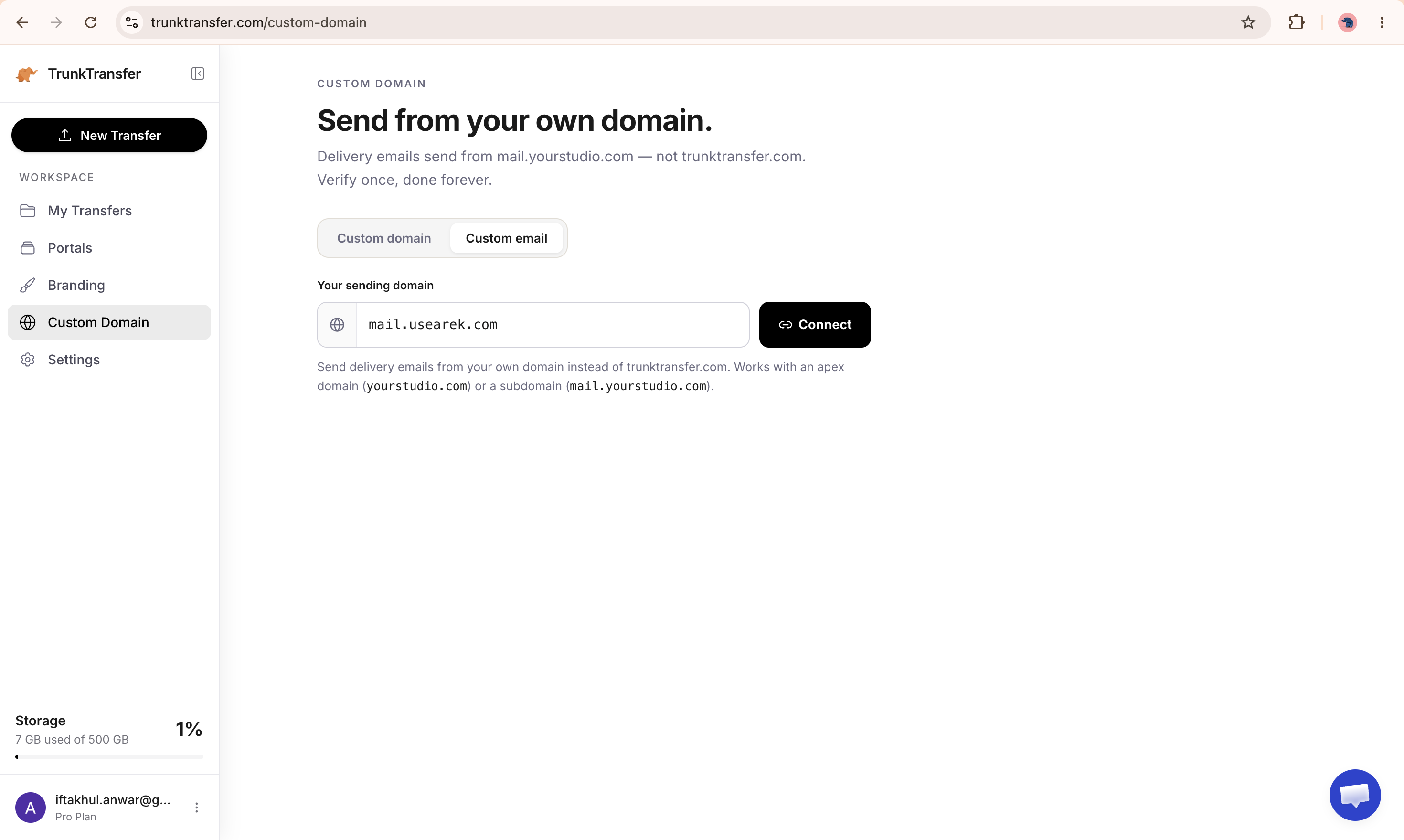
1. Add your sending domain
Go to Custom Domain in the sidebar and enter the domain or subdomain you want delivery emails to send from.
2. Add the DNS records
TrunkTransfer generates the DNS records you need. Copy them into your domain provider's dashboard, the same place you manage your website's DNS.
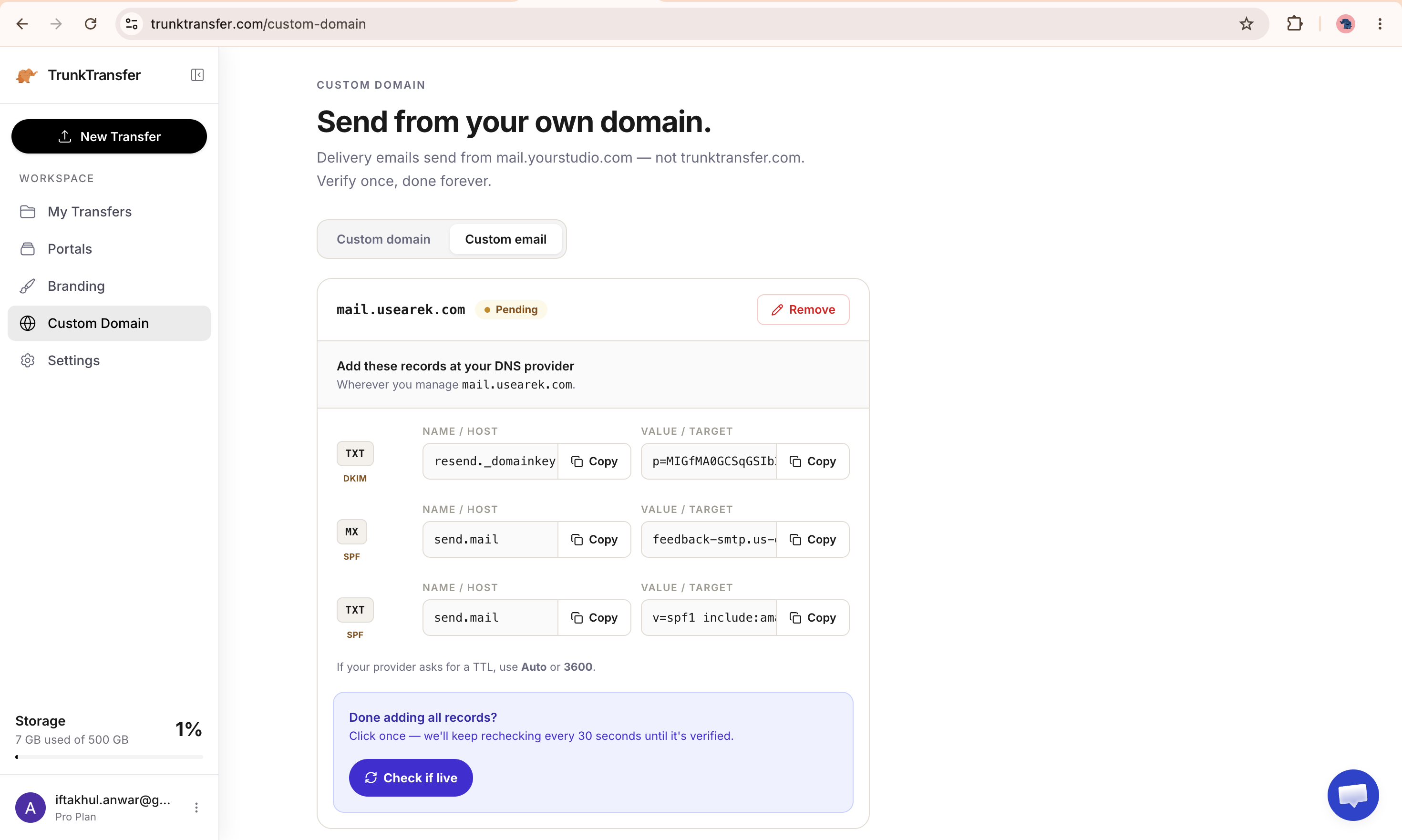
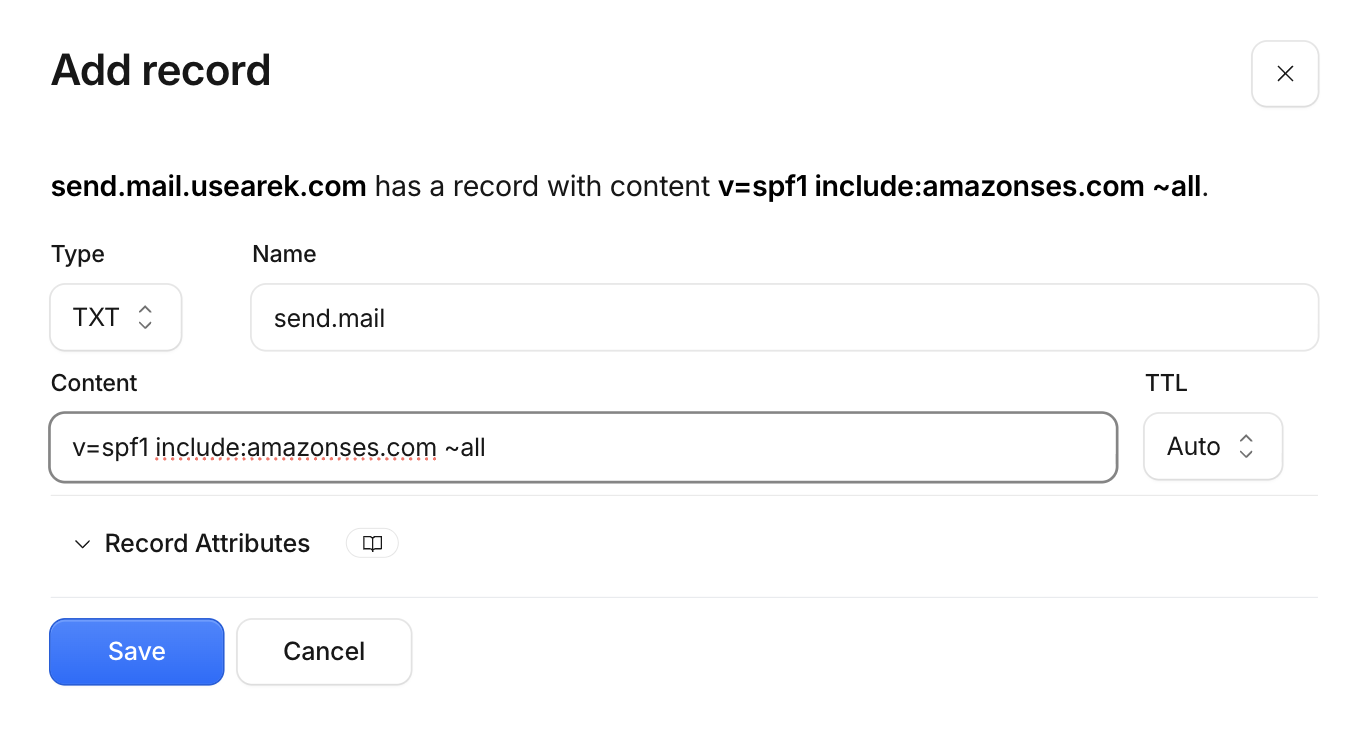
TrunkTransfer checks verification automatically every 30 seconds, so there's no manual recheck button to hunt for. You just wait.
3. Pick your sending address and you're done
Once your domain is verified, choose the exact address delivery emails will send from, delivery@yourstudio.com, hello@yourstudio.com, whatever matches how you'd sign an email yourself.
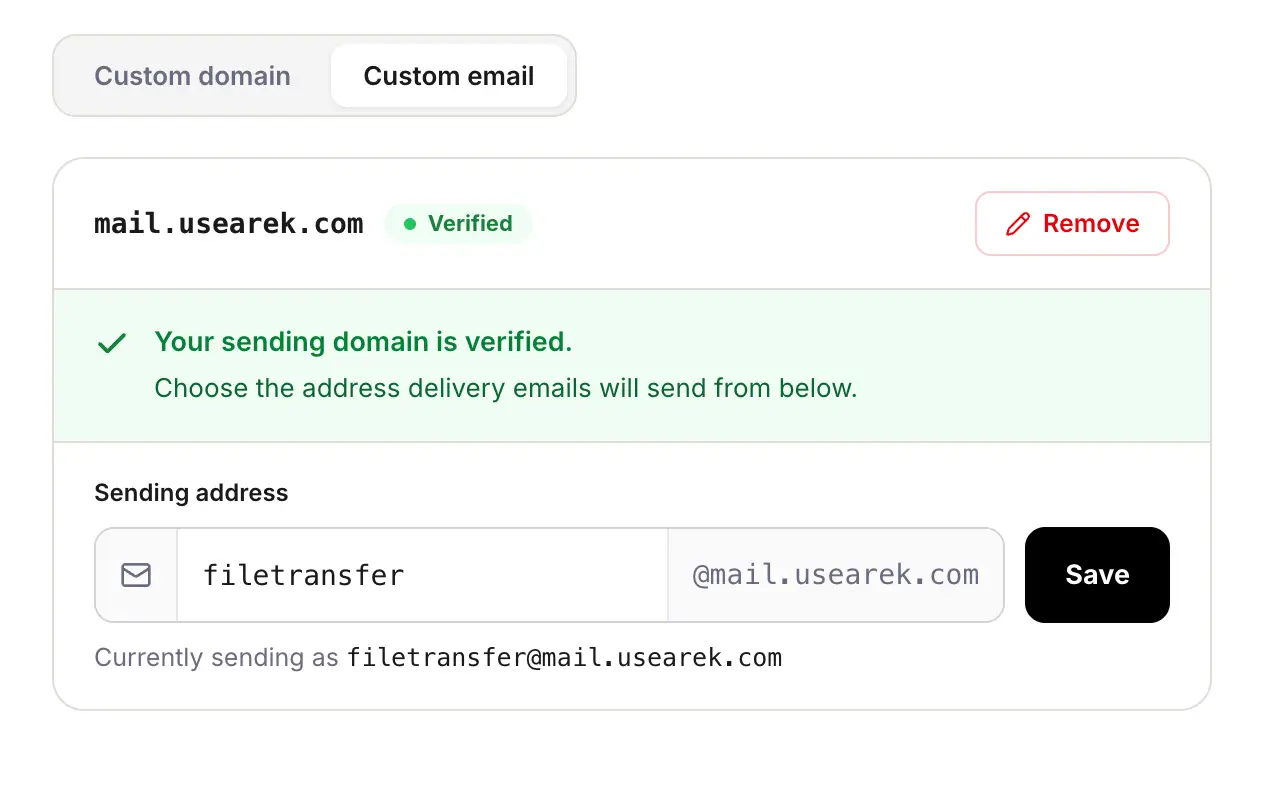
You'll get a confirmation email the moment your domain goes live, so you know delivery notifications are sending from your address without having to test one yourself.
Get started with custom email notifications
Custom email notifications are available now on Pro. If you're already on Pro, the setup is live under Custom Domain in your account, most of it spent waiting on DNS to propagate.
FAQ
What email address do delivery notifications come from by default?
By default, delivery emails, portal shares, and upload confirmations send from notifications@trunktransfer.com. Custom email notifications let you replace that with an address on your own domain.
Do I need a developer to set this up?
No. It's the same kind of DNS record you'd add for a custom domain: copy the values TrunkTransfer generates into your domain provider's dashboard. Most providers make this a copy-paste operation.
Can I use a subdomain instead of my main domain?
Yes. You can connect either an apex domain (yourstudio.com) or a subdomain (mail.yourstudio.com), whichever you'd rather use for sending.
Which plan includes custom email notifications?
Custom email notifications are available from the Pro plan. Compare plans.
How long does DNS verification take?
TrunkTransfer checks your DNS records automatically every 30 seconds until they resolve. Propagation itself typically takes a few minutes to an hour depending on your provider. You'll get an email the moment it's verified.
Does this replace the custom domain for delivery pages?
No, they're separate. A custom domain for delivery pages controls what files.yourstudio.com shows to clients. Custom email notifications control what address delivery emails send from. Most businesses set up both together, but they're independent settings.
What happens to emails sent before I connect a custom domain?
Nothing changes retroactively. Once your custom sending domain is verified and you pick an address, new notifications send from it. Anything already sent stays as it was.
Custom email notifications are live now on Pro. The inbox is the first thing your client sees, and now it reads like you sent it, because you did.