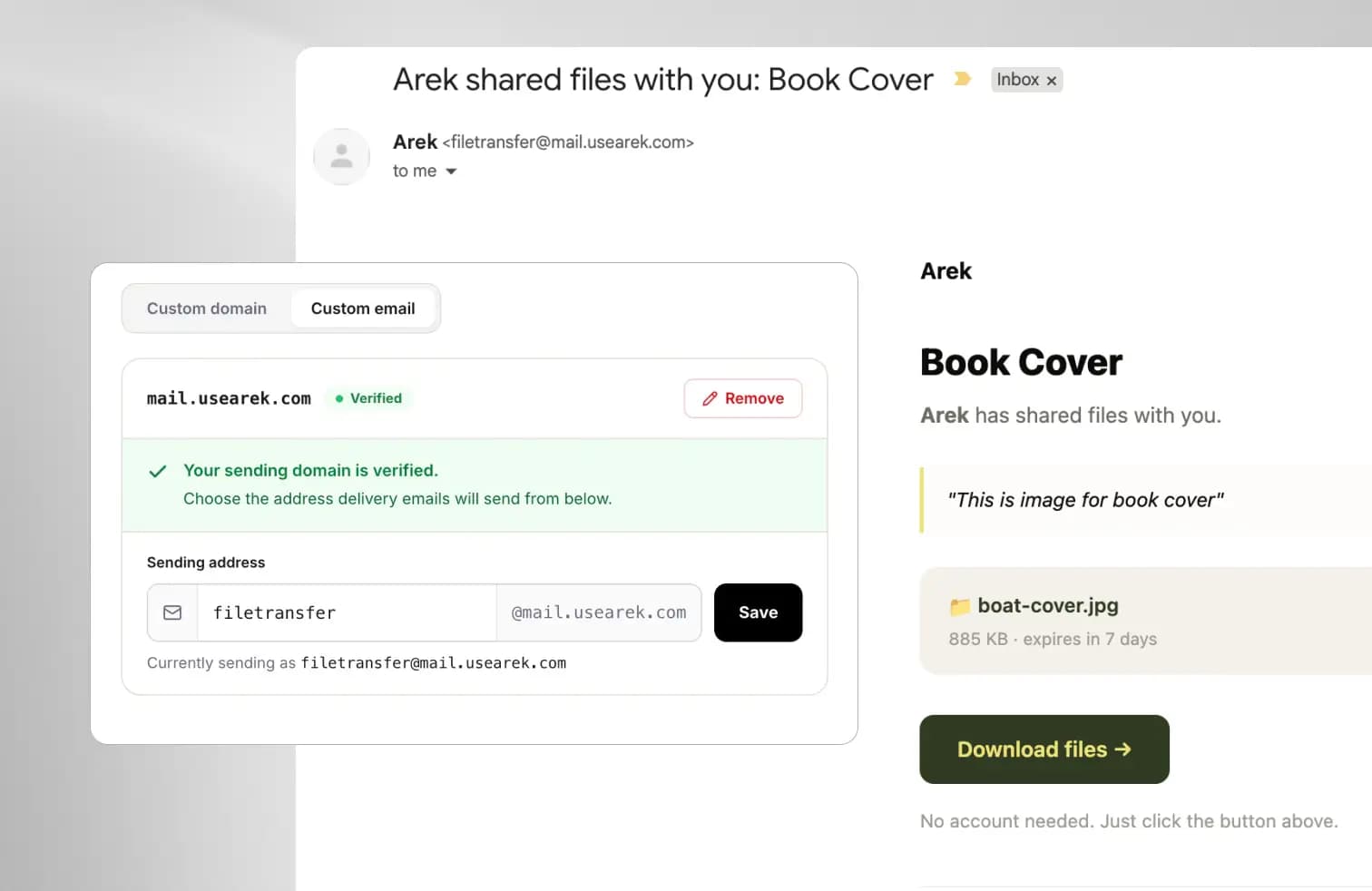
You've set up your custom domain. Your logo is on the delivery page. The client opens the link and sees your studio, not ours. Everything about the handoff looks like you, except one thing: the link still ends in x7j2k9.
First, what's a "slug"? It's just the readable bit at the end of a web link. In
trunktransfer.com/d/nike-shoes, the slug is thenike-shoespart. Every link has one; normally it's a random string of letters and numbers. This feature lets you write your own instead.
That's the last random detail in an otherwise branded experience, and today it's gone. Custom link slugs let you replace that random string with something a client will actually recognize, so your delivery link reads trunktransfer.com/d/nike-shoes instead of trunktransfer.com/d/x7j2k9. On your own domain, it becomes files.yourstudio.com/d/nike-shoes: your domain, your slug, no random characters anywhere.
Here's what's included:
- Custom slugs on transfers so every delivery link can read like the project it carries
- Custom slugs on client portals so each client gets a link they recognize at a glance
- Custom slugs on file requests so the upload link you send reads
trunktransfer.com/r/nike-shoot - A live availability check that confirms your slug is free the moment you type it
- Full custom-domain support so slugs apply to
files.yourstudio.comautomatically - Available on the Pro plan
More detail, read our changelog
Name your transfers, not just your files
When you create a new transfer, you'll see a custom slug field right next to the delivery title. Type a name that matches the project, like acme-rebrand, and the delivery link becomes trunktransfer.com/d/acme-rebrand.
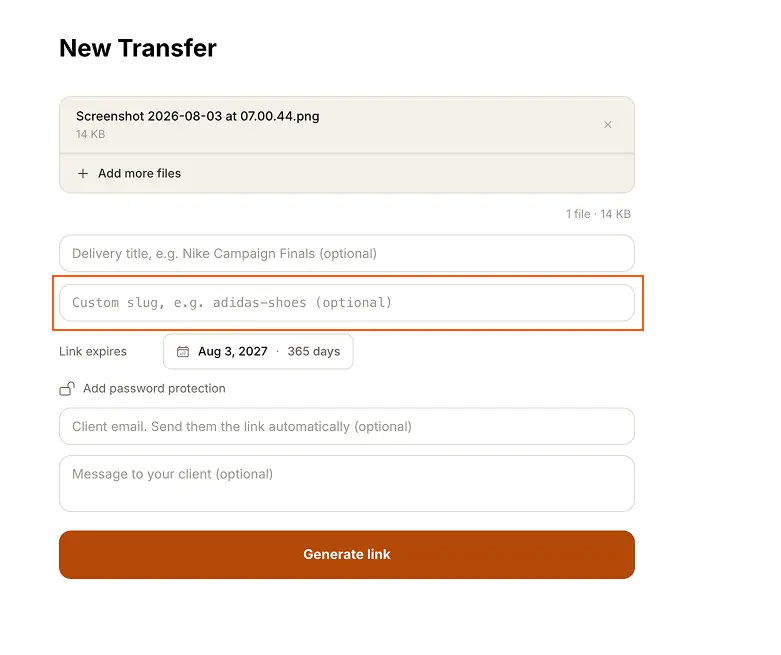
Leave the field blank and Trunk generates a random slug exactly as before. Custom slugs are always optional, on every link, so nothing changes about your workflow unless you want it to.
The difference lands on the client's side. A link that reads acme-rebrand tells them what it is before they click. A random string tells them nothing, and to a cautious client, an unfamiliar link with a random ID can even read as spam. A readable slug on your own domain looks deliberate, because it is.
Give every client portal a name they'll remember
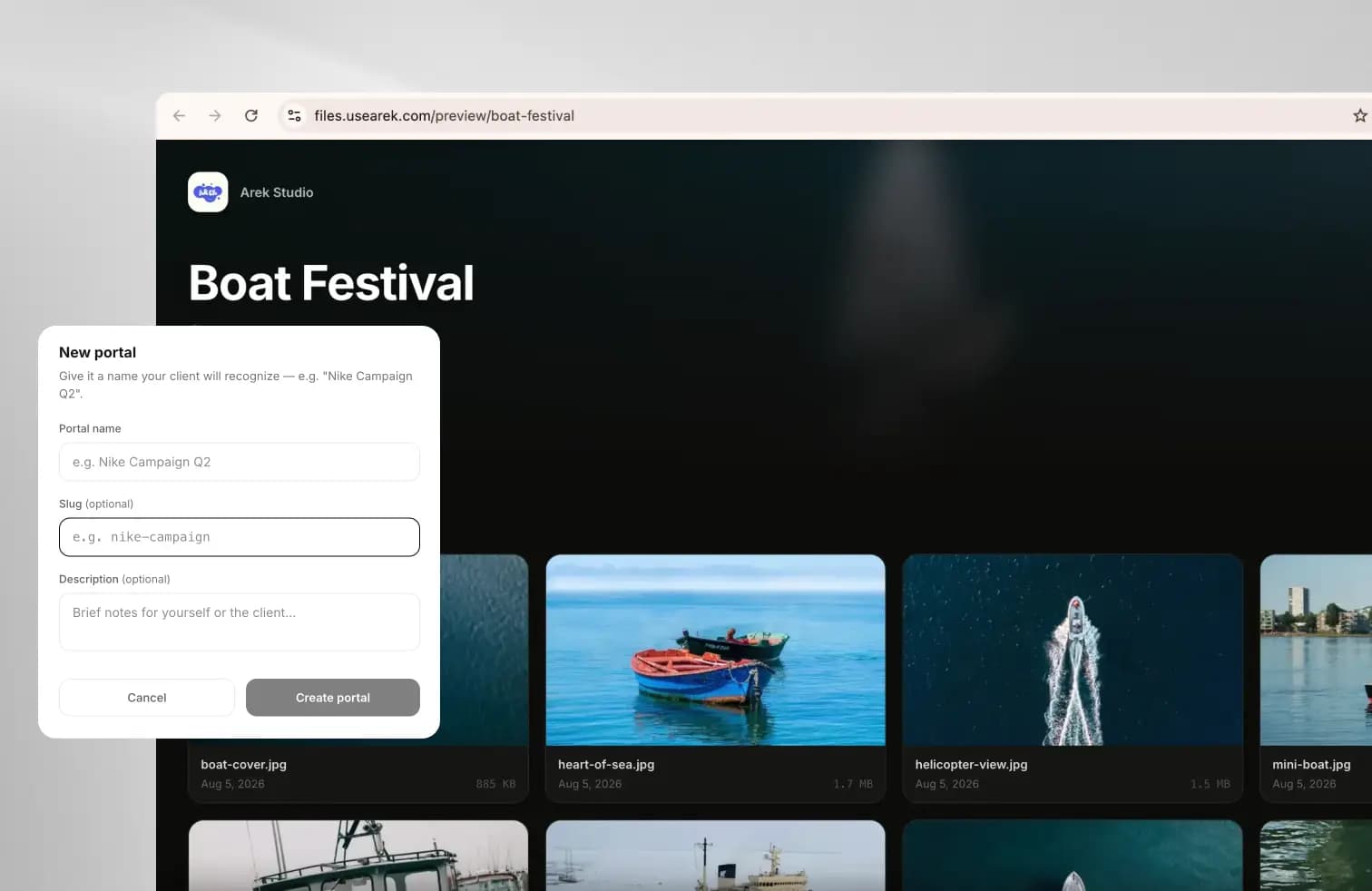
Client portals already give each client one permanent link that collects every delivery you've sent them. Now that link can carry a name instead of a random ID.
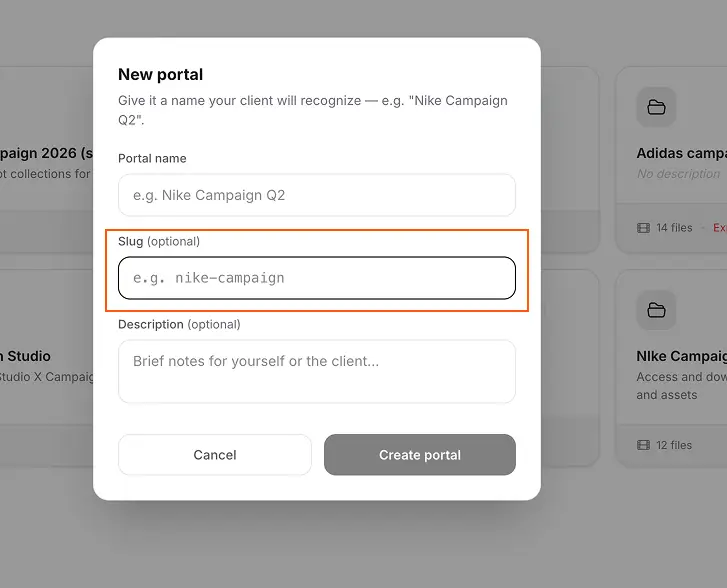
When you create a portal, the same custom slug field appears. Set it to nike-campaign and the client bookmarks a link they'll recognize every time they open it, rather than a string of characters they have to trust. Because a portal URL is permanent and the client returns to it throughout a project, a readable portal slug is one of the most worthwhile places to set one.
Even your upload links look considered
Custom slugs aren't just for sending. When you request files from a client, the upload link you send them can use a custom slug too, so it reads trunktransfer.com/r/nike-shoot instead of a random string.
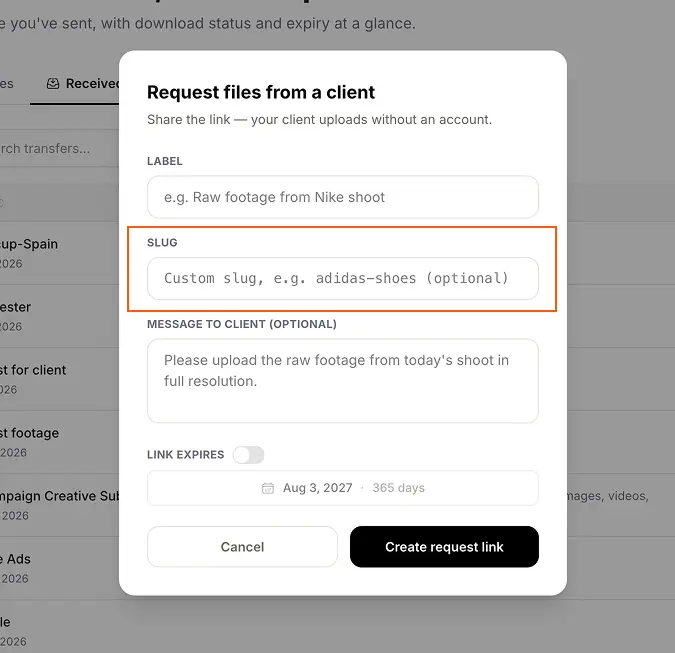
It's a small thing, but it means the request to send you raw footage or brief materials looks as considered as your final delivery. The whole round trip, what they send you and what you send back, stays on brand.
Confirmed available, as you type
Every slug on your account is unique, so as you type, Trunk checks availability in real time and tells you immediately: Available, or Already in use, try a different slug. No saving a transfer only to find the name is taken.
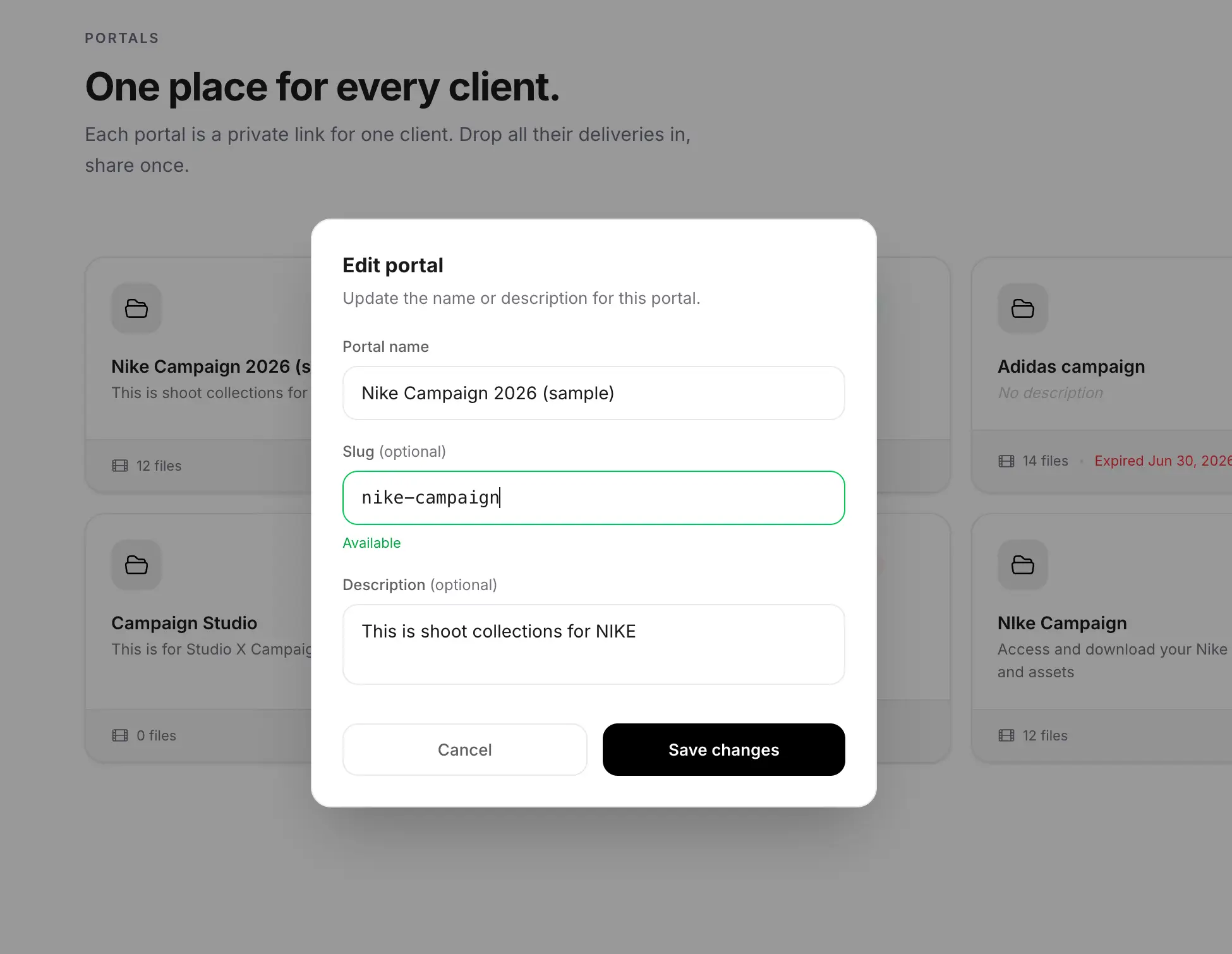
Slugs are lowercase letters, numbers, and hyphens, between 3 and 100 characters. Short and readable beats long and descriptive: smith-wedding is clearer at a glance than a full sentence.
Works with your custom domain, automatically
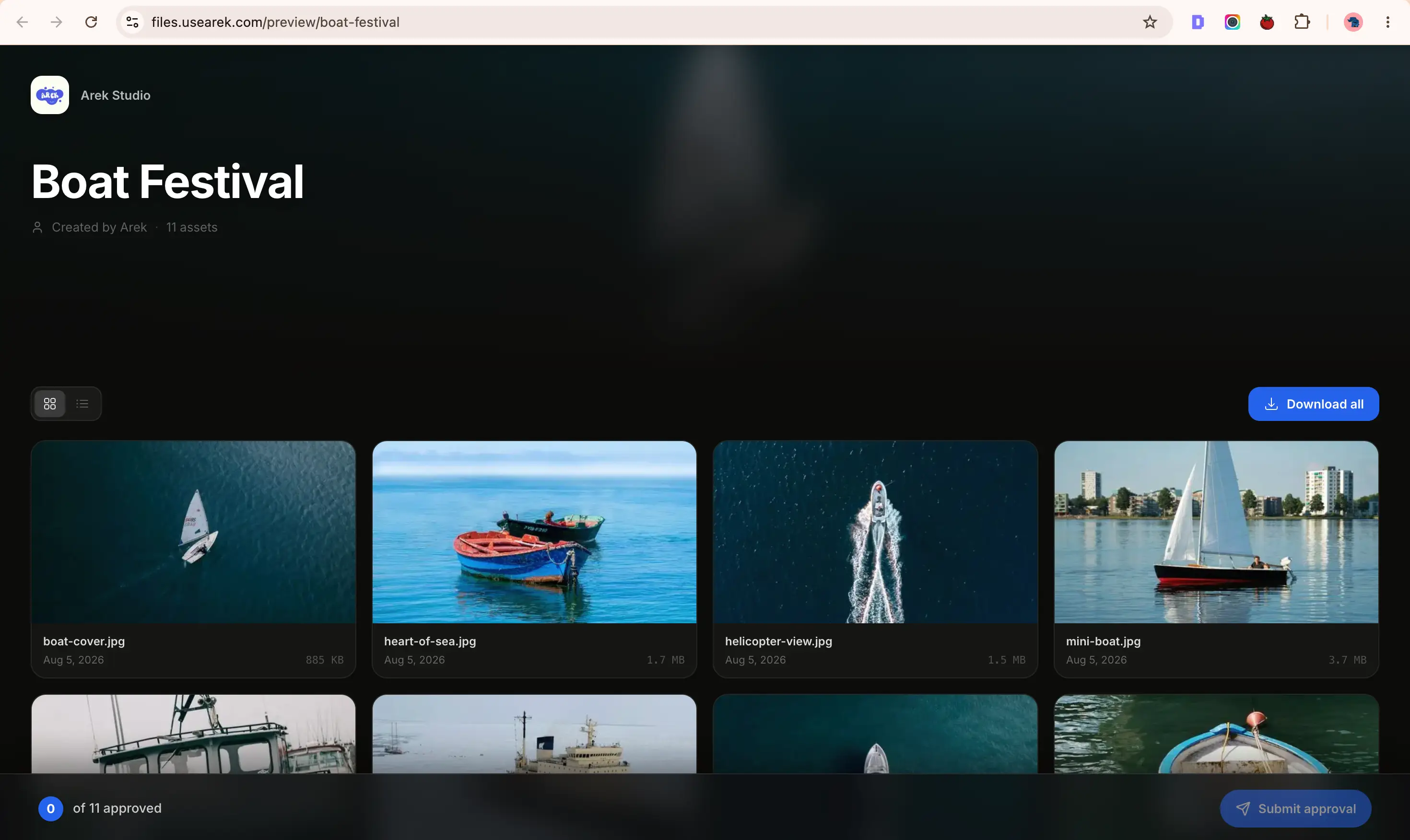
If you've already connected a custom domain, custom slugs apply there with no extra setup. A transfer named nike-shoes on the domain files.yourstudio.com produces:
files.yourstudio.com/d/nike-shoes
This is the fully branded result, and the reason we built this feature. Your domain, your slug, and nothing that says TrunkTransfer or reads like a machine generated it. For a client-facing delivery tool, the link itself is part of the brand, and now every character of it is yours.
Get started with custom link slugs
Custom link slugs are available on the Pro plan. If you're already on Pro, the custom slug field is live now on the New Transfer form, the New Portal modal, and the Request Files modal. Just start typing.
On the Starter plan, links continue to use a random slug. If you want branded, readable links across your transfers, portals, and requests, you can upgrade to Pro any time from your pricing page.
FAQ
What is a link slug?
The slug is the readable part at the end of a URL. In trunktransfer.com/d/nike-shoes, the slug is nike-shoes. By default Trunk generates a random one; custom slugs let you set your own.
Where can I use custom slugs?
Everywhere Trunk generates a link: transfers (/d/), client portals, and file requests (/r/). If you've connected a custom domain, slugs apply there too.
Do I have to set a slug for every link?
No. The field is always optional. Leave it blank and Trunk generates a random slug, exactly as before. Set one whenever you want a readable link.
Can two links share the same slug?
No. Each slug is unique across your account, and the live availability check stops you from picking one that's already in use.
Can I change a slug after I've sent the link?
The slug is part of the link's URL, so changing it changes the link. If a client already has the link, changing the slug would break their version. Set the slug before you send.
Which plan includes custom link slugs?
Custom link slugs are a Pro plan feature. Starter links use a random slug. Compare plans.
Do slugs work with password protection and expiring links?
Yes. A custom slug only changes the readable part of the URL. Password protection, link expiry, and every other delivery setting work exactly the same.
Custom link slugs are live now for Pro users. It's the last random detail in the delivery experience, made yours.